




Mako
Alat yang kamu pakai setiap hari, cukup sekali klik.
Selesaikan 13 pekerjaan editing sehari-hari, masing-masing dengan satu klik. Adjustment layer, color matte, freeze frame, nest dan unnest, paskan ke frame, dan pemeriksaan QC sebelum ekspor. Gratis untuk diunduh dan disimpan, termasuk pembaruan.
 Premiere Pro 2021 dan yang lebih baru
- Windows dan Mac
- Tanpa license key

- Tanpa kartu
- Unduhan langsung
Mako
Dibuat oleh orang-orang yang mengajarkan Premiere Pro.
700+ tutorial dan ribuan komentar menunjukkan apa yang memperlambat editor. Jadi kami membuat tools yang kami inginkan sebagai editor: simpel dan tanpa ribet.
Tonton tutorialnya- 200K+editor memakai tools kami
- 30M+tayangan tutorial YouTube kami
- 90K+pengikut di media sosial
- 37K+editor di komunitas Discord kami
Tanpa akun. Tanpa kunci lisensi.
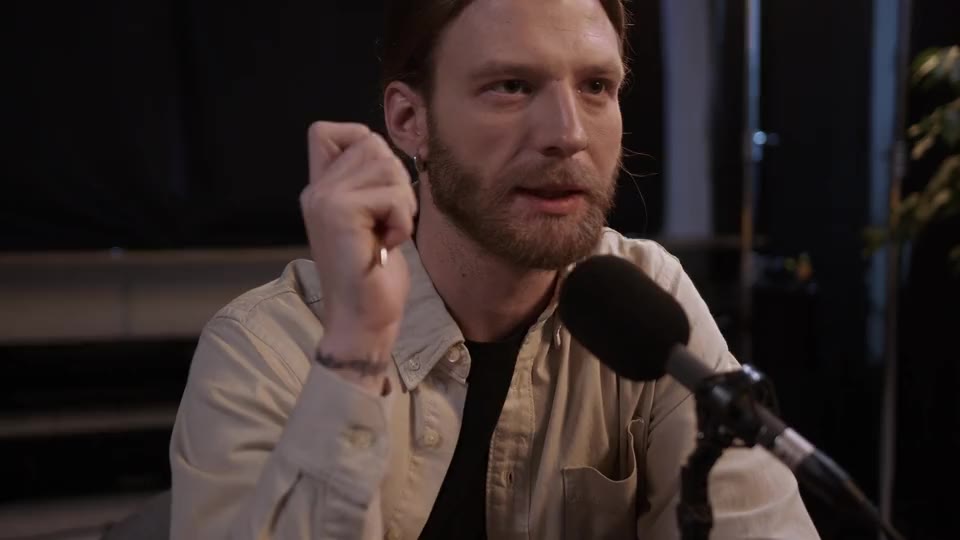

Transparency grid
Cek hasil cutout-mu dengan sekali klik.
Tool sekali klik, dari adjustment layer sampai QC.
Sequence baru, pengaturan sama
Satu tombol untuk setiap tool

Premiere Pro 2021 dan lebih baru
Adjustment Layer
One click. One adjustment layer.
Click Adjustment Layer and a new one lands over your selected clips, cut to exactly their length. With nothing selected, you get five seconds at the playhead.
- Over your selectionOr five seconds at the playhead.
- ⇧ clickEach clip gets a layer of its own.
- ⌘ clickA short 0.4 s layer on every cut. Ctrl on Windows.
Color Matte
Pick a color. Get a matte.
Premiere Pro’s Color Picker opens at once. Click OK and the matte lands on a free track.
- No menusOne click instead of File, New and two dialogs.
- Over your selectionOr five seconds from the playhead.
- Never overwritesIt goes on the first free track above.
New Sequence
A new sequence. Same settings.
One click makes an empty sequence with the open one’s frame size and frame rate. A 1080 x 1920 sequence at 30 fps gives you another 1080 x 1920 at 30 fps.
- Named in orderSequence 01, Sequence 02 and on.
- No presetsNothing to scroll through or set.
- Any formatVertical, 4K or anything else.
Nest
Nest it. No dialog.
Select clips and click Nest. They move into a new sequence, right where they were.
- In placeThe nest takes the clips’ spot.
- Named for youNested Sequence 01, 02 and on.
- And backUnnest puts the clips back on the timeline.
Staircase
Stack your clips. In one click.
Staircase puts the selected clips each one track higher than the last, in time order.
- UnstaircaseBrings them back down to one track.
- Times stayClips only move up or down, never in time.
- Tracks addedWhen there are too few, Mako adds them.
Delete Empty Tracks
Empty tracks? Gone.
One click removes every empty track. No dialog to click through.
- Video and audioEvery empty track goes.
- Clips stayAny track with something on it is kept.
- No dialogPremiere Pro’s Delete Tracks, without the steps.
Unnest
Unnest in one click.
In Premiere Pro, unnesting takes four manual steps. Mako does it in place, in one click.
- In placeEvery clip back on its own track.
- Nothing lostEffects, keyframes, speed and linked audio are kept.
- SafeIf a clip can’t be rebuilt, the nest stays as it is.
Waktu terhemat
Sedikit langkah. Banyak editing.
Pekerjaan yang kamu ulang seharian, jadi satu klik saja.
-
Adjustment Layer
-
Color Matte
-
Freeze Frame
-
Unnest
-
Delete Empty Tracks
-
Nest
Di Premiere, manual Dengan Mako
Freeze Frame
Freeze a frame. Keep the clip.
The clip holds the playhead’s frame in place, with no new layer.
- ⇧ clickFreezes just 3 seconds from the playhead.
- Nothing else changesThe clip keeps its place, length and effects.
- Mixed frame ratesHolds the right frame in any sequence.
Fit to Frame
Fit the frame. Or fill it.
Fit to Frame scales the clip until the whole picture fits the frame, centered. A 4K clip in a 1080p sequence shrinks to fit. Shift-click fills the frame edge to edge instead.
- Selected clipsOr the clip under the playhead.
- ⇧ clickFills the frame edge to edge.
- CenteredThe shot moves to the middle.
Clear Effects
Start over. In one click.
Clear Effects removes every effect on the selected clips, Lumetri Color and audio effects too.
- Motion and OpacityBack to their defaults.
- Your choiceSettings can keep Motion and Opacity as they are.
- Many clipsEvery selected clip at once.
QC Check
Catch it before export.
One click closes empty gaps and marks every problem on the timeline.
- Gaps closedEmpty gaps close by themselves.
- Problems markedBlack gaps, offline media, switched-off clips and 1–2 frame clips.
- ⇧ clickClears the markers the last check added.
Transparency Grid
See what’s see-through.
One click shows the checkerboard behind your frame in the Program Monitor, and hides it again.
- Spot the gapsSee where nothing covers the frame.
- Check cutoutsTitles, mattes and keyed shots.
- No menusNormally it sits in the Program Monitor’s settings.
Click modes
One button. Three results.
Hold ⇧ or ⌘ as you click and the same button does more.

- Freeze Frame⇧ click freezes 3 seconds from the playhead.
- Fit to Frame⇧ click fills the frame.
- QC Check⇧ click clears its markers.
Keyboard shortcuts
Every button. Your keys.
Give any Mako button, and each of its extra clicks, a shortcut. Then fire it from the keyboard.
- Right-click a buttonChoose Keyboard Shortcut, or set them all in Settings.
- Press your keysA modifier and a key, like ⌥1, or an F key on its own.
- Use them in Premiere ProThey work whenever Premiere Pro is in front.
Settings
Your panel. Your way.
Show only the buttons you use, give each its own color, and lay the panel out the way you like.

- Colored buttonsTinted or solid, or no color at all.
- LayoutButton spacing, columns and Fill the panel.
- Hidden buttonsThey keep their shortcuts.
Tiga langkah. Satu klik.
Satu installer memasang Mako di Premiere Pro dan menjaganya tetap terbaru.
1Unduh Mako
Gratis. Tanpa akun, tanpa license key.
2Jalankan installer
Panel dipasang di Premiere Pro dan dijaga tetap terbaru.
3Klik satu tombol
Buka Window › Extensions › Mako dan klik sebuah tool.
Premiere Pro 2021 dan yang lebih baru · Windows dan Mac · Pembaruan terpasang otomatis
Lebih banyak beres. Tanpa bayar.
Mako dibandingkan dengan plugin toolbar lain untuk Premiere Pro.

Suka Mako? Beli bundle, hemat 15%
Kit Premiere lengkap.
- Number Counter Pro Angka beranimasi
- SuperGlow Glow premium
- EaseFlow Pro Easing mulus
- Asteria Pro Animasi teks yang halus
- BetterFX Semua efek, satu shortcut
- QuickPaste Clipboard pintar
- ClearFrame Pro Safe zones for every app



- Asteria ProAnimasi teks yang halus
- EaseFlow ProEasing mulus
- BetterFXSemua efek, satu shortcut
- SuperGlowGlow premium
- QuickPasteClipboard pintar
- Number Counter ProAngka beranimasi
- ClearFrame ProSafe zones for every app
Specifications
- Version
- 1.4.9 · November 21, 2026 What's new
- Premiere Pro
- 2021–2027 and Premiere Pro (Beta)
- Operating system
- Mac macOS 11 or later, Apple silicon and IntelWindows 10 and 11, 64-bit
- Languages
- English, Deutsch, Français, Español, Português (Brasil), 日本語, 한국어
- Keyboard shortcuts
- Works offline
- Price
- Free, no license key
- Updates
- Free and automatic
- Download
- Mac 775 KB · Windows 758 KB