



 by

Step 1: Write a short hook
- Three to six words.
- A question, a number or a promise: WAIT FOR IT, 3 MISTAKES, DON'T DO THIS.
- All caps in a heavy font.
Step 2: Place it in the safe zone
Put the title in the upper middle of the 9:16 frame, clear of the profile picture, buttons and description at the bottom. Make it big: the main word can fill most of the width.
Step 3: Pop it in on frame one
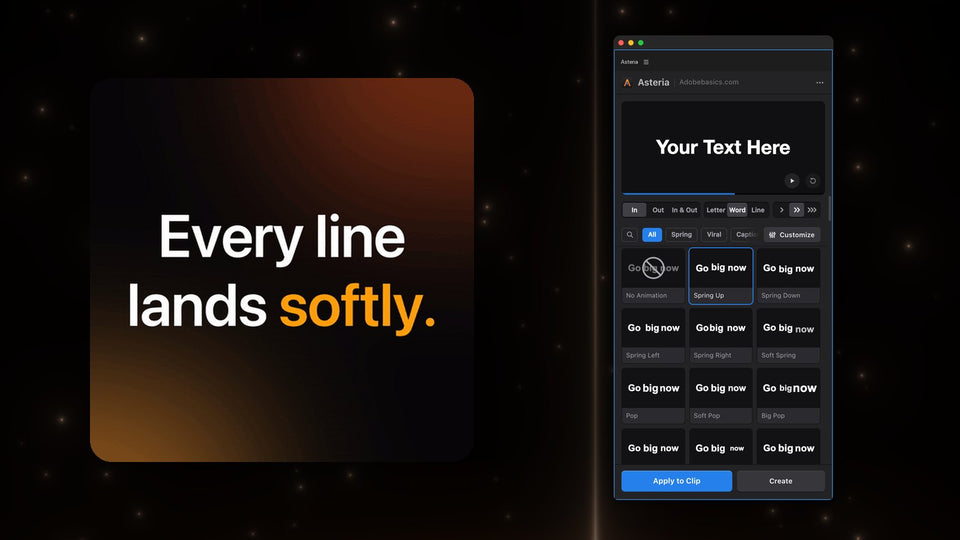
- Select the text clip and open Window › Extensions › Asteria.
- Pick Word, so each word lands on its own.
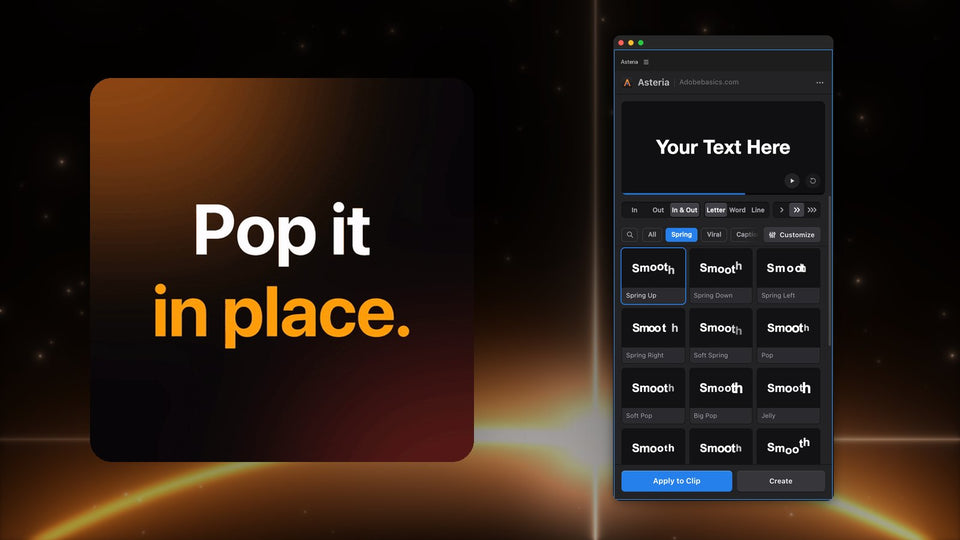
- Try Big Pop for a hit, Spring Up for a smooth bounce or Drop for a single word.
- Click a tile and press Apply to Clip.
Start the clip on the very first frame. Viewers decide in the first second, so the hook should already be moving when the video starts.

Step 4: Make the key word hit harder
Split the hook into two text clips: the setup in one, the key word in another. Give the key word a bigger animation like Big Pop or Jelly, and the setup a calm Spring Up. The contrast pulls the eye to the word that matters.
Step 5: Get out of the way
After two or three seconds, take the hook off with the Out part of In & Out and let your captions take over. For those, follow how to make viral captions in Premiere Pro.
The springs and pops in this tutorial are part of Asteria Pro ($79.99), with all 206 animations, word-by-word captions and custom animations, so every hook on your channel moves the same way. Asteria Standard ($69.99) has 40 essentials such as Slide, Fade Up, Scale Up and Typewriter, and can be upgraded to Pro later for $15.
Want hooks that stop the scroll? Get Asteria for Premiere Pro.