



 ~에 의해

Way 1: Keyframes, by hand
- Make a title with the Type tool and select the clip.
- In Effect Controls, open Motion and move the playhead to where the text should land.
- Click the stopwatch next to Position and Scale to set the end keyframes.
- Move the playhead about 10 frames earlier and move the text down and scale it to 0.
- Select the keyframes, right-click and choose Ease In and Ease Out.
This works for one simple move. For a smoother result, read how to ease keyframes in Premiere Pro.
Way 2: Templates
Motion Graphics Templates from the Essential Graphics panel come with their own text layers. Drag one onto the timeline and type your words into its fields. Templates are quick, but you retype every title inside them and redo your font and colors each time.
Way 3: One click on your own text
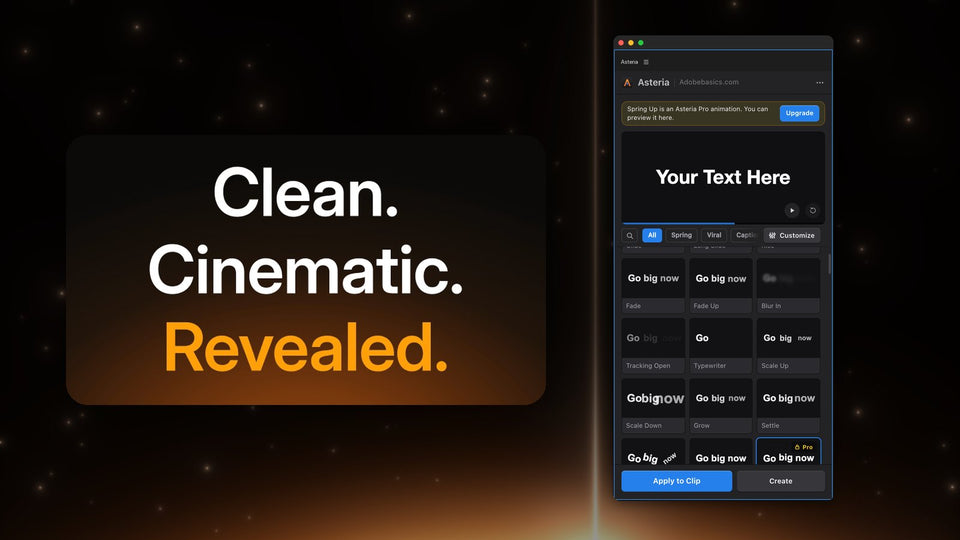
Asteria animates the title you already made, so nothing needs to be retyped:
- Select your text clip and open Window › Extensions › Asteria.
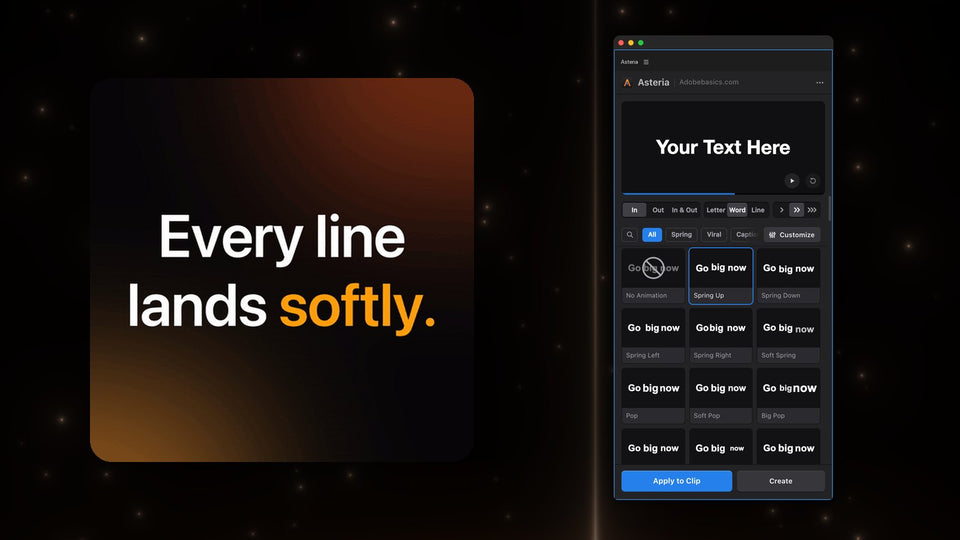
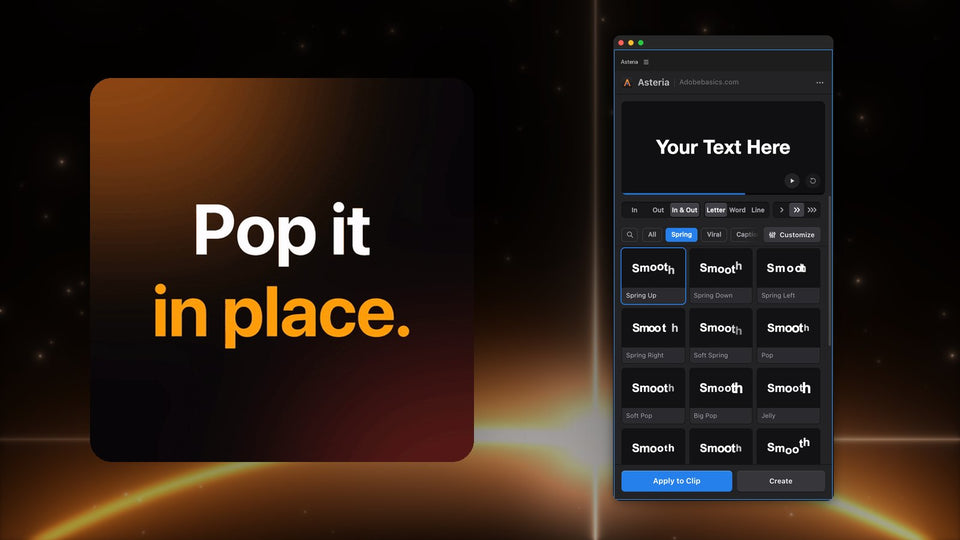
- Pick Letter, Word or Line, and In, Out or In & Out.
- Hover over the tiles to preview, click one and press Apply to Clip.
Each letter or word moves on its own, which is the part that takes the longest with keyframes. Want a new title instead? Press Create for an animated title on a new track.

Tips for smooth text animation
- Keep it short. Most entrances feel right between 10 and 20 frames.
- Overshoot a little. A small bounce past the end point and back feels alive; a straight move feels stiff.
- Stagger the parts. Letters or words that start a beat apart read as one smooth wave.
- Animate out too. A title that leaves with motion feels finished. Use In & Out for both.
- Pick one style per video. The same motion on every title makes an edit look designed.
Which way should I use?
Keyframes for one simple move, templates for a designed look you will reuse as it is, and a plugin when you animate many titles and want them by letter, word or line. Asteria Standard ($69.99) has 40 essentials such as slides, fades, blur, typewriter and scale. Asteria Pro ($79.99) has all 206, including springs, pops, captions and reveals, plus settings for Speed, Bounce and Stagger.
Want your titles to move in one click? Get Asteria for Premiere Pro.