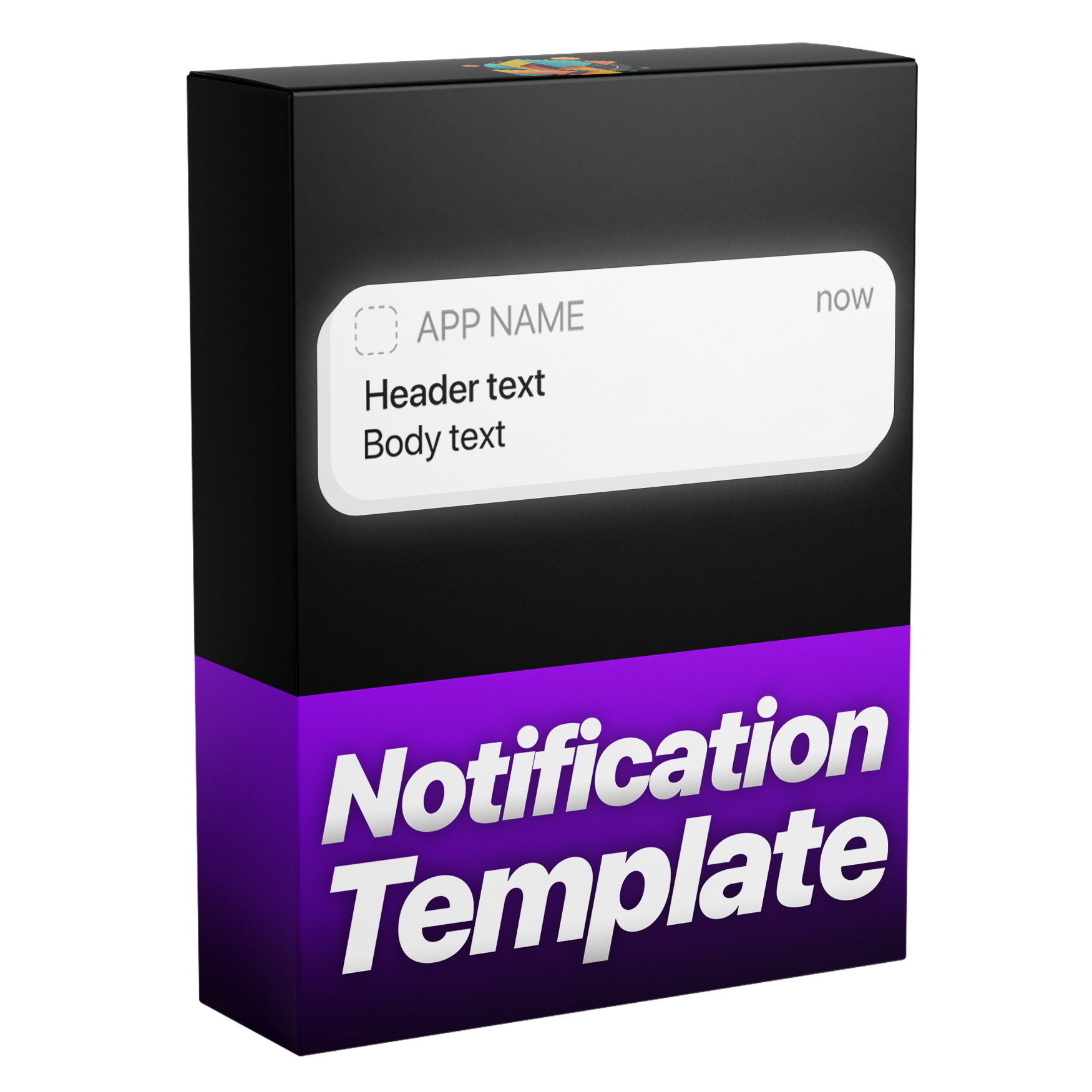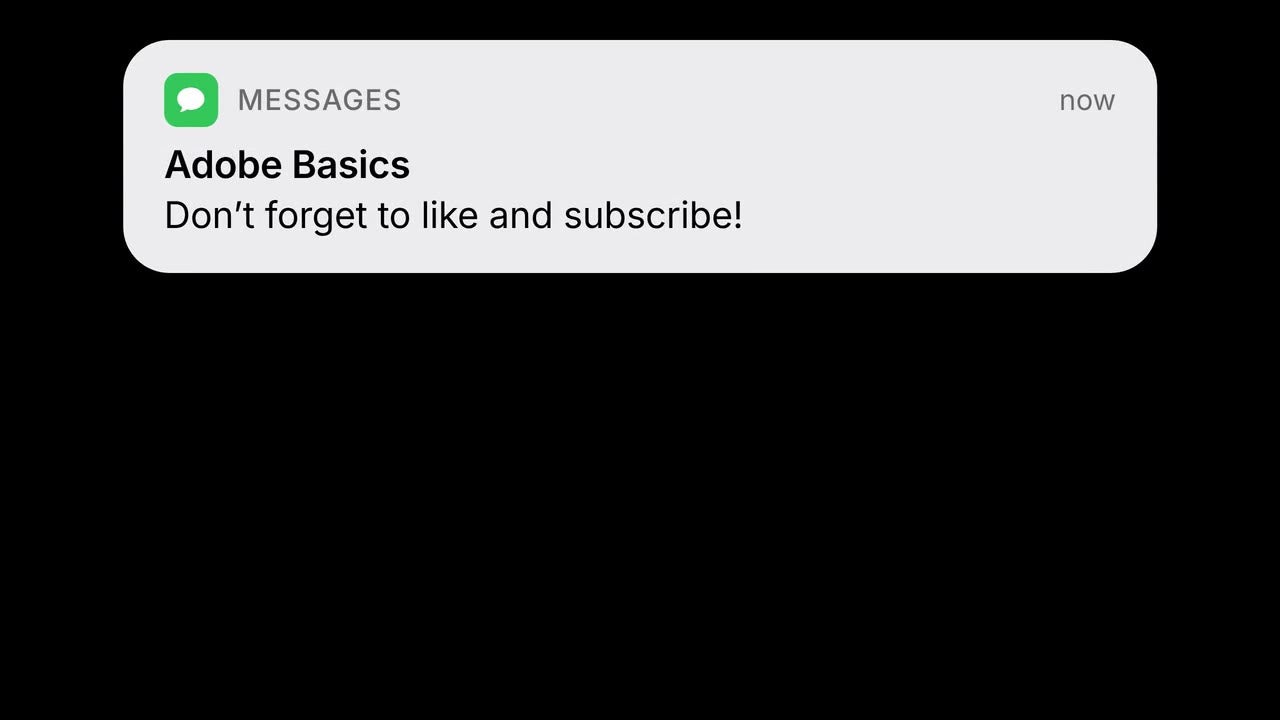


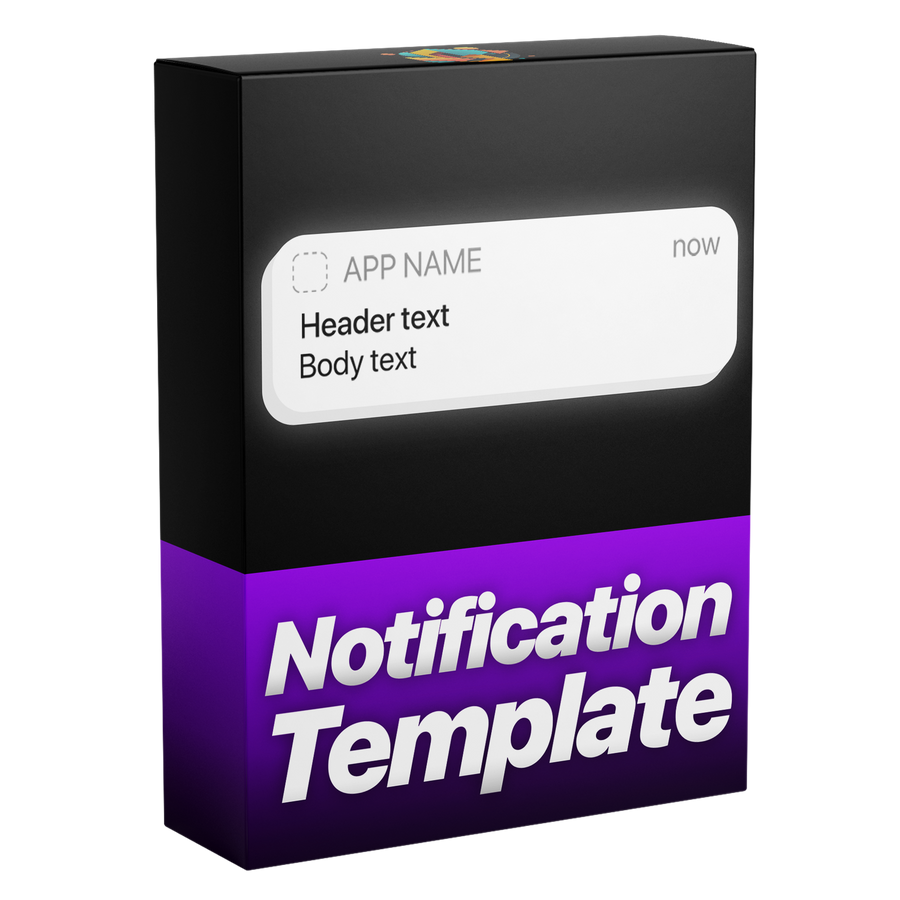
A frame made with Notification
Notification
진짜 같아요. 메시지는 직접 입력하세요.
실제 휴대폰에서 온 것처럼 보이는 알림을 추가하세요. 원하는 앱 아이콘을 넣고 직접 메시지를 입력하세요. 모션 블러와 함께 들어오고 나가며, 트림 길이에 맞춰지고, 라이트, 다크 또는 원하는 색상으로 쓸 수 있습니다.
Premiere Pro 2021–2027
- Windows 및 Mac
- After Effects 필요 없음
환불 보장 사용 중인 Premiere Pro에서 작동하지 않나요? 14일 이내에 문의해 주세요.

Notification
만든 사람은 Premiere Pro를 가르치는 저희입니다.
700개가 넘는 튜토리얼과 수천 개의 댓글이 편집자를 느리게 만드는 게 뭔지 알려줬어요. 그래서 편집자로서 원했던 도구를 만들었어요. 간단하고 번거롭지 않게.
튜토리얼 보기- 200K+명의 편집자가 사용 중
- 30M+회 YouTube 튜토리얼 조회수
- 90K+명의 SNS 팔로워
- 37K+명의 편집자가 Discord 커뮤니티에


실제 iPhone UI처럼 픽셀 단위까지 정확하게
컨트롤
Premiere Pro에서 만들고 수정하세요.
모두 기본 그래픽에서
원하는 색상
모든 편집을 위해.
Premiere Pro 2021–2027
플러그인 불필요.
핵심 기능.
-
애니메이션
진짜처럼 슬라이드해 들어와요.
모션 블러와 함께. 잠시 머문 뒤 슬라이드해 나가요.
-
나의 메시지
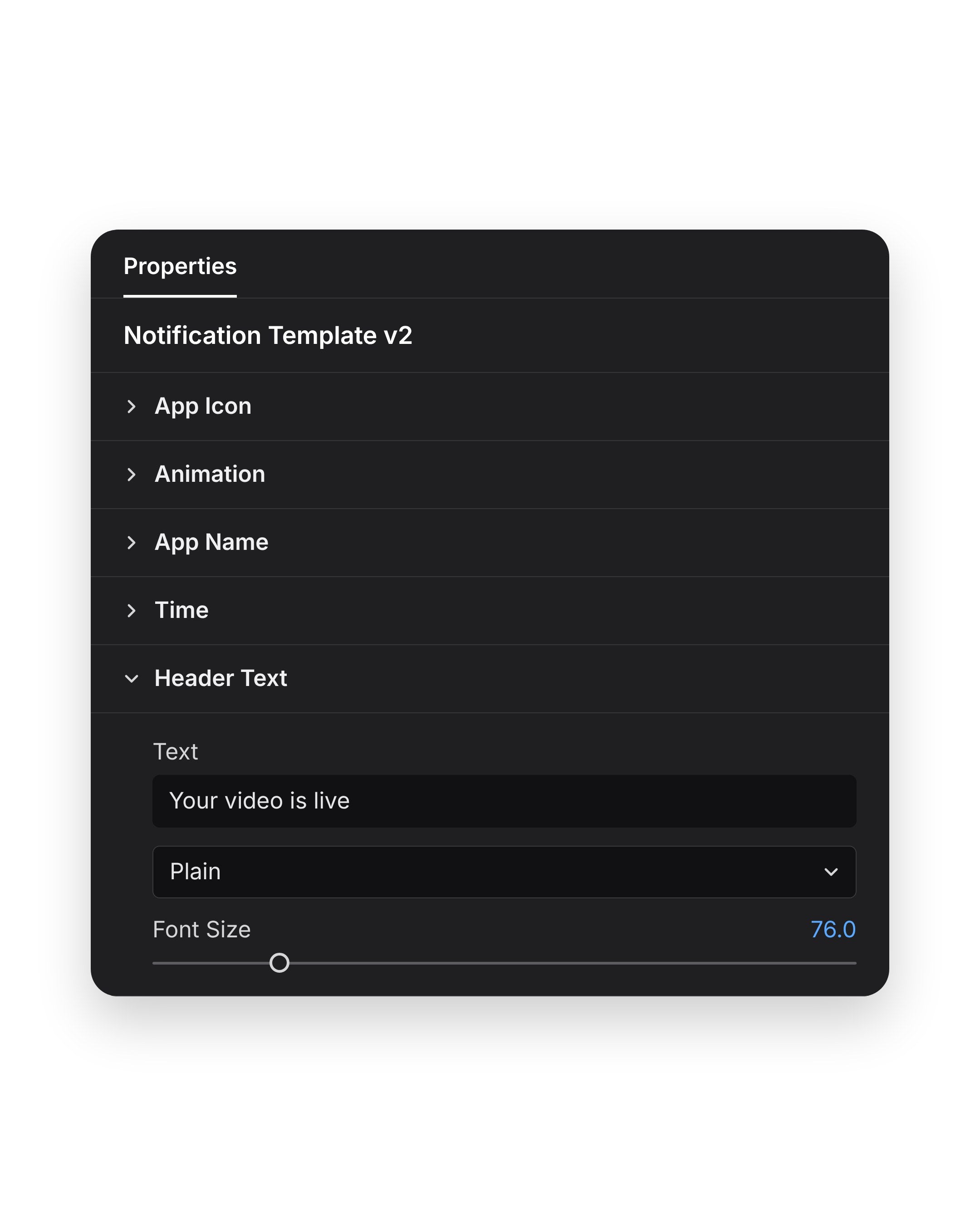
앱, 제목, 메시지를 입력하세요.
그다음 같은 패널에서 색상과 불투명도를 설정하세요.

-
나의 아이콘
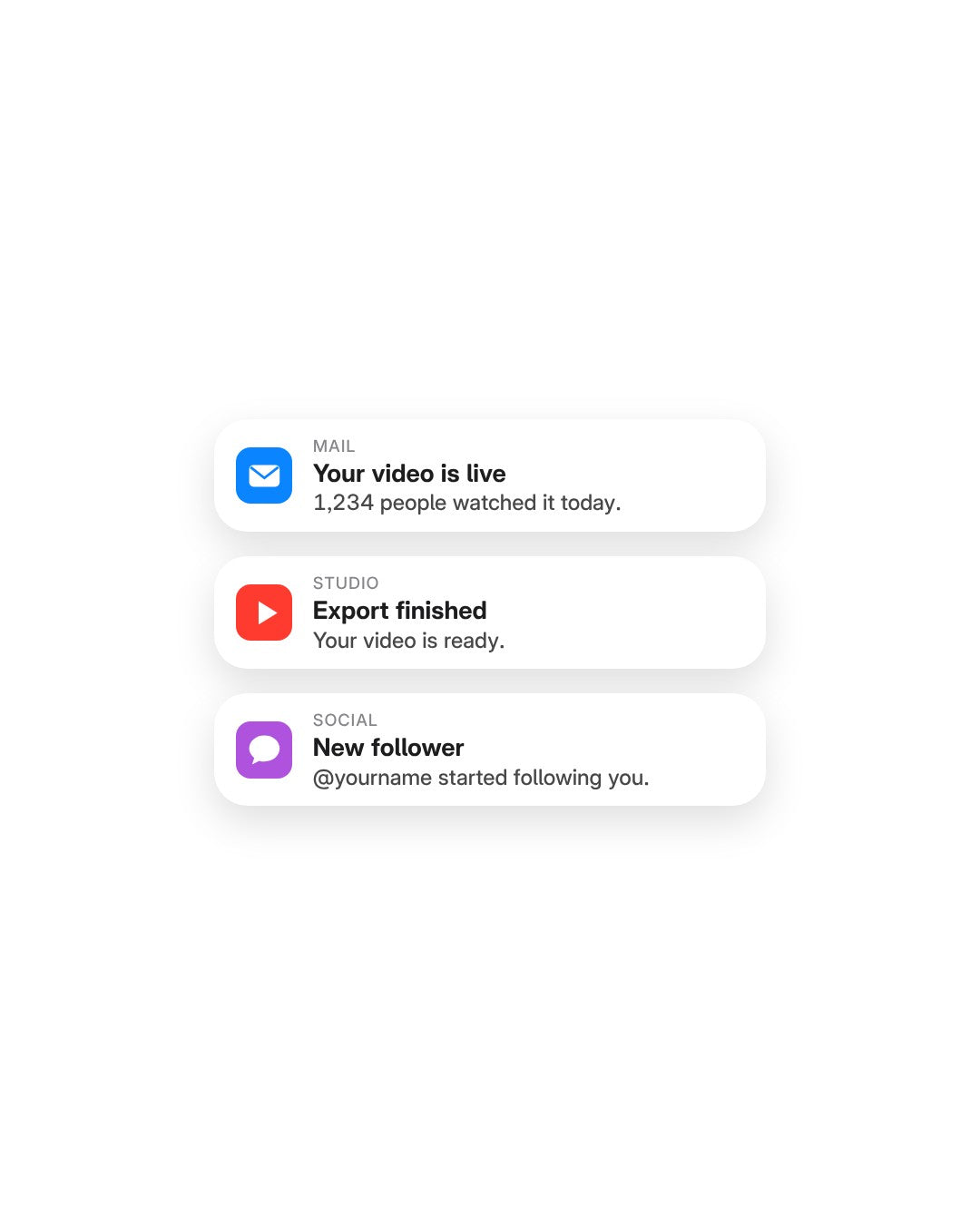
어떤 앱 아이콘이든, 라이트든 다크든.
원하는 색상을 골라 브랜드에 맞추세요.

-
Opacity
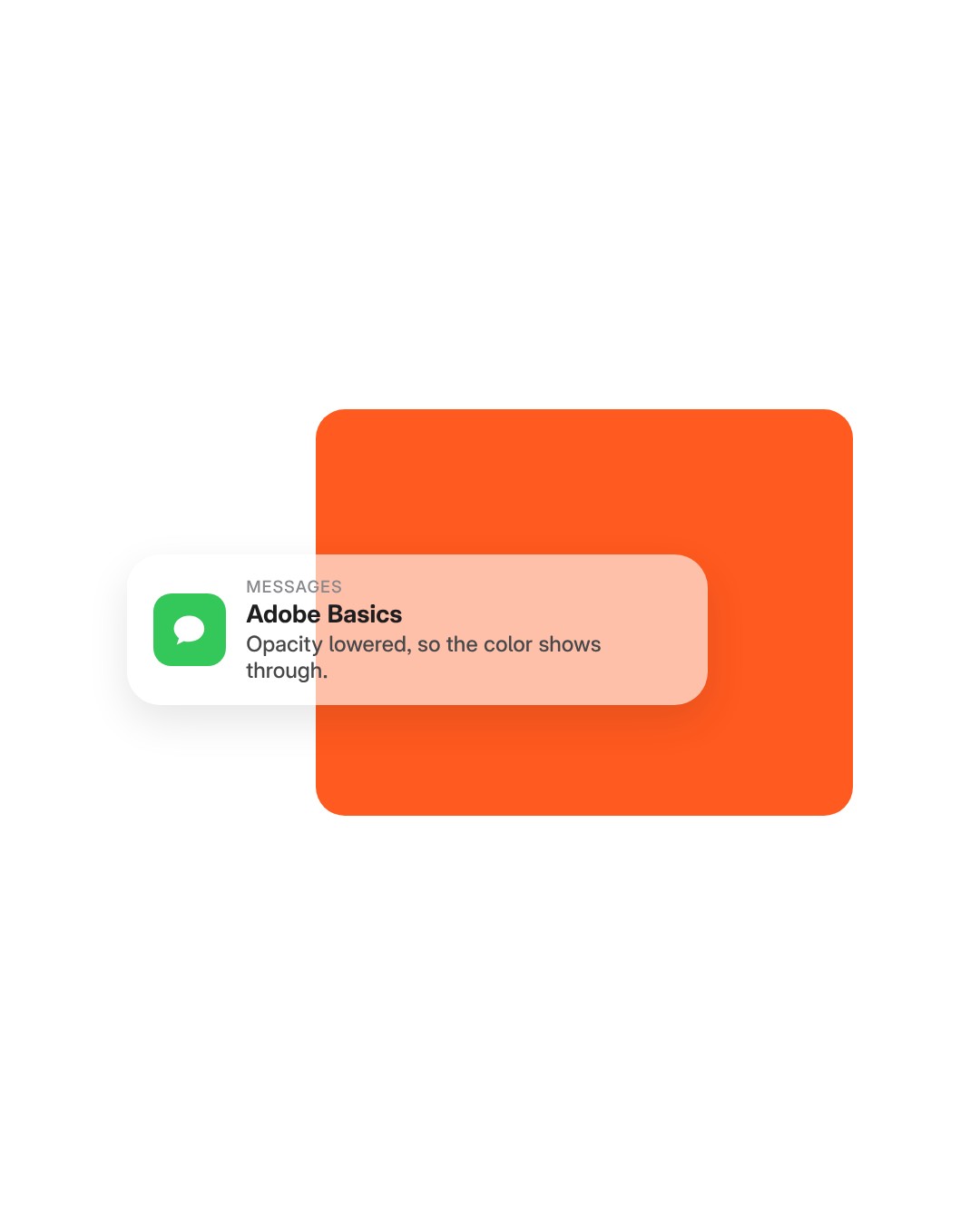
영상이 비쳐 보이게 하세요.
불투명도를 낮추면 반투명 배너가 돼요.

다운로드 구성
-
템플릿 파일
템플릿 파일(.mogrt) 하나. 한 번 가져오면 어떤 타임라인에든 드래그할 수 있어요.
-
Motion
It slides in. Holds. Slides out.
The banner slides in, holds on screen and slides out again. You set how fast it arrives and how fast it leaves, and motion blur is built in.
- Slides in and outAnd it holds on screen in between.
- In and out speedTwo separate speeds, one for arriving and one for leaving.
- Motion blurBuilt in. Tick Enable extra motion blur for more.
Timing
It follows your trim.
The banner stays for as long as the clip does. Trim the clip to 3 seconds or stretch it to 10, and the slide out moves with the end of the clip.
- Longer clipThe banner holds for longer.
- Shorter clipIt leaves sooner.
- No keyframesTrim the clip like any other.
Light or dark
Light mode. Dark mode.
Match the banner to a phone in light or dark mode.
- LightA white banner with dark text.
- DarkA dark banner with light text.
- Corner roundnessThe Roundness slider goes from sharp corners to fully round.
Any color
Or your brand’s color.
Pick any color for the message box, like your brand’s orange. Then set Opacity to choose how much of your footage shows through.
- Any colorThe Color control, under Message Box.
- Opacity88 by default. Lower it and more of your footage shows through.
- One groupColor, Opacity and Roundness sit together under Message Box.
App icon
Any app. Any icon.
Drop in the icon of any app or brand as a picture, then type the app’s name next to it.
- Any app iconDrop in the icon of any app or brand.
- App nameType it in the Name field, like MESSAGES.
- Light, dark or colorThe icon sits on any banner.
Your message
Your words. One panel.
Three lines of text are yours: the app name, the title and the message. Type each one in the Essential Graphics panel in Premiere Pro. No After Effects needed.
- Its own groupsApp Icon, App Name, Time and Header Text each open on their own.
- Any fontAny installed font.
- 43+ controlsAll in the Essential Graphics panel.
컨트롤 43+개. 패널 하나.
메시지
- 나만의 텍스트. 앱 이름, 제목, 메시지를 내 말로.
- 어떤 앱 아이콘이든. 어떤 앱이나 브랜드의 아이콘이든 넣으세요.
- 어떤 글꼴이든. 설치된 글꼴 중에서 고르세요.
스타일
- 라이트 또는 다크. 또는 원하는 어떤 색상이든.
- 불투명도. 배너 너머로 영상이 보이게.
- 모서리 둥글기. 각진 모양부터 부드러운 모양까지.
모션
- 슬라이드 인·아웃. 그 사이에는 화면에 머물러요.
- 등장·퇴장 속도. 들어오고 나가는 속도를 설정하세요.
- 모션 블러. 자연스러운 움직임을 위해 내장.
- 트림에 맞춰 움직임. 타이밍은 인 포인트와 아웃 포인트에 맞춰요.
사양
- 호환
- Premiere Pro 2021–2027, Windows 및 Mac
- 구성
- 템플릿 1개(.mogrt), 컨트롤 43+개
- 필요 없음
- After Effects, 플러그인
- 업데이트
- 무료, 주문 페이지에서
- 결제
- 한 번 결제, 구독 없음
- 라이선스
- 개인 및 상업용 영상 무제한, 사용자 1명
- 다운로드
- 결제 후 즉시
세 단계. 키프레임은 필요 없어요.
템플릿을 Premiere Pro에 한 번만 가져오세요. 플러그인도 추가 설정도 필요 없어요.
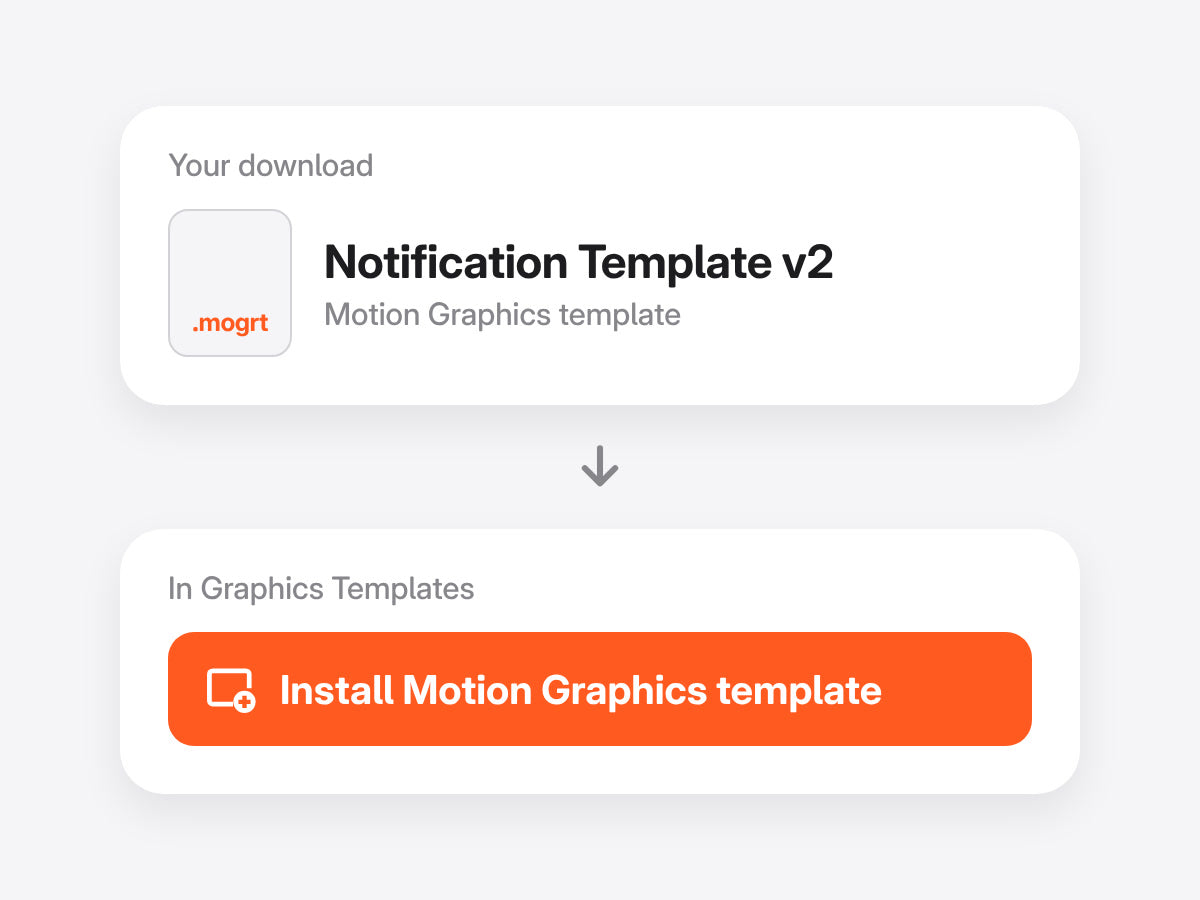
1템플릿 가져오기
그래픽 템플릿(이전 버전에서는 기본 그래픽)을 열고 .mogrt 파일을 가져오세요.
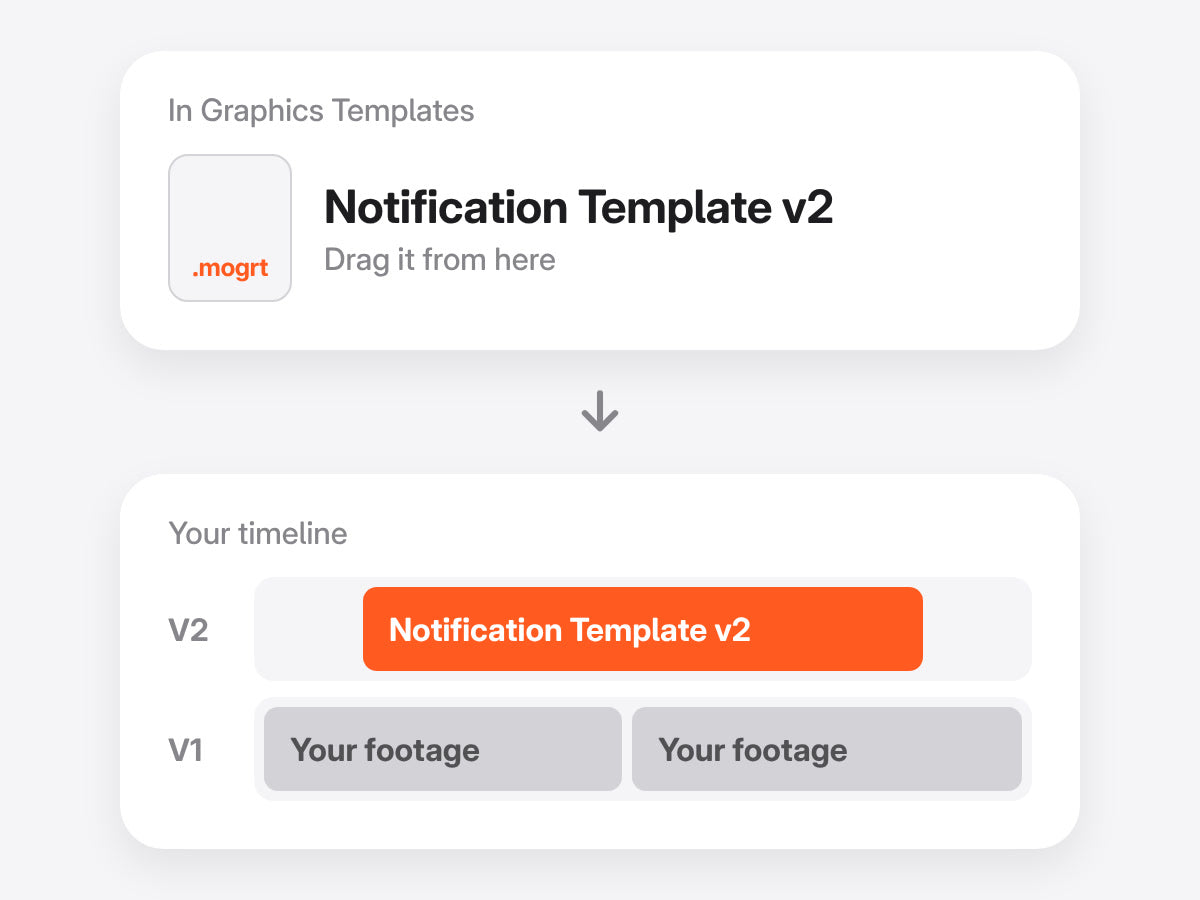
2타임라인으로 드래그
영상 위에 드롭하고 원하는 대로 길이를 조절하세요. 애니메이션이 인/아웃 포인트를 따라가요.
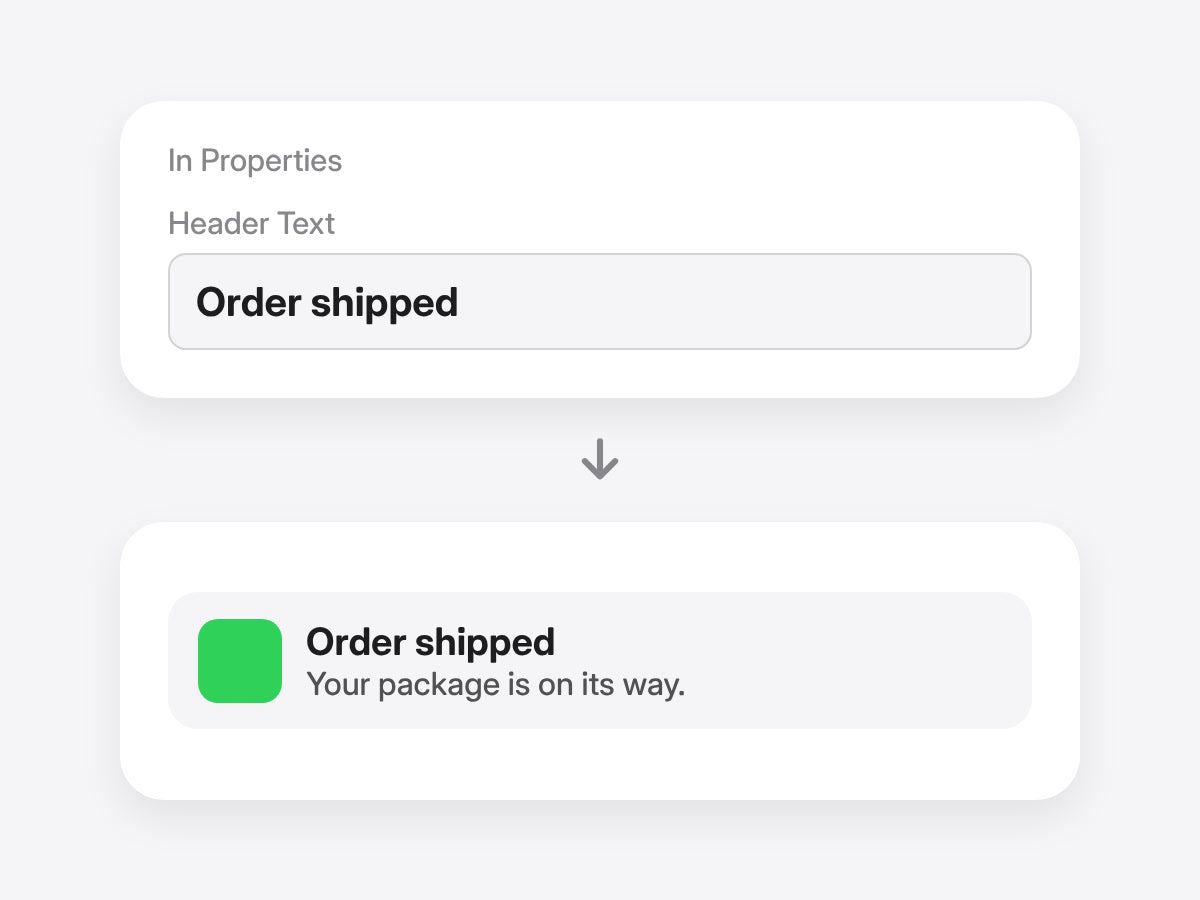
3메시지 입력
Properties 패널에서 제목과 본문을 쓰고, 앱 아이콘을 바꾸고, 박스 색상을 고르세요. 키프레임은 필요 없어요.
Premiere Pro 2021–2027 · Windows 및 Mac · 플러그인 필요 없음 · 즉시 다운로드
작동 방식 보기.

입력하면, 슬라이드해 들어와요.
휴대폰 스타일 알림을 Premiere Pro 안에서.
- Premiere Pro 2021–2027
- Windows 및 Mac
환불 보장 작동하지 않으면
- 구매 후 14일 이내에 문의해 주세요.
- 24시간 이내에 해결을 도와드립니다.
- 해결하지 못하면 환불해 드립니다.