

 por
por 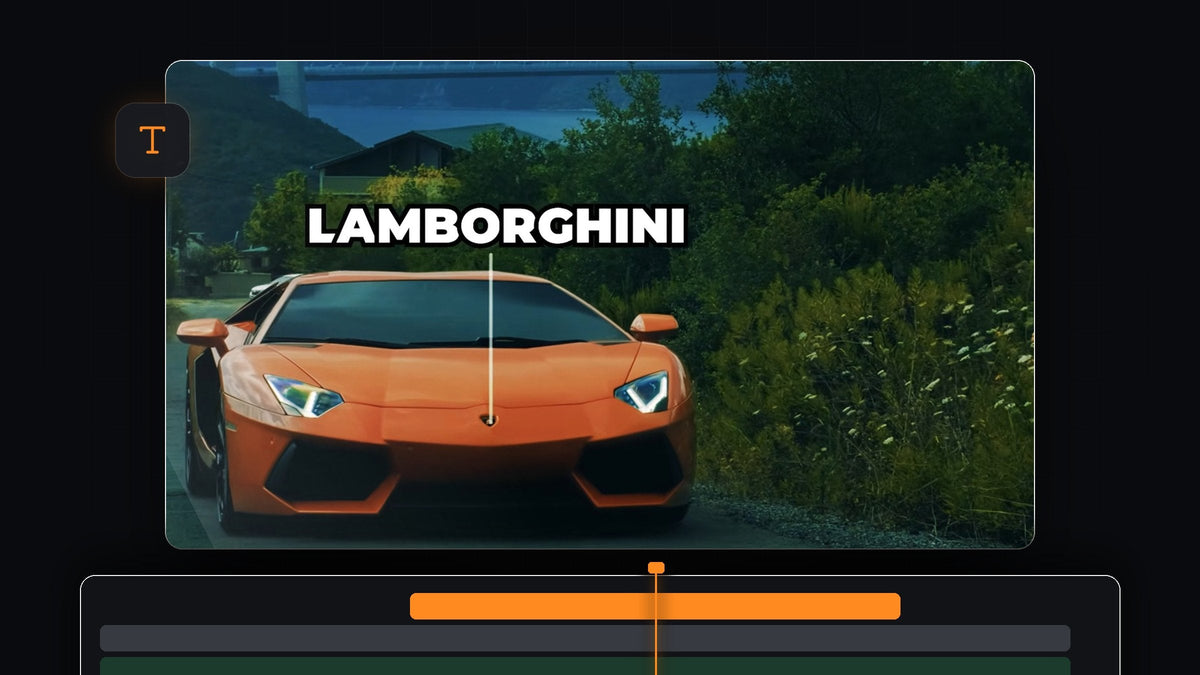
Making text follow a moving object, like a label that sticks to a car, is a classic way to point things out in a video. This guide shows how to track text in Premiere Pro with simple position keyframes, a temporary marker and a final smoothing pass, so you do not need any extra tracking software.
Watch the tutorial
Step 1: Place an X on the object
Move the playhead to the point where you want the tracking to begin. Select the Type Tool (press T), click in the Program Monitor and type the letter X. This X is a temporary marker that makes alignment easy, and you will swap it for your real text at the end. Then switch to the Selection Tool and move the X onto the exact spot you want to follow, for example a logo on a car.

Step 2: Lower the opacity and enable the Position stopwatch
Make sure the text layer is selected, open Effect Controls, expand the Text section and scroll down to Transform. Lower the Opacity a little so you can still see the object underneath the X. Go back to the first frame of the text layer and click the stopwatch next to Position to create the first keyframe.

Step 3: Keyframe the position every few frames
Hold Shift and press the Right Arrow key to jump forward five frames. Change the Position values, or drag the X in the Program Monitor, until it sits on the object again. Premiere Pro adds a keyframe automatically. Move another five frames and repeat this through the whole clip. Smaller steps mean a tighter track, and you can use bigger steps where the object barely moves.

Step 4: Scrub through and fix drifting frames
When you reach the end, scrub through the clip once more and watch for frames where the X slips off the object. Fix those by adjusting the Position values at that moment. Once the tracking is clean, set Opacity back to 100.
Step 5: Replace the X with your text
Double-click the X in the Program Monitor and type your real word, such as the name of the car. Because the Position property is full of keyframes, do not change it now, as that would break the tracking. Change the Anchor Point instead, which shifts the text relative to the tracked spot, until it sits where you want it, for example above the object.
Step 6: Smooth the movement with Bezier
Raw keyframes can look slightly jerky. Select all of your Position keyframes in Effect Controls, right-click one of them, choose Temporal Interpolation and pick Bezier. The text now glides between keyframes instead of snapping.

Smoother with EaseFlow: select the keyframes and apply a real easing curve in one click instead of dragging Bezier handles. See EaseFlow

Tips
- Use a high-contrast marker. A white X at low opacity stays visible without hiding the object you are tracking.
- Add a pointer line. A thin line from the text to the object makes the label feel anchored. For more text ideas, see the text outline effect.
FAQ
How do you make text follow an object in Premiere Pro?
Create a text layer, keyframe its Position every few frames so it stays on the object and smooth the keyframes with Bezier interpolation.
Does Premiere Pro have automatic text tracking?
Masks can be tracked automatically, but text is usually tracked by hand with position keyframes, which gives you full control over the result.
Why does my text jump around after I change its position?
Changing Position on a keyframed layer moves one keyframe only. Use the Anchor Point to reposition the text without touching the tracking.
Want animated text that is ready to use? Try the Smooth Text Animation Template.


