




 بقلم

Step 1: Turn the speech into text
Open the Text panel, go to Transcript and press Transcribe. Premiere writes out everything that is said. Read it once and fix names and brand words, because a wrong word on screen is the first thing viewers notice.
Step 2: Keep each caption short
Viral captions show two to four words at a time, never a full sentence. In the Captions tab, press Create captions and set the maximum length to about 20 characters and one line. Short lines are easier to read on a phone and give the highlight a clear rhythm.
Step 3: Make the look bold
- Font: a heavy sans serif, all caps, so every word reads at a glance.
- Size: large enough to fill about two thirds of the frame width in 9:16.
- Outline or shadow: a black outline or soft shadow keeps white text readable on any shot.
- Position: just below the center, clear of the app buttons at the bottom of the screen.
Step 4: Add the word-by-word highlight
Animated word highlights need each caption as a text clip. Upgrade a caption to a graphic with right-click › Upgrade caption to graphic, or type the line with the Type tool. Then:
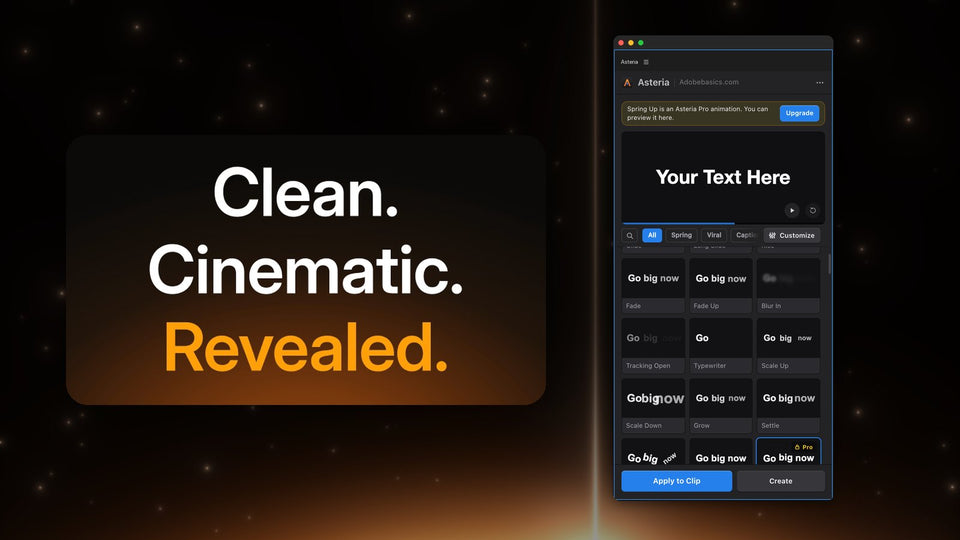
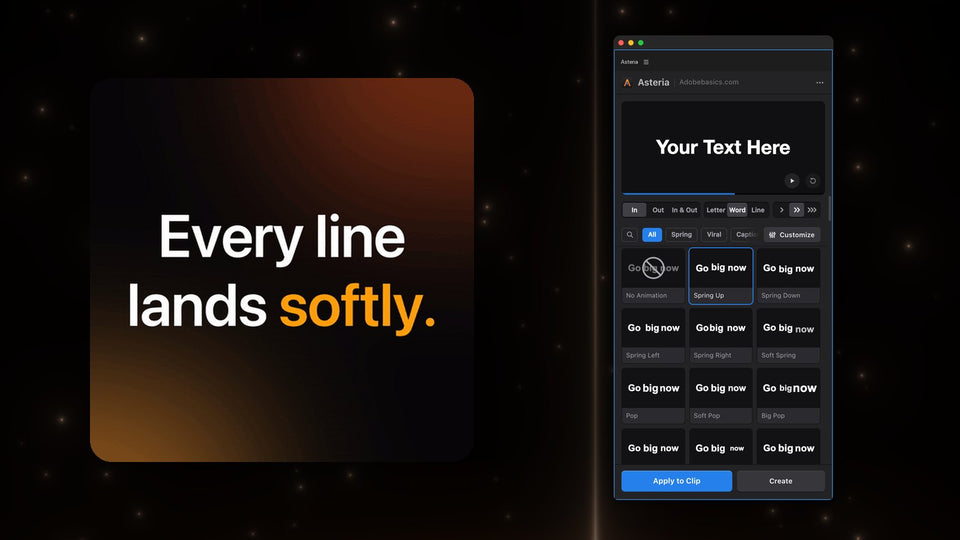
- Select the text clip and open Window › Extensions › Asteria.
- Choose Word and open the Captions group.
- Hover over the tiles to preview Karaoke Box, Box Pop, Box Rise or Karaoke Color on your own words.
- Click one and press Apply to Clip.
Asteria keeps your font, size and position, so style the first caption once, then duplicate it and change only the words for the next line.

Step 5: Color the words that matter
Put stars around a keyword, like *this*, and Asteria colors that word. Use it for numbers, names and the punchline, one word per caption at most, so the color still means something.
Step 6: Match the pace of the voice
In the animation settings of Pro, set Speed, Stagger and the timing so the highlight lands on each word as it is spoken. Save it as a custom animation, and every caption on your channel matches with one click.

Quick checklist
- Two to four words per caption, one line.
- Heavy font, all caps, outline or shadow.
- One highlight that follows the voice.
- One colored keyword at most per caption.
- Same style on every video.
More caption looks: word-by-word captions, Alex Hormozi style subtitles and the viral caption plugin guide.
The caption styles are part of Asteria Pro ($79.99). Asteria Standard ($69.99) has 40 essential title animations and can be upgraded to Pro later for $15.
Want captions that keep people watching? Get Asteria for Premiere Pro.