



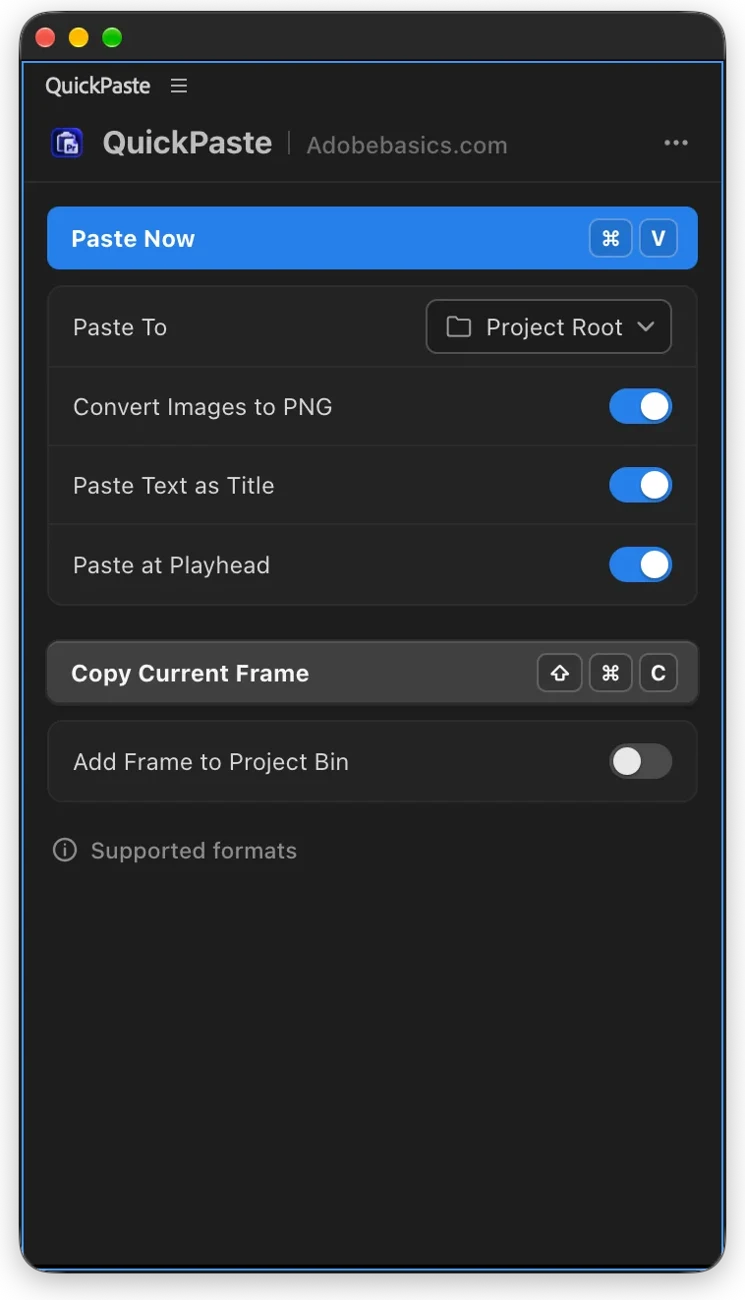
The QuickPaste panel, inside Premiere Pro


QuickPaste
Paste images straight into Premiere Pro.
Get any image into your edit with one keystroke. Copy a web image, a screenshot or a file, then press ⌘V or Ctrl+V in Premiere Pro. It lands in the bin you choose or right at your playhead, with nothing to save or import first.
 Premiere Pro 2021–2027
- Windows and Mac
- Free updates

Money-back guarantee Doesn’t work in your Premiere Pro? Contact us within 14 days.
QuickPaste
Made by the people who teach Premiere Pro.
700+ tutorials and thousands of comments showed us what slows editors down. So we built the tools we wanted as editors: simple and hassle-free.
Watch the tutorials- 200K+editors use our tools
- 30M+views on our YouTube tutorials
- 90K+followers across social media
- 37K+editors in our Discord community
Copy. Paste. Keep cutting.
Your normal paste.
Straight into Premiere Pro.
Adobe files paste too.
Paste a color
HEX, RGB, HSL, CMYK or OKLCH.
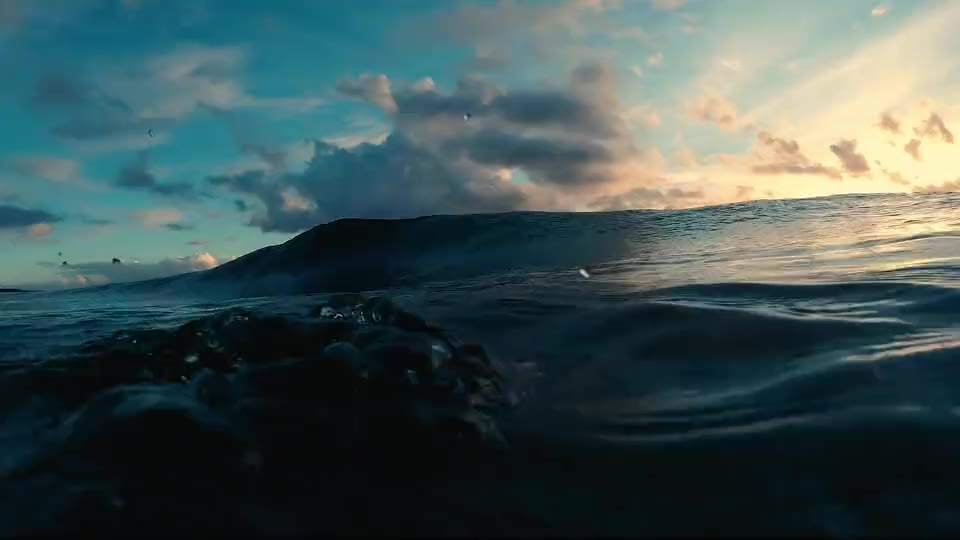
Any image
Even HEIC, AVIF and RAW.

Premiere Pro 2021–2027
Get the highlights.
-
Paste
Copy it. Paste it into Premiere.
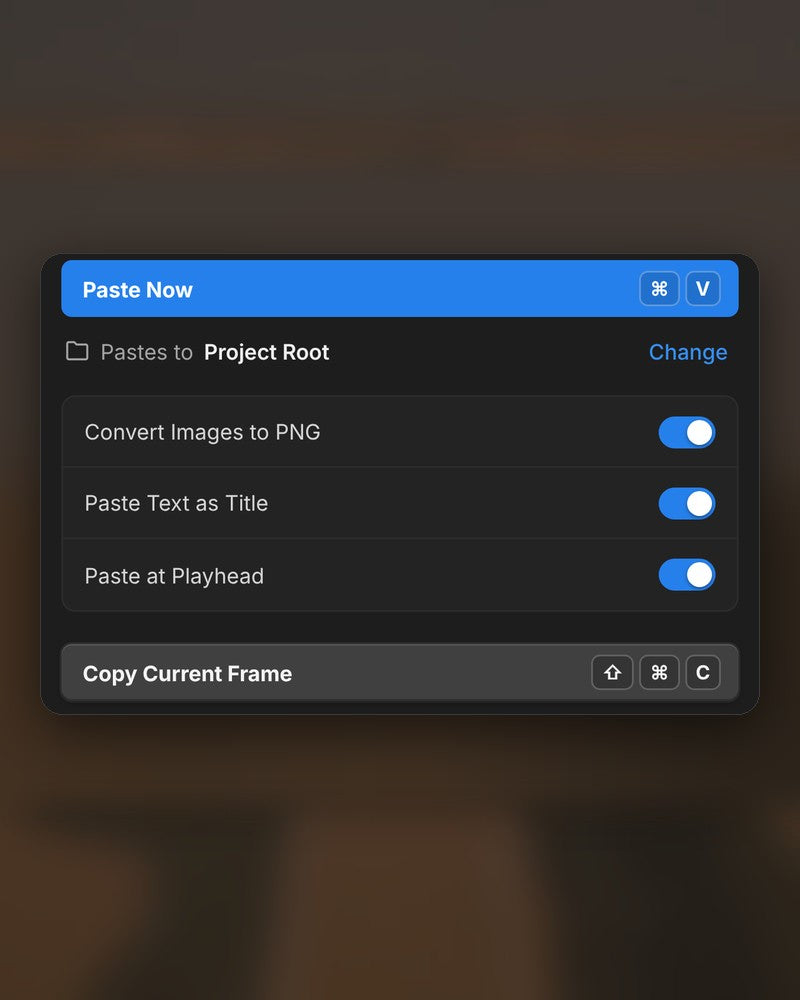
Copy an image anywhere and press ⌘V. It lands in your bin, or on your timeline with Paste at Playhead.
-
Formats
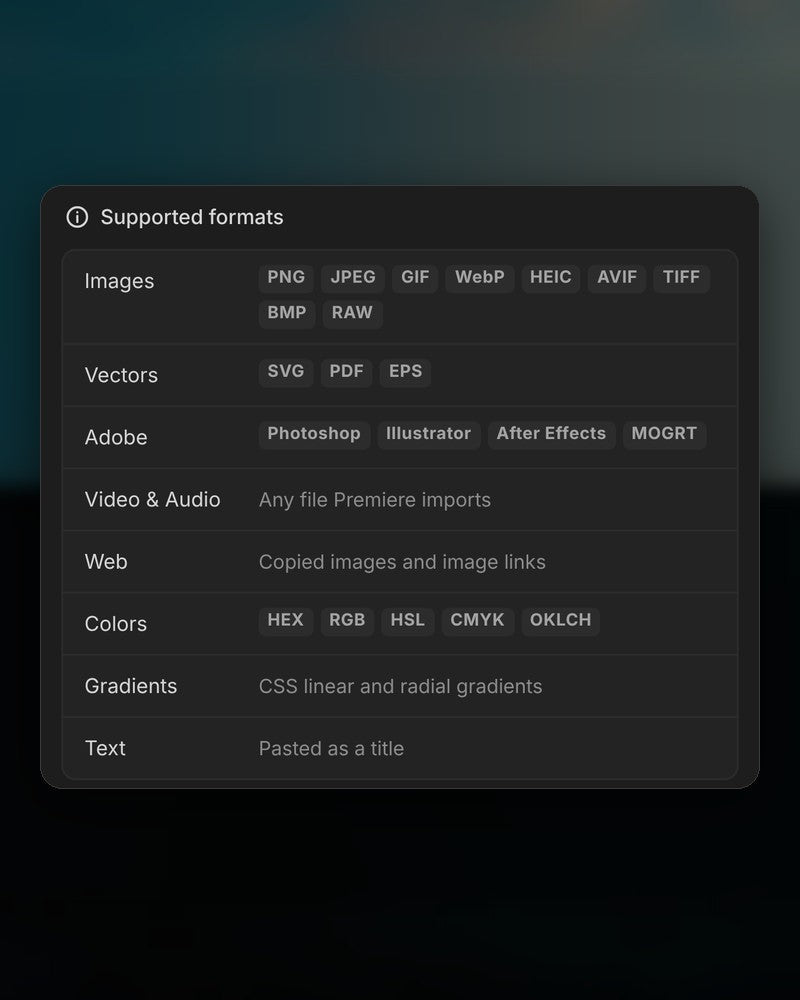
Images, files, colors and text.
Images arrive as PNGs, even WebP and HEIC. Photoshop, Illustrator and After Effects files paste too.
-
Copy frame
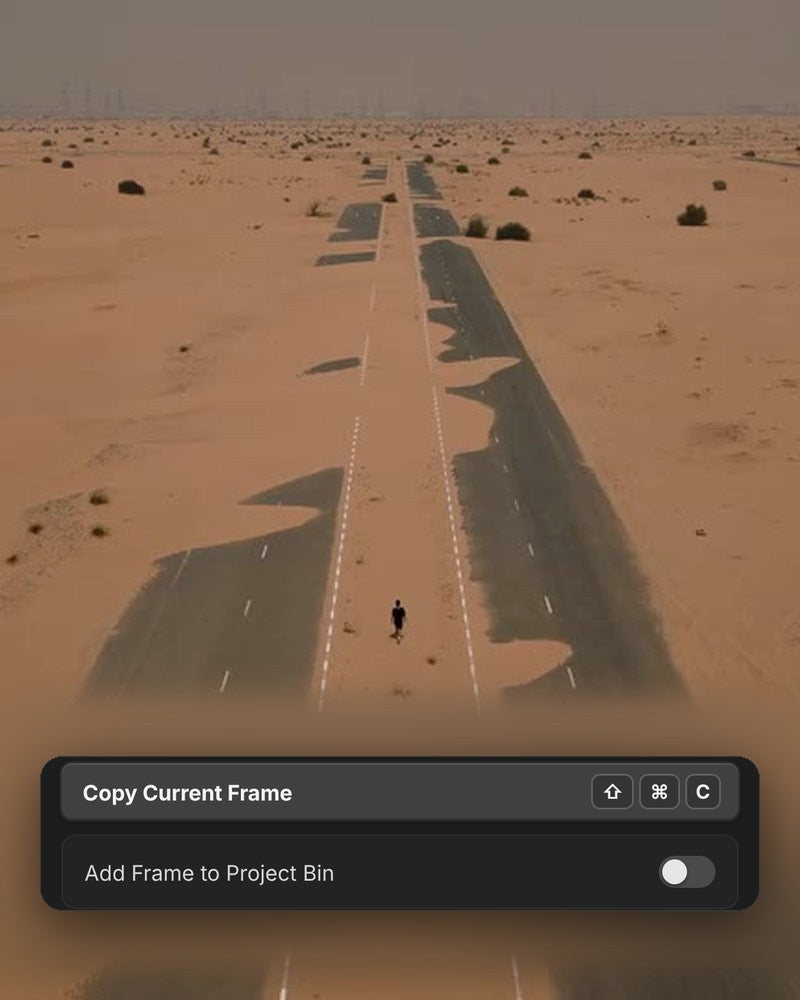
Copy the frame. Paste it anywhere.
The frame under your playhead, as a full-size PNG, ready for a chat or an email.
In the download
-
QuickPaste app
-
License key
-
Premiere Pro plugin
The installer and your license key. Both arrive at checkout, and the installer sets up the QuickPaste app and the Premiere Pro plugin for you.
-

Paste
Just paste. Nothing else to press.
Copy an image anywhere and press ⌘V in Premiere Pro. It lands on the timeline at the playhead, with no save and no import.
- From anywhereA browser, a screenshot, a chat or a design app.
- At the playheadOn a track that is free, so nothing moves.
- On WindowsCtrl+C and Ctrl+V work the same way.
Convert
Any image in. A clean PNG out.
Every copied image becomes a PNG before it reaches Premiere Pro. No converting by hand.
- Every image formatWebP, HEIC, AVIF, JPEG, GIF, TIFF, BMP and RAW.
- Nothing to download firstCopy an image on a web page and paste.
- Ready in your projectThe PNG lands in the bin you choose.
Colors
Copy a color. Get a matte.
Copy a color code from anywhere and press ⌘V. A color matte the size of your frame lands at the playhead.
- Every formatHEX, rgb(), hsl(), oklch(), cmyk() and more.
- Your frame sizeThe matte matches your sequence.
- Named by colorEach matte is named after its HEX value.
Gradients
Copy a gradient. Paste a gradient.
Paste a CSS linear or radial gradient. It becomes a gradient matte, sized to your sequence.
- Linear and radialRepeating gradients too.
- Same colorsEvery color stop, in its place.
- Easy to findEach one is named after its colors.
Text
Copy text. Get a title.
Copy any text, from a browser, a script or a chat, and press ⌘V. With Paste Text as Title on, it lands at the playhead as a title you can edit.
- Named for youThe clip takes the first line of your text.
- A real titleEdit it in Premiere Pro like any other.
- Your choiceOne switch in the panel turns it off.
PDFs and vectors
Paste a PDF. Get every page.
PDFs and SVGs are drawn sharp at your frame size. A PDF with several pages becomes one still per page, end to end.
- Up to 50 pagesOne after another from the playhead.
- Always sharpDrawn at your sequence’s frame size.
- Odd formats tooHEIC, AVIF, camera RAW and more become PNG.
Motion Graphics templates
A template? Paste it in.
Copy a .mogrt file and press ⌘V. It lands at the playhead, ready to edit.
- Its full lengthPlaced for the template’s whole duration.
- Never on your editIt goes on the lowest track that is free.
- Edit as usualChange its text and colors in Premiere Pro.
Several files
Copy a few. Paste them in order.
Copy files in Finder or File Explorer and press ⌘V. They land end to end at the playhead, on a track that is free.
- Nothing movesClips after the playhead are never pushed along.
- Lowest free trackPicked for the clips’ whole length.
- Anything Premiere importsVideo, audio, PSD, AI, AEP and more.
Bins
Every paste. In its bin.
Choose a bin in the panel, or make a new one. Everything you paste lands there.
- Your pickAny bin in your project, or the project root.
- New binName it in the panel and QuickPaste makes it.
- Files kept safeSaved in QuickPaste’s own folder, never a temp folder.
Copy frame
Need a still? Copy the frame.
Press ⇧⌘C in Premiere Pro. The frame under the playhead is on your clipboard, ready to paste anywhere.
- Full sizeA PNG at your sequence’s frame size.
- In your project tooTurn on Add Frame to Project Bin to keep a copy.
- On WindowsShift+Ctrl+C, and Ctrl+V to paste.
In Premiere Pro
The real thing. On your timeline.


Three steps. Then paste.
One guided installer sets up the app and the Premiere Pro plugin for you.
1Download QuickPaste
Your download shows up right after checkout. We also email it to you.
2Run the installer
Open the installer and follow the steps. It sets up the app and the Premiere Pro plugin for you.
3Copy, then paste
Copy an image from anywhere, then paste it straight into Premiere Pro.

What QuickPaste adds.
Most paste plugins add a button, a menu or a new shortcut. QuickPaste uses the ⌘V or Ctrl+V you already press.


Bundle and save 15%
Get the whole Premiere kit.
- EaseFlow ProSmooth easing
- BetterFXEvery effect, one shortcut
- SuperGlowPremium glow
- QuickPastePaste images and files
Copy it. Press ⌘V or Ctrl+V.
Pay once, keep it forever.
- Premiere Pro 2021–2027
- Windows and Mac
Money-back guarantee if it doesn’t work
- Contact us within 14 days of buying.
- Help within 24 hours to fix it.
- If we can’t fix it, you get your money back.