

 by
by 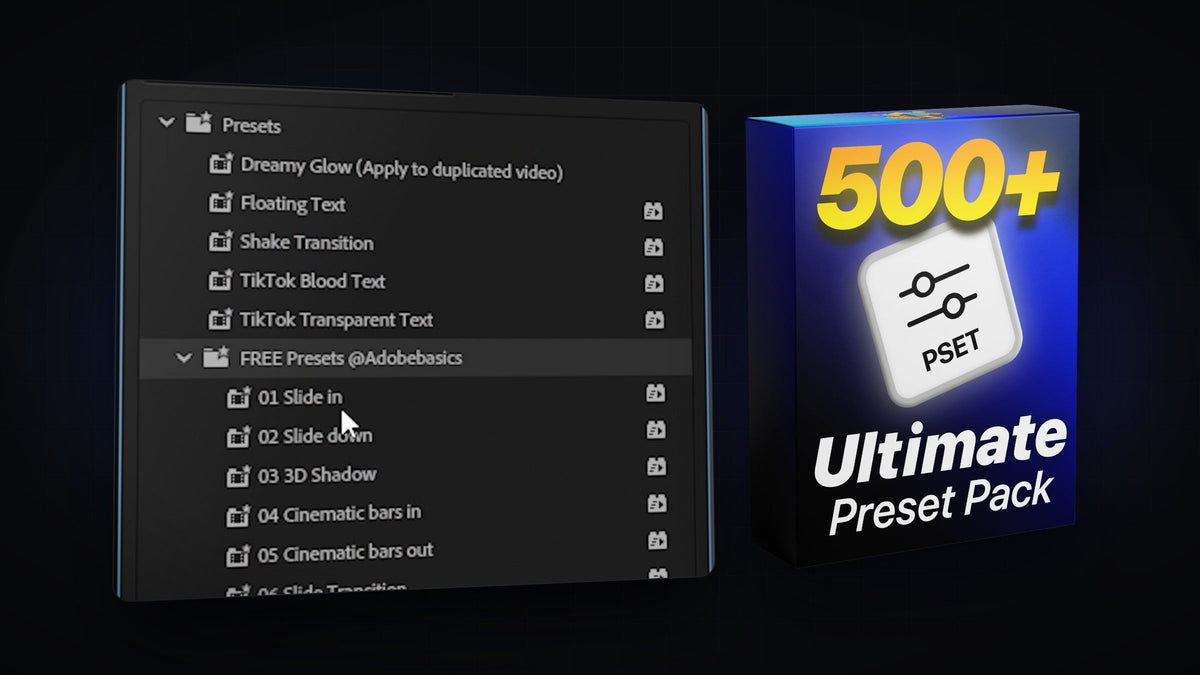
Presets are the fastest way to add slides, zooms, shakes, glows and text animations in Premiere Pro. You download a single .prfpset file, import it once, and every preset inside it is ready to drag onto any clip. Here is how to import Premiere Pro presets, find them again and make them your own.
Watch the tutorial
What is a Premiere Pro preset?
A preset is a saved set of effects, settings and keyframes. Instead of building a slide-in, a camera shake or a glow by hand every time, you apply the preset and Premiere Pro adds the finished effect stack to your clip. Presets are saved as .prfpset files, and one file can hold dozens of presets.
Step 1: Open the Effects panel
Go to Window > Effects so the Effects panel is visible in your workspace. Presets live in the Presets folder at the top of this panel.
Step 2: Import the .prfpset file
Right-click the Presets folder and choose Import Presets. Find the .prfpset file you downloaded (unzip it first if it came in a .zip) and click Open.

Step 3: Find your new presets
Open the Presets folder. Your presets appear in their own folder, usually named after the pack or its creator. You can also type a preset's name in the search field at the top of the Effects panel.

Step 4: Apply a preset to a clip
Drag the preset from the Effects panel onto any clip in your timeline. Most presets play at the start or end of the clip, so place your clip where you want the animation to happen.

Faster with BetterFX: apply presets without opening the Effects panel. Press your BetterFX shortcut, type the first letters of the preset's name and press Enter to apply it to the selected clip. Get BetterFX
Step 5: Use an adjustment layer for transitions
Transition presets, zooms and shakes often work best on an adjustment layer, because they then affect every clip underneath. Create one with File > New > Adjustment Layer, place it over the cut between two clips and drag the preset onto the adjustment layer.

One click with Mako: the free Mako panel adds an adjustment layer over the selected clips, at the playhead, on the first free track, in one click. Get Mako for free
Step 6: Customize the preset
Select the clip and open Window > Effect Controls. Every effect from the preset is listed there, with its keyframes. Change the position, scale, blur amount or timing until it fits your edit, or drag keyframes closer together to make the animation faster.

Smoother with EaseFlow: want a softer start or a punchier stop? EaseFlow applies a real easing curve to the preset's keyframes in one click. See EaseFlow
FAQ
Why can't I double-click a .prfpset file to install it?
Premiere Pro doesn't install presets by opening the file. Use Import Presets from the right-click menu of the Presets folder in the Effects panel instead.
Where are my presets after a Premiere Pro update?
Major updates sometimes start with a fresh profile. If your presets are missing, import the .prfpset file again, or migrate your settings when Premiere Pro offers it on first launch.
Can I apply a preset to several clips at once?
Yes. Select all the clips in the timeline and drag the preset onto one of them, or put the preset on an adjustment layer above them.
Do presets work on text and graphics?
Yes. Text presets are made for text and graphic layers, and most motion presets work on any clip, image or adjustment layer.
Want hundreds of ready-made animations? Get the Ultimate Premiere Pro Preset Pack with 500+ drag-and-drop presets.


