by
by 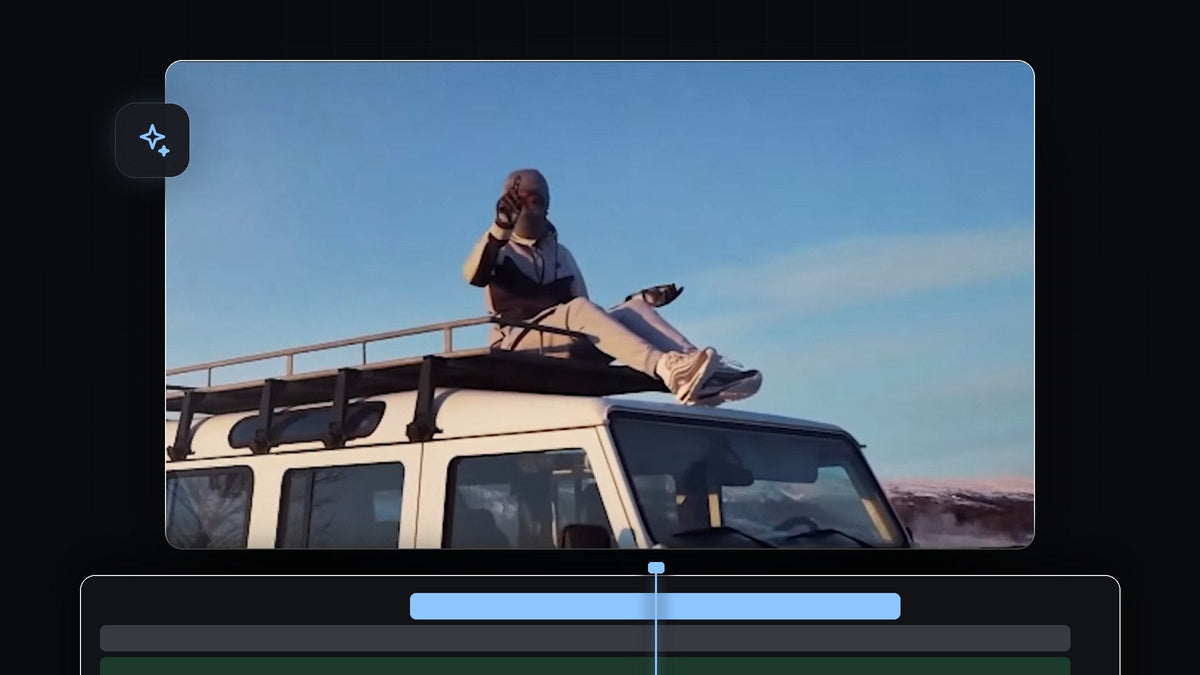
Watch the tutorial
Step 1: Drag a grain overlay above your video
For this to work you need a grain overlay, which is a video clip of film grain on a gray background. Import it into your project and drag it onto the track directly above your video clip. Trim it or stretch it so it covers the same length as the footage.

Step 2: Set the blend mode to Overlay
Select the grain overlay and open Effect Controls. Under Opacity, open the Blend Mode dropdown and choose Overlay. The gray background disappears and only the grain is blended into your footage. You can see it most clearly on flat areas such as white walls or a blue sky.

Step 3: Compare 8mm, 16mm and 35mm grain
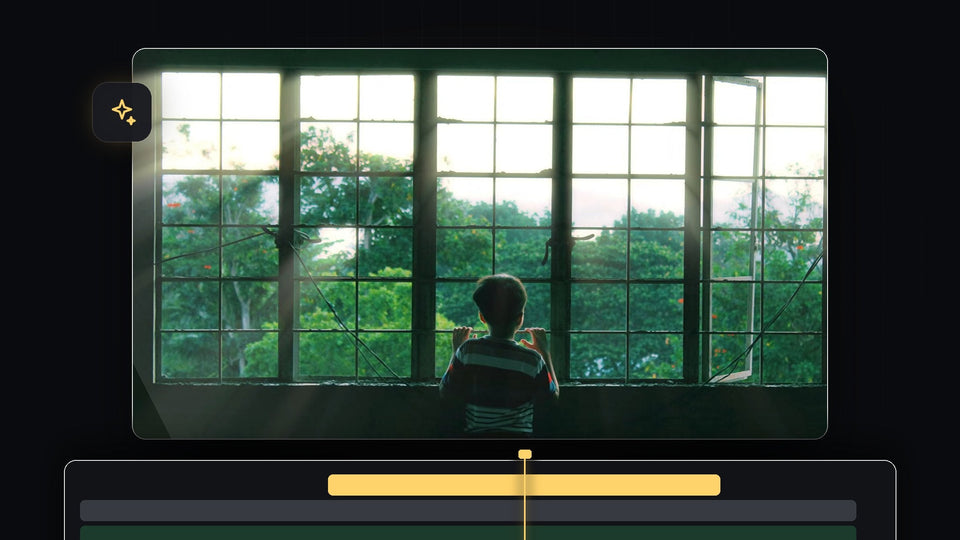
The different overlays give different looks. The 8mm Grain is the strongest and most visible, with a rough, vintage feel.

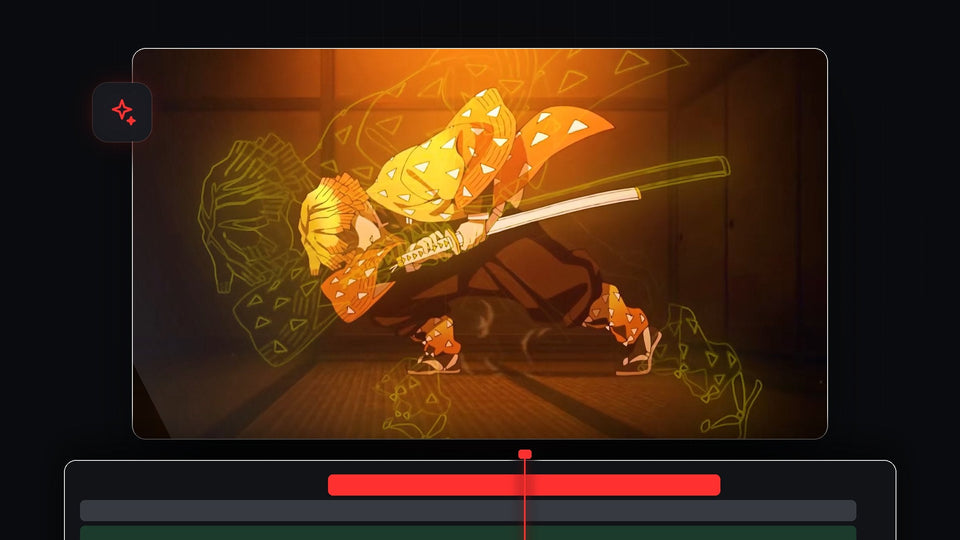
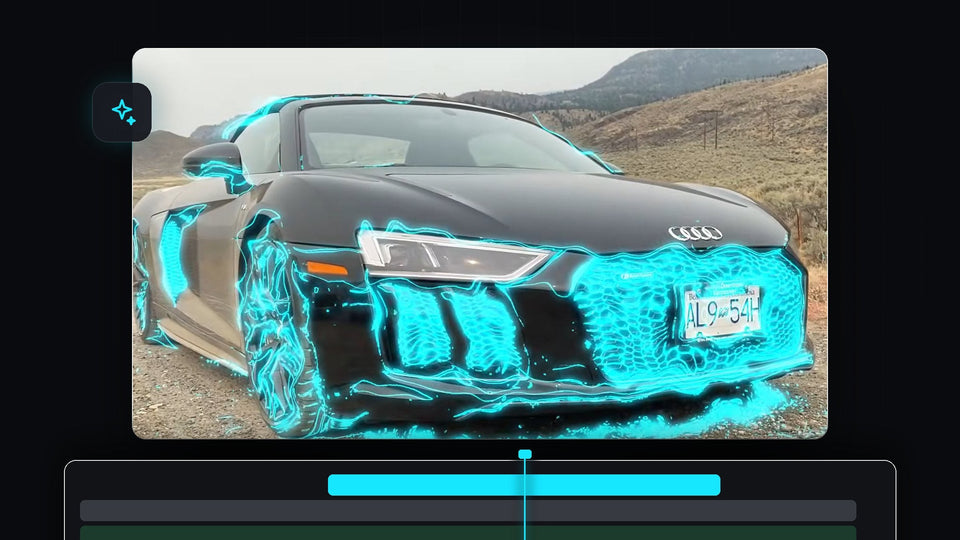
The 16mm Grain gives a more intense look than a light touch and is easy to see on a blue sky. The 35mm Grain is the one to use when you want to make footage look more cinematic. It is far more subtle than the other two.

Step 4: Duplicate the overlay if it is too short
If your grain overlay is shorter than your video, duplicate it. Hold Alt (Option on Mac) and drag the clip to the right, then align it with the end of the first grain overlay. Repeat until it covers your whole video. Because grain is random noise, the cut between two copies is not noticeable.

Tips
- Lower the opacity. If the grain is too strong, reduce the overlay's Opacity instead of switching clips.
- Start with 35mm. It is the most natural choice for a cinematic look. Use 8mm for a vintage or lo-fi style.
- Put grain on an adjustment layer. To grain many clips at once, place the overlay above all of them.
FAQ
Which blend mode should I use for a grain overlay?
Overlay is the one used in this tutorial. It removes the gray background and keeps the grain texture.
How do I make grain less visible?
Lower the opacity of the overlay or use the 35mm grain, which is much more subtle than 8mm or 16mm.
Does grain work on all footage?
Yes. It is easiest to spot on flat areas like sky and walls, but it adds texture to any shot.
Need a ready-to-use grain overlay for your next project? Download the free grain overlay.