by
by 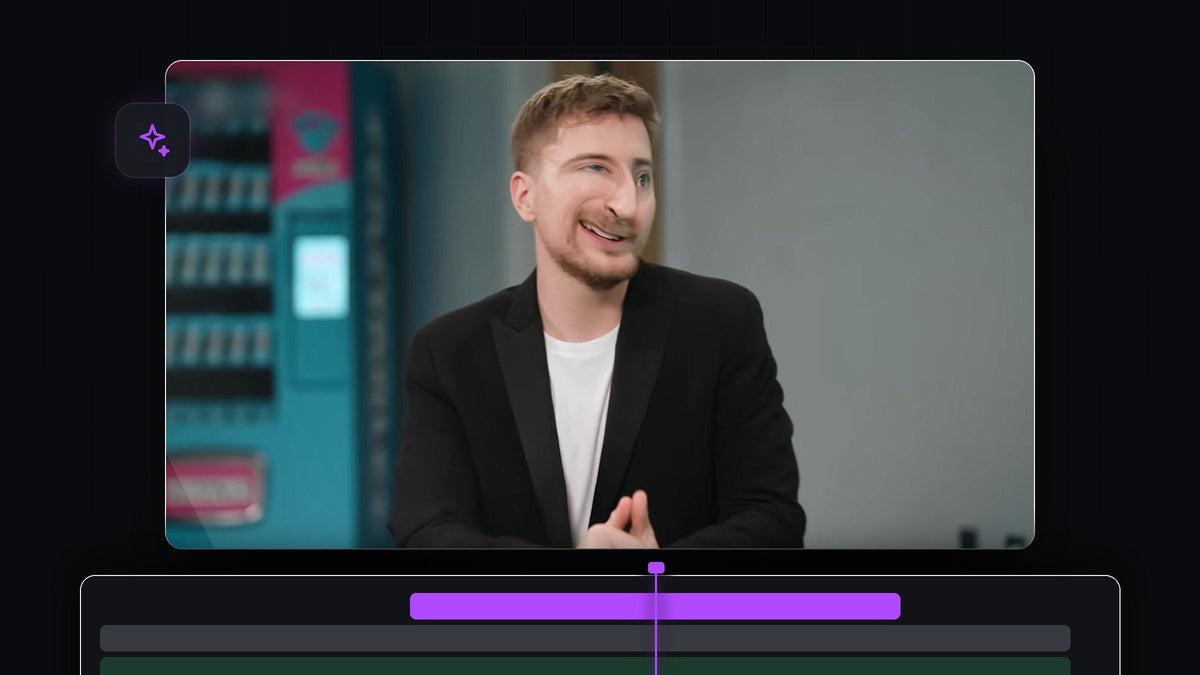
Watch the tutorial
Step 1: Nest your clip
Place your talking head clip on the timeline. Select it, right click and choose Nest. A nested sequence lets you add effects to the whole clip in one place, even when it contains cuts or other effects. In the video, the clip is nested and then selected so its settings show in Effect Controls.

Step 2: Apply the Twirl effect
Open the Effects panel and search for Twirl. You will find it under Video Effects > Distort > Twirl. Drag it onto your clip. (The search also shows Twirl In and Twirl Out under Presets, which are different, ready made transitions.)

Faster with BetterFX: skip the Effects panel. Press your BetterFX shortcut, type the first letters of Twirl and press Enter to apply it to the selected clip. Get BetterFX
Step 3: Shape the distortion
In Effect Controls, open the Twirl settings. Three values matter:
- Angle sets how strongly the picture is twisted. In the video it is raised to a high value, around 88 degrees.
- Twirl Radius sets how large the affected area is. A small radius, around 7 in the video, keeps the warp tight around the face.
- Twirl Center sets where the twirl sits. Move it over the nose or eyes.
Watch the Program Monitor while you adjust and stop when the face looks funny but still recognisable.

Step 4: Keyframe the Twirl Center
People move while they talk, so the twirl has to follow. Click the stopwatch next to Twirl Center to create the first keyframe. Move forward a few frames, drag the center in the Program Monitor so it stays on the face, and Premiere Pro adds a new keyframe. Repeat this through the clip, checking every few frames. The more keyframes you set, the more natural the effect looks.

Step 5: Play it back
Press the spacebar to watch the result. If the twirl slips off the face in places, step to that frame and nudge the Twirl Center. You can also change Angle at different points for a pulsing, wobbly look.

Tips
- Use it sparingly. A short distorted moment on a punchline works better than a whole video of it.
- Add a sound effect. A quick whoosh or squeak makes the gag land.
- Combine with zooms. A fast punch in on the face makes the distortion feel bigger.
FAQ
Where is the Twirl effect in Premiere Pro?
It is in the Effects panel under Video Effects > Distort > Twirl.
Why does the distortion not follow the face?
The Twirl Center needs keyframes. Click its stopwatch and reposition the center every few frames as the person moves.
Can I distort just one part of the face?
Yes. Use a small Twirl Radius and place the Twirl Center on the feature you want to warp, such as the nose or eyes.
Want to apply effects like this in a couple of keystrokes? Try BetterFX.