
 by
What you need
- Adobe Premiere Pro 2021 to 2026.
- A Mac or a Windows PC. The Mac version runs natively on Apple silicon and Intel.
- Your license key. It arrives by email right after checkout, together with your download links.
Step 1: Download EaseFlow
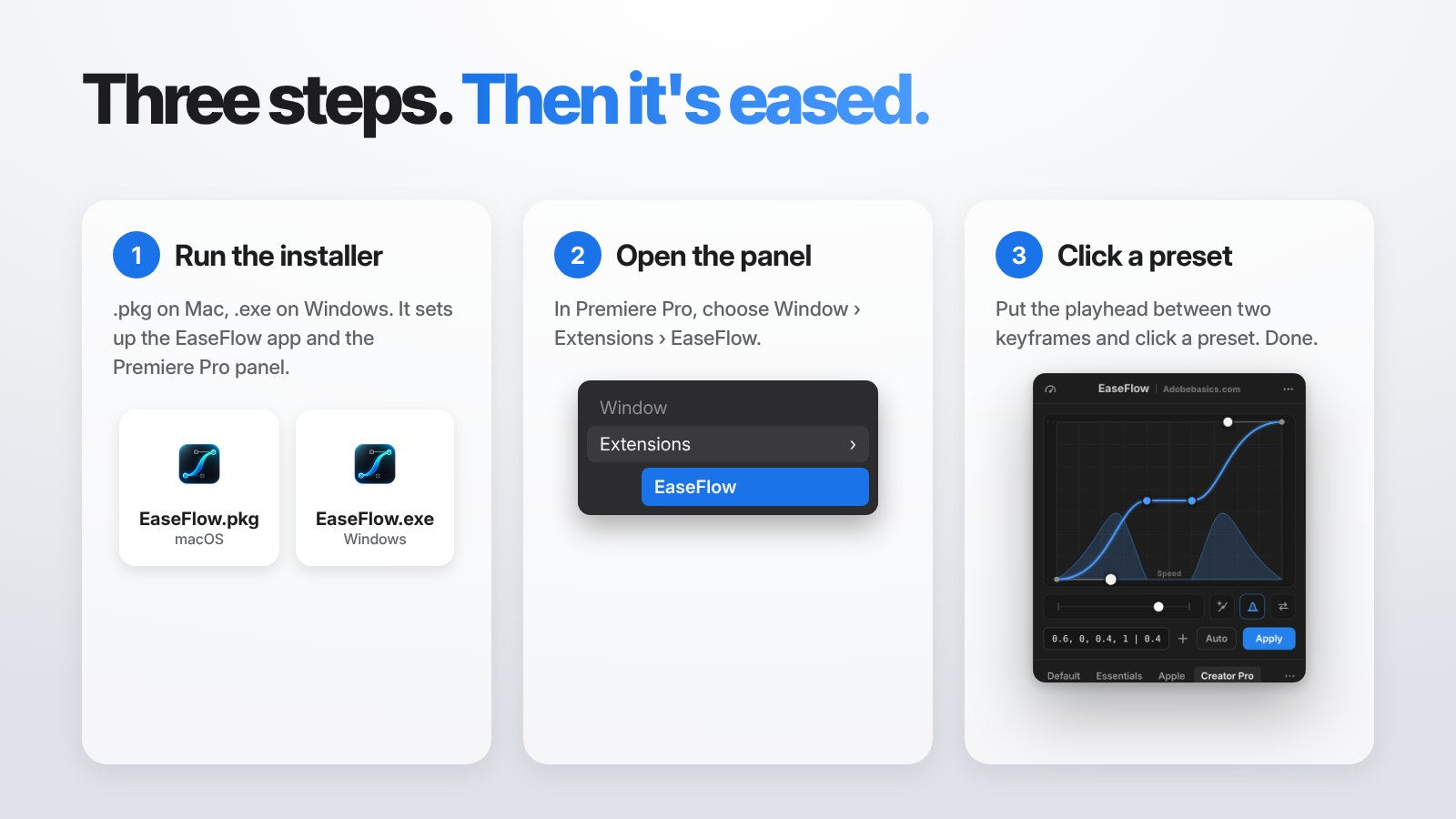
Open the email you got after checkout and download the installer for your system.
On a Mac you get EaseFlow.pkg. On Windows you get EaseFlow.exe.
Step 2: Run the installer
Double-click the installer and follow the steps. It sets up two things for you: the EaseFlow app and the EaseFlow panel for Premiere Pro.
The EaseFlow app lives in the menu bar on a Mac and in the system tray on Windows. It starts when you log in, installs the panel into Premiere Pro and keeps EaseFlow up to date, so you never copy extension files by hand.
If the app didn't start on its own, open EaseFlow from Applications on a Mac or from the Start menu on Windows.
Step 3: Open the panel in Premiere Pro
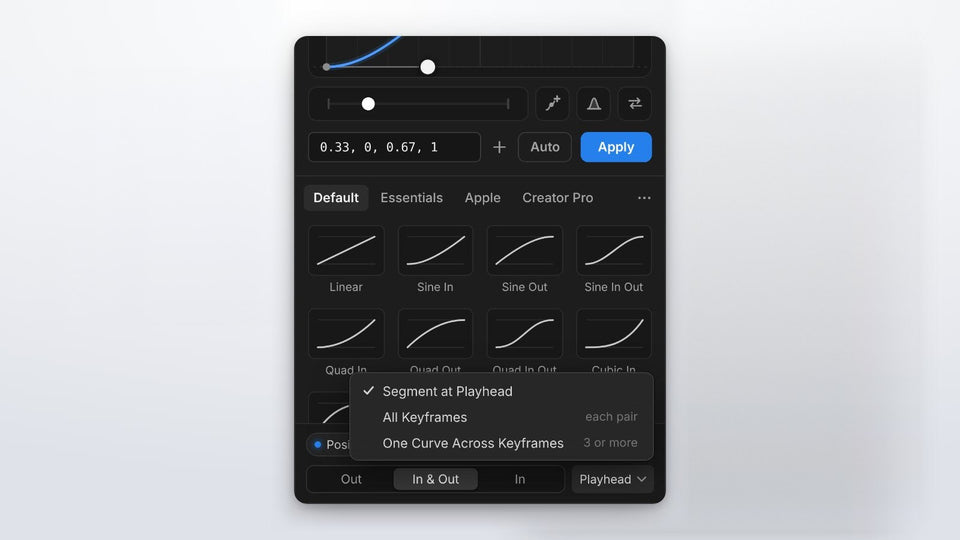
Open Premiere Pro and choose Window > Extensions > EaseFlow. If Premiere Pro was already open while you installed, quit it and open it again first.
Dock the panel wherever you like. A good spot is a tab next to Effect Controls, so your keyframes and your curves sit side by side.
Step 4: Enter your license key
The first time, the panel shows Activate EaseFlow. Click Enter License Key, and EaseFlow's license window opens. Paste the key from your email and confirm.
Your key works on two computers. To move EaseFlow to a new computer, open Manage License in the EaseFlow app's menu and remove the old one.
Step 5: Ease your first keyframes
The first time you open the panel, How to Use EaseFlow walks you through the six things to know. You can open it again any time from Options (•••).
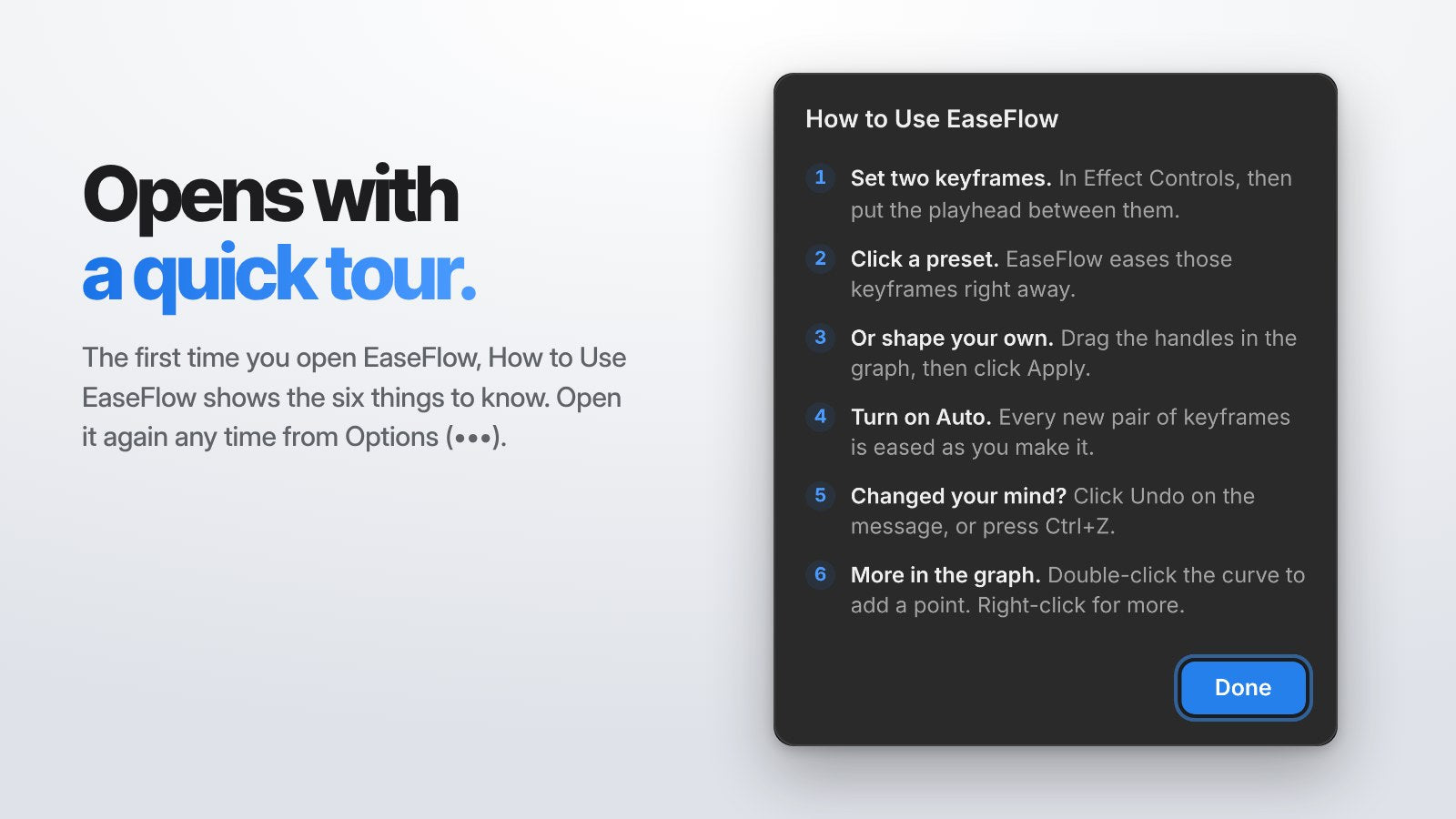
In Effect Controls, set two keyframes, for example two Position keyframes on a title. Put the playhead between them and click a preset in EaseFlow.
That's it. Play the clip back and the move now speeds up and lands softly. Want it to happen by itself? Click Auto, and every new pair of keyframes is eased as you make it.
Updates
The EaseFlow app checks for updates when it starts and every 24 hours, and installs them on its own. Every update is free.
To update right away, choose Check for Updates in the EaseFlow app's menu. Then close and reopen the EaseFlow panel in Premiere Pro.
If something doesn't look right
- EaseFlow isn't in Window > Extensions. Quit Premiere Pro, make sure the EaseFlow app is running, then open Premiere Pro again.
- The panel says Open EaseFlow or Start EaseFlow. The EaseFlow app isn't running. Click the button in the panel and it opens.
- The panel says Too many computers. Your key is already active on two computers. Remove one in the license window, then try again.
- The panel says Connect to the internet. EaseFlow works offline for up to a week. Connect once and it verifies your license on its own.
Still stuck? Contact us and we'll reply within 24 hours and help you get set up.
What to read next
See every feature in the complete EaseFlow guide, and what just arrived in What's New in EaseFlow 2.0.
FAQ
How do I install EaseFlow in Premiere Pro?
Run the EaseFlow installer (.pkg on Mac, .exe on Windows), then open Premiere Pro and choose Window > Extensions > EaseFlow. Enter your license key when the panel asks.
Where do I find EaseFlow in Premiere Pro?
Choose Window > Extensions > EaseFlow. If it isn't there, restart Premiere Pro with the EaseFlow app running.
Do I need to install updates myself?
No. The EaseFlow app installs updates on its own. You can also choose Check for Updates in its menu.
Can I use EaseFlow on more than one computer?
Yes, your license key works on two computers. Remove an old computer in the license window to make room for a new one.
Which Premiere Pro versions does EaseFlow support?
EaseFlow works with Adobe Premiere Pro 2021 to 2026 on macOS and Windows.
Smooth keyframes are two minutes away. Get EaseFlow for Premiere Pro.