



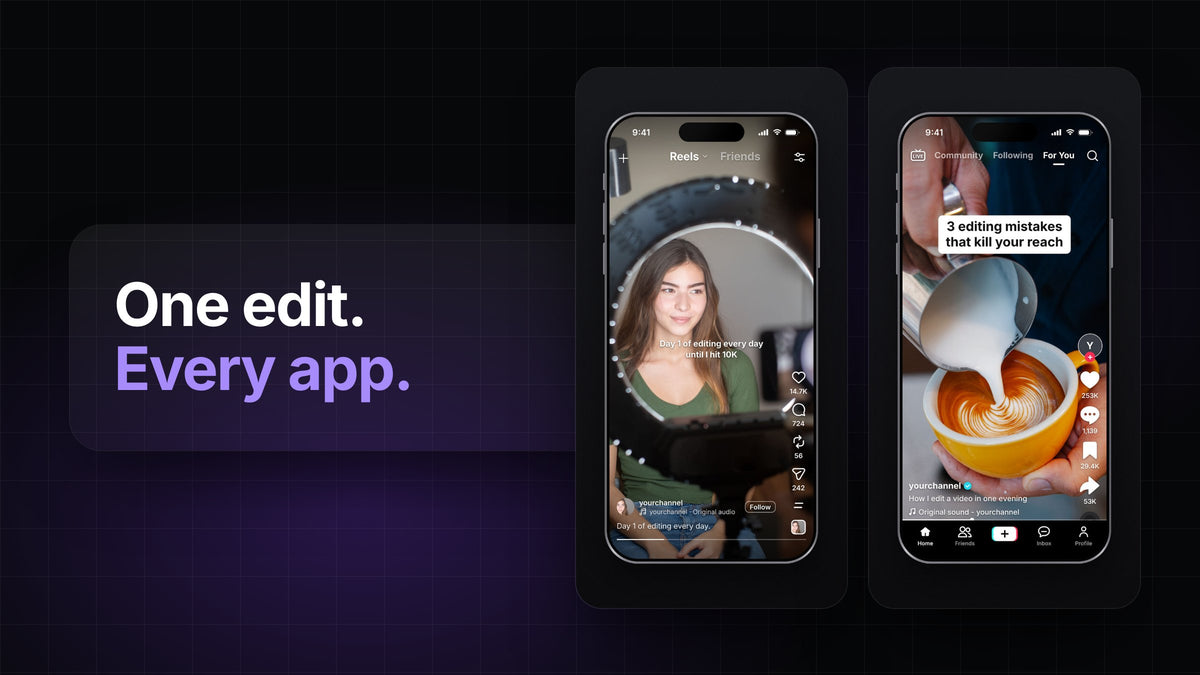
The fix is to lay the video out once, inside the space all three leave clear.
Step 1: Start in 1080 × 1920
Edit at 1080 × 1920, 9:16. All three apps show that shape full screen, so there's no reason to keep separate versions for the frame size.
Step 2: Show the clear area
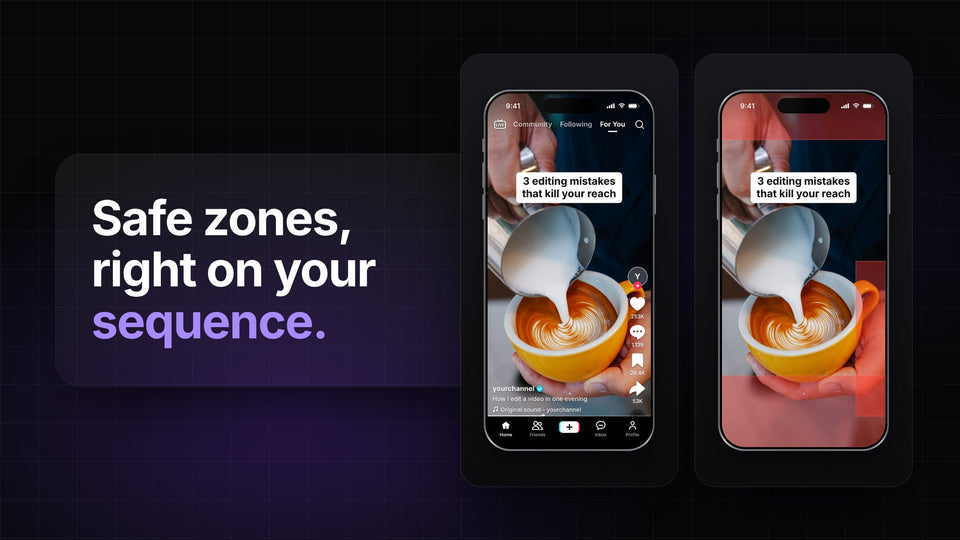
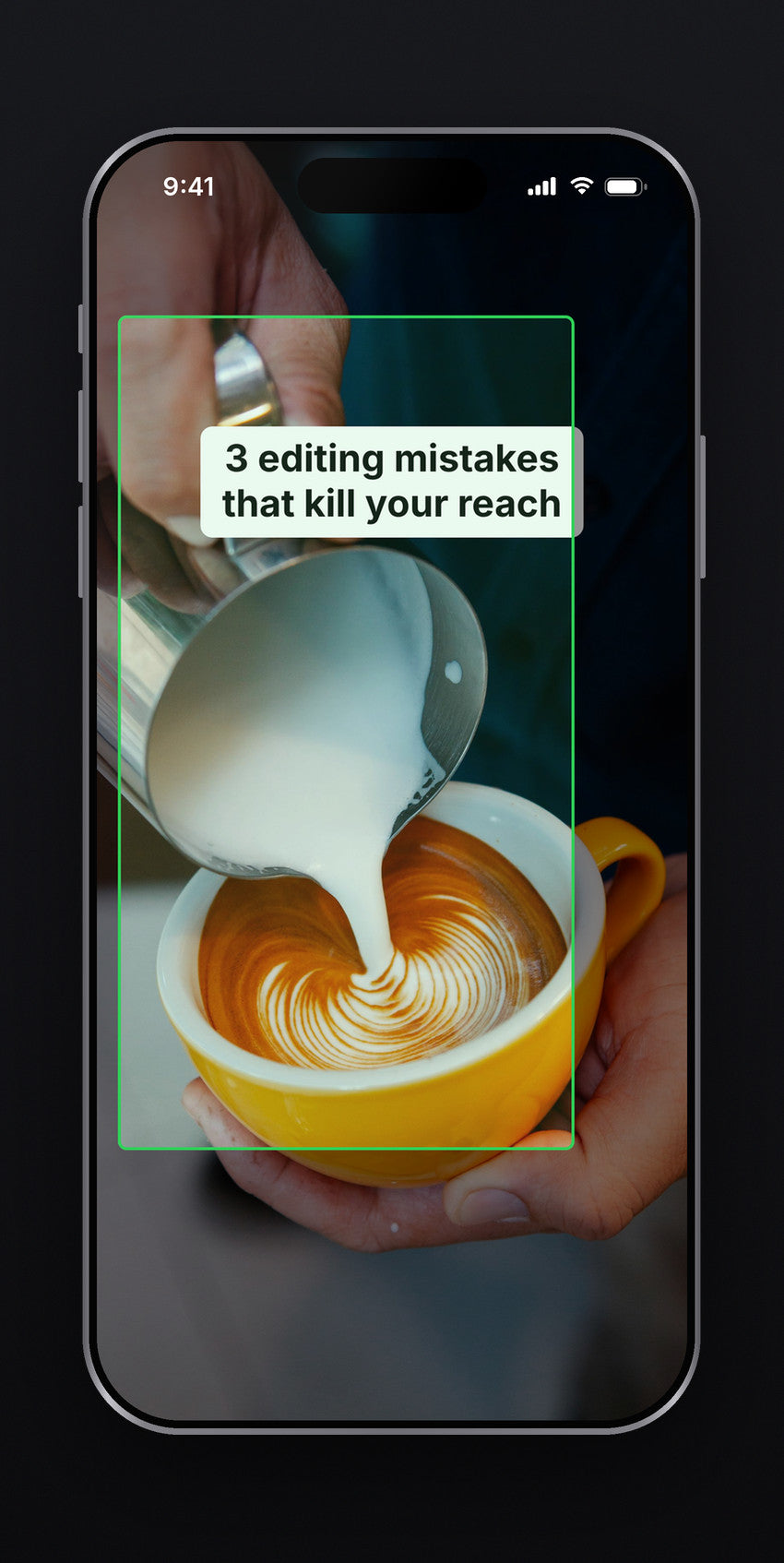
Open ClearFrame, switch to Clear Area and pick TikTok, Instagram Reels and YouTube Shorts. Press Apply Guide. The box you see is what's free on all three at once.
Step 3: Place text inside the box
Captions, hook titles, numbers and logos go inside it. On a 1080 × 1920 frame it runs from about 252 px down from the top to about 1532 px, and from 40 px in on the left to 920 px. That's tighter on the right than most people expect, because of TikTok's button rail.
Step 4: Frame faces for the tightest app
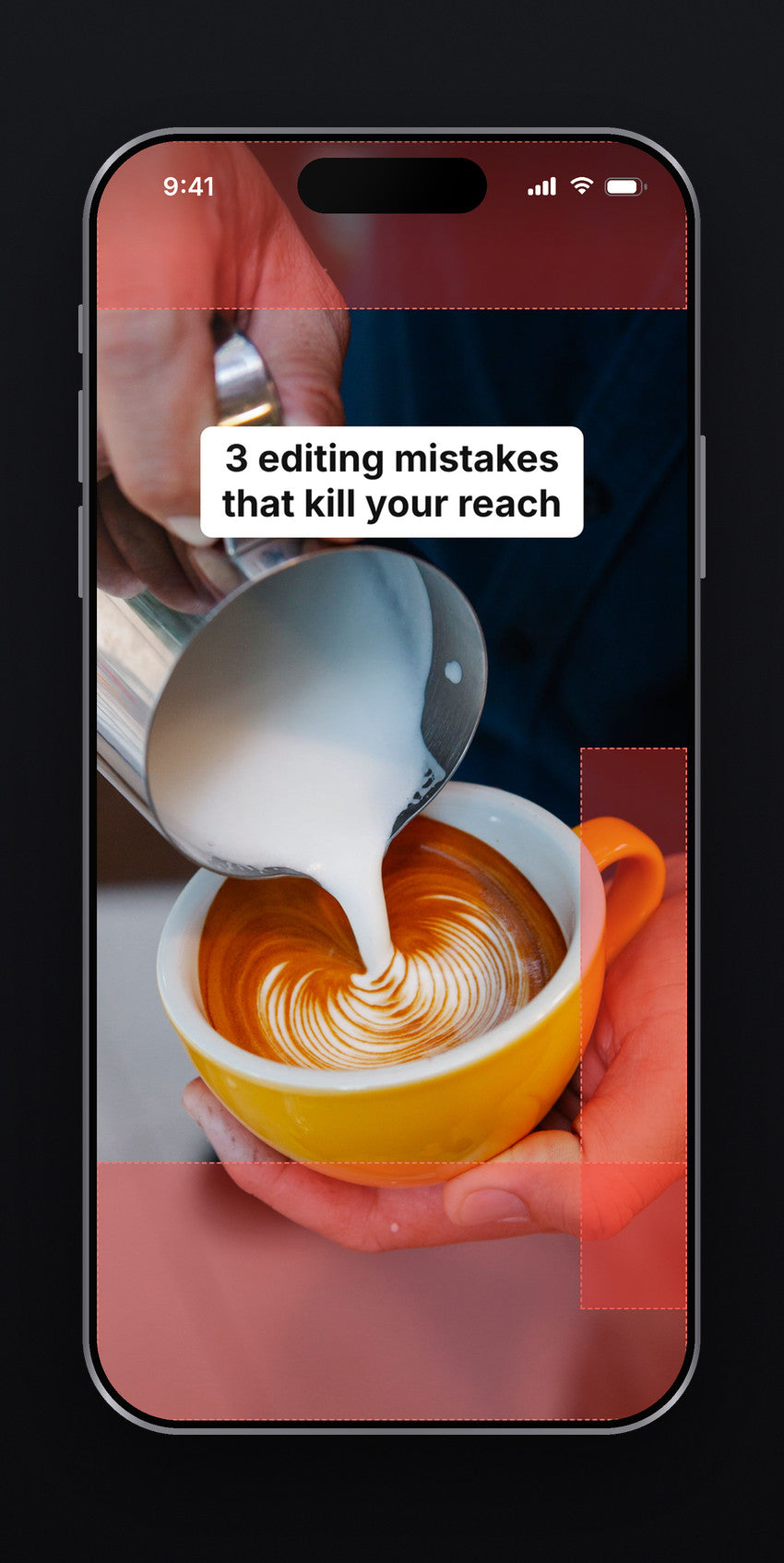
Switch to Zones with the same three apps picked. Red is covered somewhere. Keep eyes and mouths out of the red, and let backgrounds and hands go where they like.
Step 5: Check each app's real look
Switch to Interface and click through TikTok, Reels and Shorts. This is the closest you'll get to the phone without exporting. If something feels crowded on one app, it usually is.
Step 6: Hide the guide and export once
Click the eye to hide the guide, export one file and upload it everywhere. Adding Facebook Reels or Snapchat too? Add them to the Clear Area. Facebook Reels covers the most at the bottom, so the box gets shorter.
Make it your default
In ClearFrame Pro you can save this setup as a preset, keep it on with Auto Apply, and turn on a live preview of your own video under the guide. Our safe zone sizes guide has the numbers for all six apps.
ClearFrame Standard is $19.99 and has all six vertical apps and the three views. ClearFrame Pro is $29.99 and adds Blind Spot Scan, the live preview, YouTube 16:9 and Instagram Feed 4:5, every guide and your own lines. You pay once, and you can move from Standard to Pro later for $12.99.
One edit, every app, nothing covered. Get ClearFrame for Premiere Pro.