

 by
by 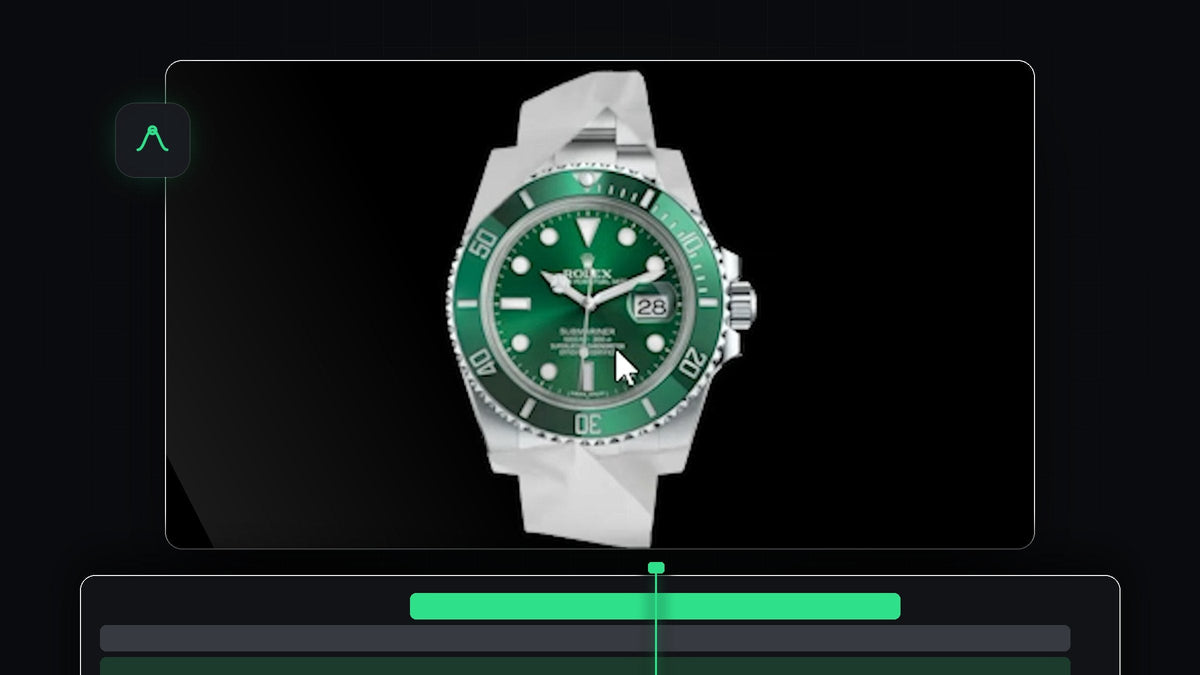
Watch the tutorial
Step 1: Add the green screen paper and key it
Click and drag the green screen paper clip onto your timeline. It is a clip of a paper ball unfolding in front of a blue screen, and you can download it free as our Paper Unfold Green Screen. Then apply the Ultra Key effect to it. In Effect Controls, click the dropper next to Key Color and click the blue background to remove it. You are left with just the paper on black.
Step 2: Place your object on the unfolded paper
Move the playhead to the point where the green paper is fully unfolded. Drag your object, such as a product image or logo, onto the track above the paper clip. Select the object, then position and resize it so it fits inside the green part of the paper. Keeping it inside the green area avoids problems later, when the object is cut to the shape of the paper.

Step 3: Nest the object
Right-click the object clip and choose Nest. Give the nested sequence a name, for example Object, and click OK. Nesting turns the clip and its position into a single layer, which the Track Matte Key effect needs.

Step 4: Cut the object to the paper with Track Matte Key
Apply Track Matte Key to the green screen paper clip, in Effect Controls, and set Matte to the track that holds your nested object, which should be Video 2. Now duplicate the nested layer and move the copy up one track. Select the bottom two layers, right-click and choose Nest again, then click OK.
Move the object layer all the way to the bottom and put the other layer above it. Apply Track Matte Key to the object layer and set its Matte to Video 2. The object is now only visible where the paper is, so it unfolds and wrinkles with it.

Step 5: Remove the green with Ultra Key
Duplicate the top layer and move it up. Apply Ultra Key to it, click the Key Color dropper and click the green on the paper to remove it. You now see your object on the paper, with the paper's folds and shadows.
If the object looks gray, expand Matte Generation in the Ultra Key settings and set Shadow to 0.

Step 6: Make it fold back in
To fold the object as well, select all the layers and duplicate them. Then select the duplicated layers, right-click, choose Speed/Duration and tick Reverse speed. Place the reversed copy after the first one and the paper unfolds, holds, and folds up again.

Tips
- Use a sharp image. The object is shown large during the unfold, so use a high-resolution image.
- Add paper sounds. A rustle at the start and the end of the animation makes it feel real.
- Keep the object inside the green. Anything outside the green paper will be cut off by the matte.
FAQ
Why do I need to nest the object?
Track Matte Key works on whole layers. Nesting combines the clip and its scale and position into one layer that can be used as a matte.
Why is my object gray after keying?
The paper's shadows are being applied to your object. Open Matte Generation in Ultra Key and set Shadow to 0.
Can I use a video instead of an image?
Yes. Place a video on the track above the paper, nest it and follow the same steps. Check our guide to object transitions for more ideas.
Want to skip the whole process? The Paper Animation Template is drag and drop and includes two paper sound effects.


