



 by

Why one plugin beats a folder of presets
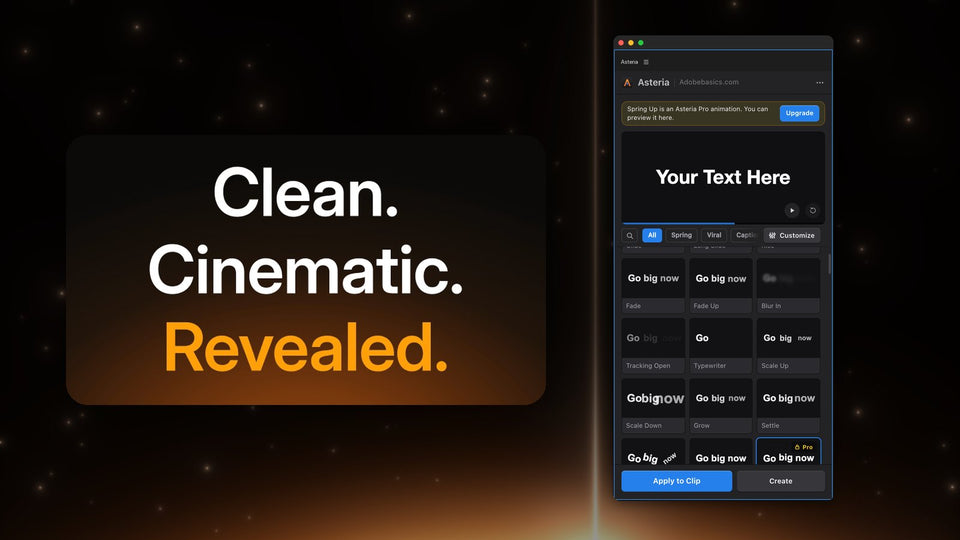
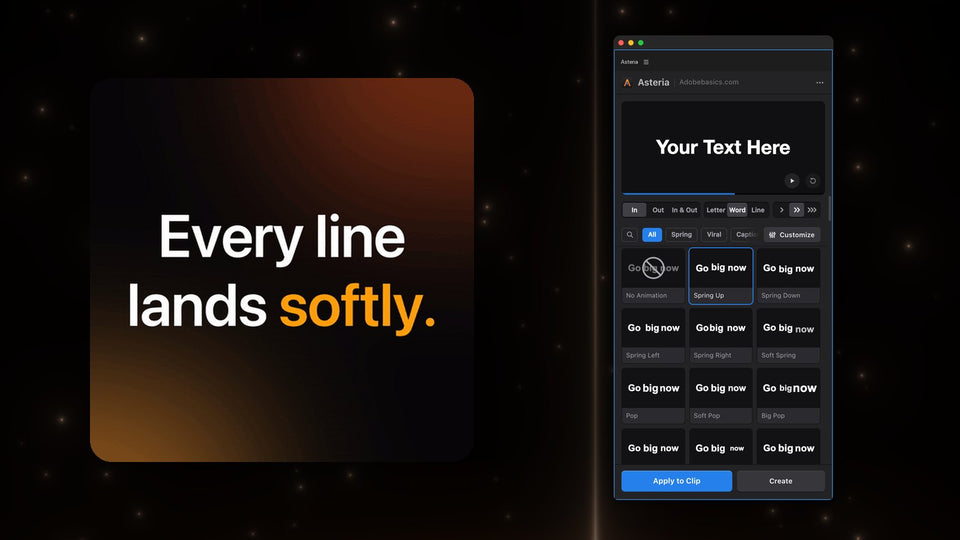
Classic text presets and Motion Graphics Templates come with their own text layers, so you retype your title inside them and redo your font and colors. Asteria works the other way around: you make a title with Premiere's Type tool, select it and click. Your words, font, size and position stay, and the same animation works by letter, word or line.
1. Spring Up
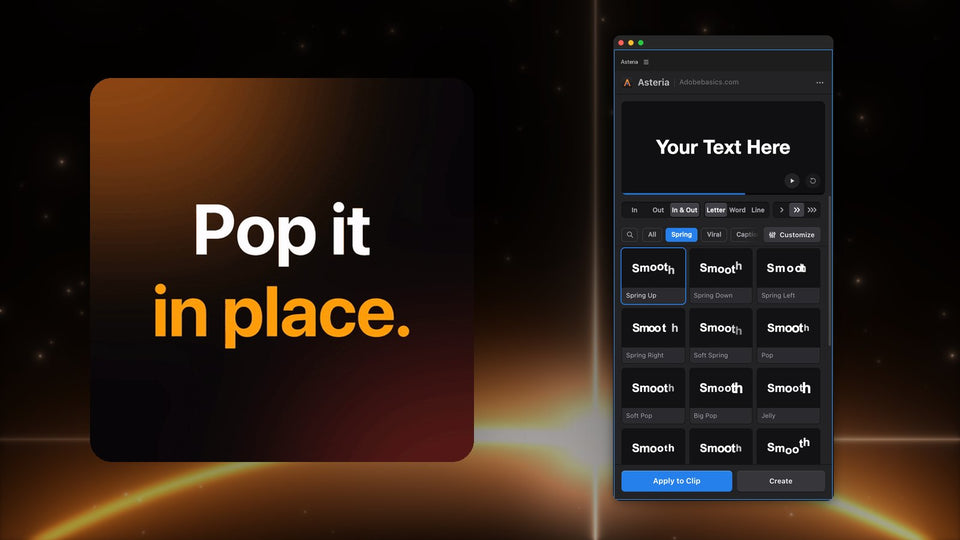
Letters or words rise, overshoot a touch and settle. It is the smooth, bouncy look of the big channels, and the best all-round title animation for hooks and intros.
2. Pop and Big Pop
Words grow from nothing and bounce into place. Use Pop for clean titles and Big Pop when a word needs to hit, like a punchline or a number.

3. Drop
Letters fall in from above and bounce on the baseline. Great for single words like WAIT or NO.
4. Squash and stretch
Words squash wide and stretch tall like rubber, then settle. It brings a playful, cartoon energy to gaming and comedy edits.

5. Line reveals
Whole lines rise out of an invisible edge, one after the other. Quiet, precise and perfect for cinematic titles, quotes and documentary lower thirds.

6. Typewriter
Your words type out letter by letter. Use it for dates, places and on-screen notes.
7. Decode and glitch
Random characters settle into your words, or glitch hits make the text jitter and split. Ideal for tech reviews, gaming and trailers.
8. Word-by-word captions
An orange box jumps from word to word as the line is spoken, the look of Reels, TikTok and Shorts. In Asteria the caption styles include Karaoke Box, Box Pop, Box Rise and Karaoke Color.

How to apply them
- Make your title with the Type tool and select the clip.
- Open Window › Extensions › Asteria.
- Pick Letter, Word or Line, and In, Out or In & Out.
- Hover over the tiles to preview, then click one and press Apply to Clip.
Which version has what
Asteria Standard ($69.99) has 40 essentials, 25 In and 15 Out, such as slides, fades, blur, typewriter and scale. Asteria Pro ($79.99) has all 206 animations, including the springs, pops, caption styles, glitch and decode, plus animation settings for speed, bounce and stagger, and custom animations you save once and reuse on every video.
Want all of these on your own titles in one click? Get Asteria for Premiere Pro.