by
by 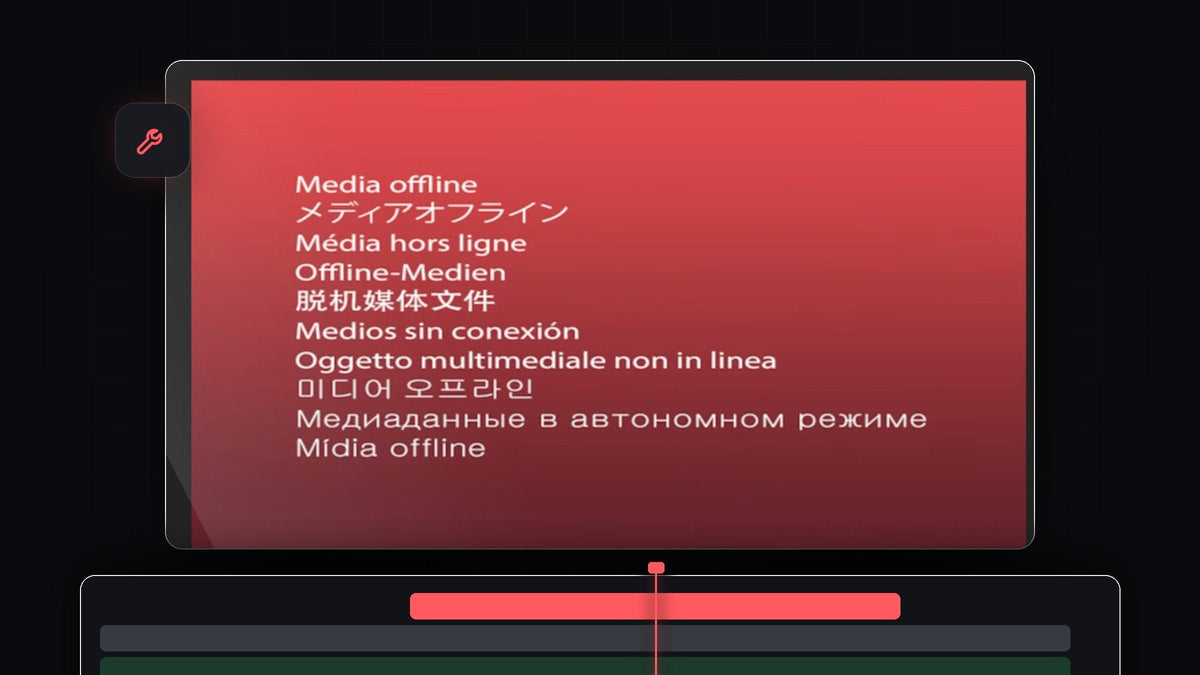
Watch the tutorial
Step 1: Understand why media goes offline
Premiere Pro never stores your video inside the project file. It only remembers where each clip lives on your drive. The error appears when that link breaks, which usually happens for one of three reasons:
- You renamed the file. The name no longer matches the one Premiere remembers.
- You moved the file. It now sits in a different folder or on another drive.
- You deleted the file. There is nothing to link to anymore, so you need to restore it first, for example from the Recycle Bin or a backup.
When you open the project, you may see the Link Media window straight away, and the clip shows as Media Offline in the Program Monitor.

Step 2: Right-click the offline clip and choose Link Media
If the Link Media window did not open by itself, or you closed it, find the offline clip on the timeline and right-click it. In the menu, choose Link Media. You can also right-click the clip in the Project panel and pick the same option.

Step 3: Click Locate
The Link Media window lists the missing clip, its original file name and the folder Premiere last saw it in. Leave the Match File Properties options on their defaults, then click Locate.

Step 4: Find the file and click OK
A Locate File window opens. At the top, Last Path shows where Premiere expects the file. Browse to the folder that holds it now. If you are not sure where it ended up, type part of the file name into the search field at the top right. If you renamed the file, search for the new name. In the video, the clip was renamed to hello.mp4, so searching for hello finds it right away. Select the file and click OK.

Step 5: Check that the clip plays
Back in your sequence, the red screen is gone and the clip plays normally again. Any other clips from the same folder usually relink automatically thanks to the Relink others automatically option. Save your project right away.
Tips
- Keep media in one place. Create a project folder for footage, audio and exports, and don't rename or move files from inside it once you start editing.
- Collect before you move. If you plan to move a project to another computer, use the Project Manager to copy everything together. We show how in our guide to sharing a project in Premiere Pro.
- Check external drives. If the clips are on an external drive, make sure it is plugged in and shows the same drive letter before you relink.
FAQ
What does Media Offline mean in Premiere Pro?
It means Premiere Pro cannot find the original file for a clip. The file was renamed, moved or deleted, or the drive it lives on is disconnected.
Will I lose my edit if the media is offline?
No. Your cuts, effects and keyframes stay in the project. Once you relink the file, everything is back as it was.
How do I relink all offline clips at once?
Select all offline clips in the Project panel, right-click and choose Link Media. Locate one file, and Premiere can relink the others from the same folder automatically.
Need something to edit with? Browse our free presets for Premiere Pro.