by
by 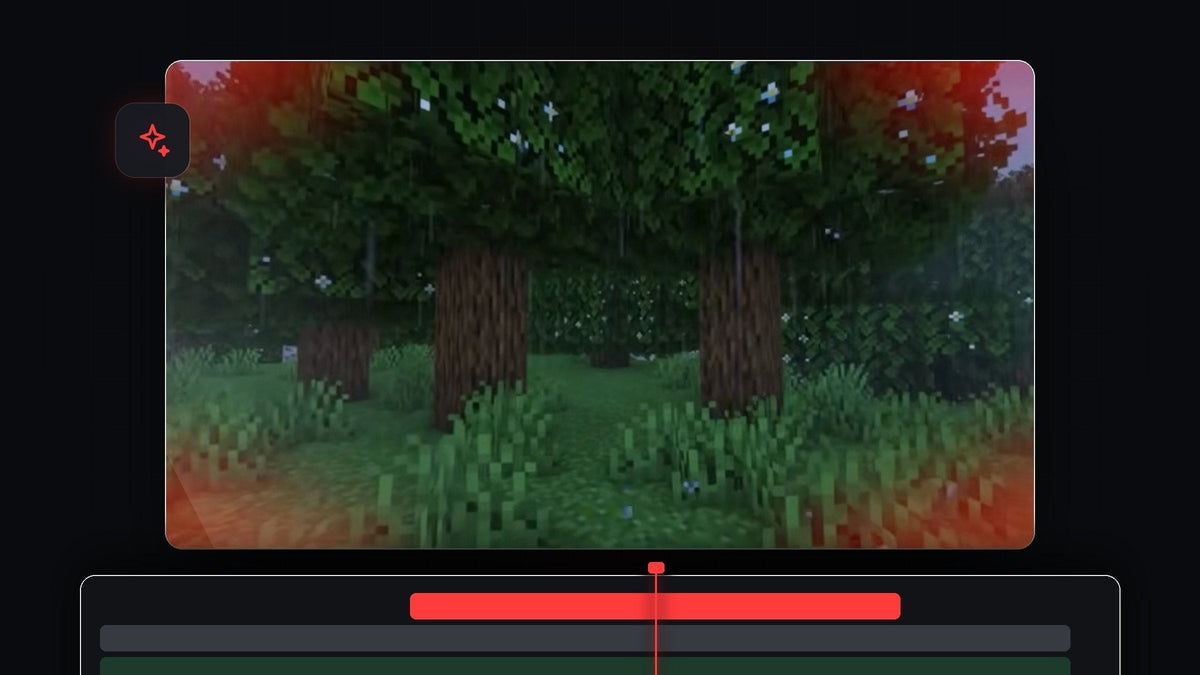
Watch the tutorial
Step 1: Create a red color matte
Open the Project panel, click New Item and choose Color Matte. Confirm the video settings with OK, then pick a strong red in the Color Picker and click OK again. Name it if prompted. Drag the matte onto the track above your clip, and stretch it to cover the part of the clip where you want the damage effect.

One click with Mako: the free Mako panel adds a color matte over the selected clips, at the playhead, on the first free track, in one click. Get Mako for free
Step 2: Add an ellipse mask
Select the color matte and open Effect Controls. Under Opacity, click the Create ellipse mask icon. An ellipse appears in the Program monitor with blue handles. Drag the handles to stretch it into a wide oval that covers most of the picture, roughly like the one in the video.

Step 3: Invert the mask
To see what you are doing, tick Inverted under the mask settings in Effect Controls. The middle of the picture now shows your clip, and only the edges stay red. That is the hurt effect we are going for.
Step 4: Soften the edges
A hard edge looks cheap, so raise Mask Feather by a lot. In the video, it goes up to around 500. Then increase Mask Expansion (about 126 in the video) so there is not too much red in the center of the screen. You can also zoom the Program monitor out a bit to give yourself room to adjust the mask handles further.

Step 5: Lower the opacity
Back in Effect Controls, bring the matte's Opacity down a bit so the red does not pop too hard. A softer red feels more like a real game hit and keeps your footage readable.
Step 6: Keyframe the pulse
Click the stopwatch next to Opacity to create a keyframe. Move forward a short way in the timeline and drop the opacity down to 0, so the red fades out. Select both keyframes and copy them with Ctrl + C (Cmd + C on Mac). Move the playhead further along and press Ctrl + V to paste them. Repeat as many times as you like to get a pulsing red glow.

Step 7: Smooth the animation
For a softer pulse, select all the keyframes, right-click one of them and choose Bezier. This changes the keyframes from linear to curved, so the red eases in and out instead of changing at a constant speed.
Smoother with EaseFlow: select the keyframes and apply a real easing curve in one click instead of dragging Bezier handles. See EaseFlow

Tips
- Match the hit. Place the first keyframe on the exact frame where the damage happens, so the flash feels connected to the action.
- Add a sound. A short hurt sound effect on the flash makes it feel real.
- Change the color. Use blue or green on the matte for other effects, like freezing or poison.
FAQ
How do I make a red damage effect in Premiere Pro?
Create a red color matte, add an inverted ellipse mask, raise the feather and animate the opacity with keyframes.
Why invert the mask?
Without inversion, the red appears in the middle. Inverting the mask keeps the center clear and leaves the red around the edges.
Can I use this for other games or videos?
Yes. It works on any footage, from gameplay to action scenes. If you want a related look, try the object flash transition.
Want more ready-made looks? Check out the Ultimate Premiere Pro Presets pack with over 500 presets.