

 by
by 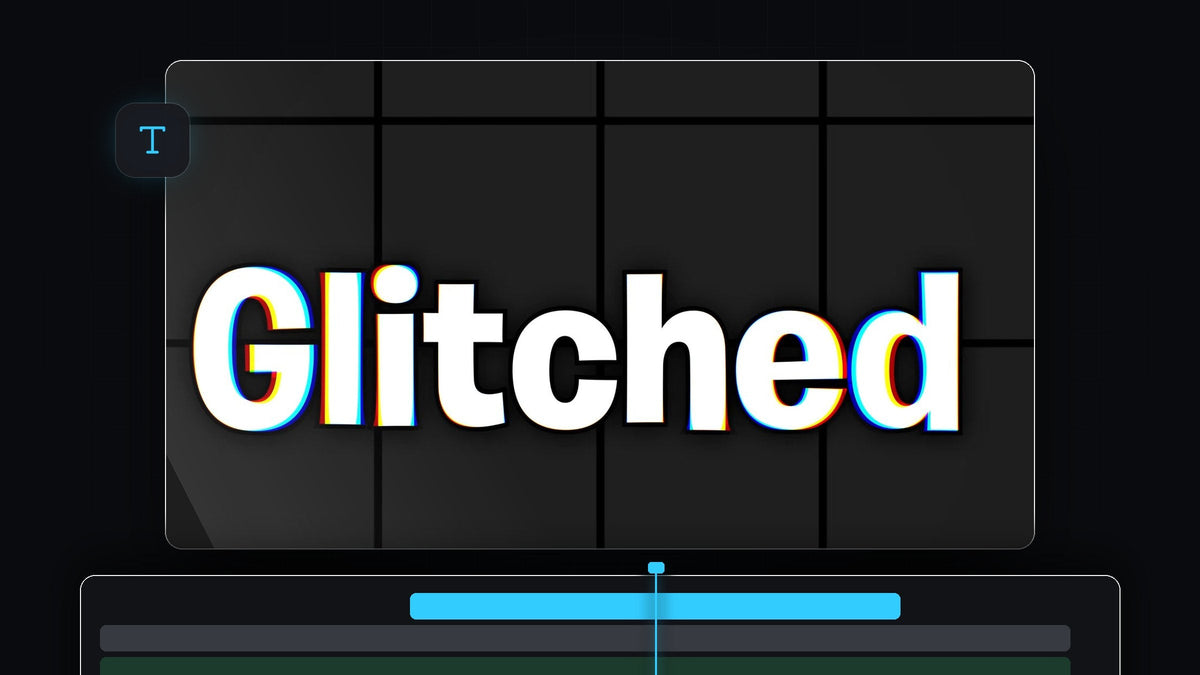
Watch the tutorial
Step 1: Add your text
Select the Type Tool (press T), click in the Program Monitor and type your word. Switch to the Selection Tool, then resize and reposition the text so it sits where you want it. A bold, thick font shows the colour split much better than a thin one.

Step 2: Apply VR Chromatic Aberration
Open Window > Effects and search for VR Chromatic Aberration. You will find it under Video Effects > Immersive Video. Drag it onto the text layer. You will already see a slight colour fringe around the letters.

Faster with BetterFX: skip the Effects panel. Press your BetterFX shortcut, type the first letters of VR Chromatic Aberrations and press Enter to apply it to the selected clip. Get BetterFX
Step 3: Enable Falloff Invert
With the text layer selected, open Effect Controls and find the VR Chromatic Aberrations settings. Tick Falloff Invert. This flips the effect so the glitch is strongest away from the centre point instead of at it, which gives the split-colour look around the outside of your text.

Step 4: Move the Point of Interest to the centre
Click the VR Chromatic Aberrations name in Effect Controls and a small blue icon appears in the Program Monitor. This is the Point of Interest. Drag it to the centre of your text. Premiere Pro applies the effect depending on the distance from that icon, so everywhere away from the blue icon gets more glitch.

Step 5: Tweak the amount of glitch
To get a stronger or softer glitch, adjust Falloff Distance in Effect Controls. A smaller distance pushes the effect further across the letters, and a larger one keeps it near the edges. You can also change the Aberration values for Red, Green and Blue to change which colours split off.

Tips
- Use bold white text. The coloured fringes are easiest to see on thick, light letters over a dark background.
- Combine looks. Add an outline for a more graphic result, as shown in our text outline tutorial.
FAQ
How do I make glitched text in Premiere Pro?
Add your text, apply VR Chromatic Aberration, enable Falloff Invert, place the Point of Interest in the centre and adjust the falloff distance.
Where is VR Chromatic Aberration in Premiere Pro?
It is in the Effects panel under Video Effects, in the Immersive Video folder. Searching for its name finds it quickly.
Why is nothing happening to my text?
Make sure the effect is on the text layer and that the Point of Interest is in the right place. Try reducing the Falloff Distance to see more effect.
Want ready-made text styles? Explore the Ultimate Text Preset Pack.


