by
by 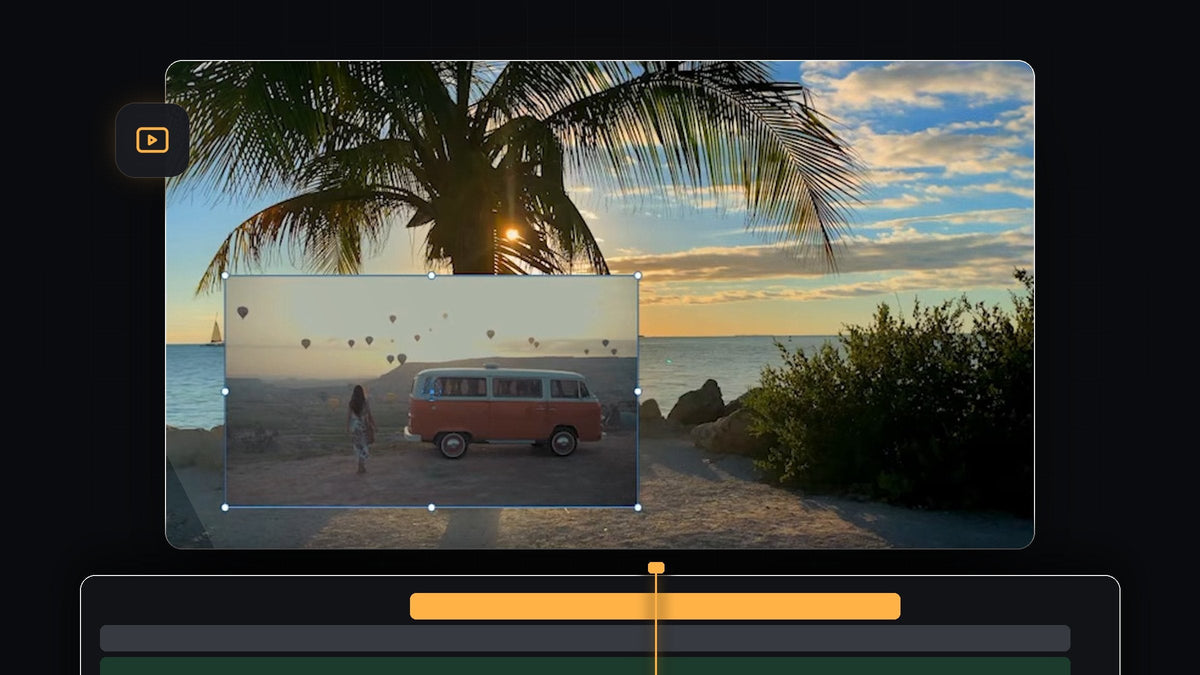
Watch the tutorial
Step 1: Stack the overlay clip above the background clip
Put your background clip on V1 and drag the clip you want to overlay onto the track directly above it, V2. Premiere Pro always shows the higher track on top, so the overlay now covers the background. Make sure both clips overlap on the timeline at the moment you want the effect to appear, and trim the overlay to the length you need.

Step 2: Resize and position the overlay
Click the overlay clip and open the Effect Controls panel. Under Motion, lower the Scale until the overlay is the size you want, then change the Position values to move it. You can also drag the clip in the Program Monitor or use the handles around it. Keep it away from the edges and from the most important part of the background shot.
If the overlay needs a different shape, uncheck Uniform Scale. The single Scale value splits into Scale Height and Scale Width, and you can stretch each one separately. Check Uniform Scale again afterwards if you want to resize it evenly.

Step 3: Lower the opacity to blend the layers
For a ghostly, see-through look, scroll to Opacity in Effect Controls and bring the percentage down from 100. The background now shines through the overlay. Move the value around until the two shots work together, and raise it again if the overlay gets hard to read.
Step 4: Try a blend mode
Under Opacity, open the Blend Mode dropdown, which is set to Normal by default. It lists modes such as Darken, Multiply, Lighten, Screen, Overlay, Soft Light, Difference and more. Each one combines the overlay with the background in a different way. Click through them while the Program Monitor shows the result, and keep the one you like.

The video picks Screen. It makes the dark parts of the overlay disappear and keeps the bright parts, so the sunset and the palm tree show through the overlay clip.
Step 5: Check the final result
Play the sequence back. With Screen applied, the overlay blends into the beach scene instead of sitting on top of it like a sticker. If it looks too faint or too strong, go back to Opacity or try another blend mode. You can switch between Normal and a blend mode as often as you like without losing any of your Position and Scale settings.

Tips
- Start with Normal. A plain inset is the classic picture in picture look. Use blend modes when you want a creative double-exposure style.
- Use dark backgrounds for Screen. The Screen blend mode lets bright areas through, so it works best when the overlay has dark areas.
- Add a custom shape. To round the corners or crop the overlay to a circle, see our guide to masking in Premiere Pro.
FAQ
How do I put a video inside another video in Premiere Pro?
Place the second clip on a video track above the first one, then scale it down and move it with the Scale and Position controls in Effect Controls.
Why can I only see the top clip?
The clip on the higher track covers the one below it. Scale the top clip down or lower its Opacity to reveal the clip on the track underneath.
What does the Screen blend mode do?
Screen brightens the picture by combining the overlay and the background so that dark areas of the overlay become transparent and bright areas stay visible.
Want more ready-made looks for your overlays and edits? Browse the Ultimate Premiere Pro Presets pack with over 500 presets.