by
by 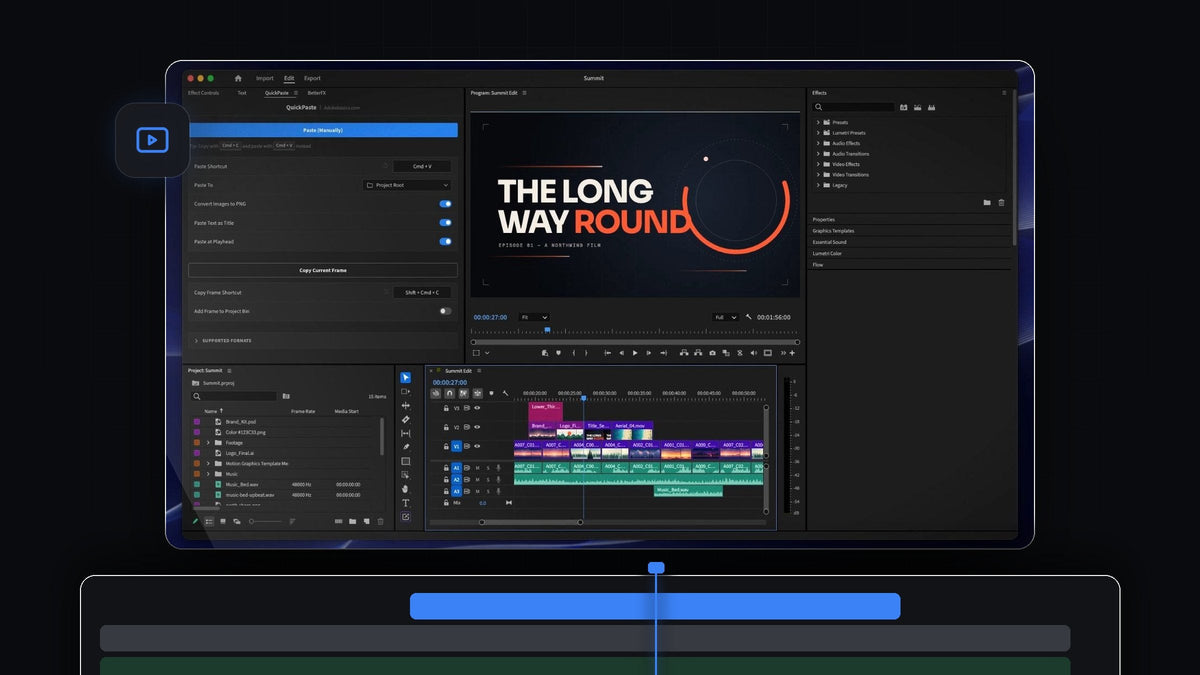
Watch the intro
What QuickPaste does
QuickPaste works through the paste shortcut you already know, from anywhere in Premiere Pro. There is no extra button to press and no need to click into its panel first.
- Images from anywhere. Screenshots, photos and images copied straight from a webpage. Even a copied image link works.
- Automatic PNG conversion. WebP, HEIC, AVIF, JPEG, GIF, TIFF, BMP and RAW images become a clean PNG before they reach Premiere Pro.
- Vectors and Adobe files. SVG, PDF and EPS artwork, plus Photoshop, Illustrator, After Effects and MOGRT files, which come in as the real file.
- Video and audio. If Premiere Pro can import it, QuickPaste can paste it.
- Colors and gradients. Copy a HEX, RGB, HSL, CMYK or OKLCH value, or a CSS linear or radial gradient, and paste it into your edit.
- Text as a title. Copy any text and it lands as a title, ready to style.
- Insert at the playhead. Turn it on and every paste goes straight onto your timeline at the playhead.
- Choose your bin. Pasted files land in their own bin, a bin you pick, or the project root.
- Copy Current Frame. Copy the frame under the playhead as a full-resolution PNG and paste it into any app.
How to use it
Setup takes three steps, and after that you just paste.
Step 1: Install QuickPaste
Your download is ready on the order confirmation page right after checkout, and the link is also emailed to you. Run the installer: it sets up the QuickPaste app and the Premiere Pro plugin for you. Updates install automatically.
Step 2: Copy something
Copy an image the way you normally would. In a browser, right-click the image and choose Copy Image. A screenshot, a file in Finder or Explorer, a color code from a style sheet or a line of text from a script all work too. You don't need to save anything to disk first: QuickPaste saves copied web images for you.

Step 3: Paste it into Premiere Pro
Switch to Premiere Pro and press Cmd + V or Ctrl + V. The file appears in your project bin. With Paste at Playhead turned on, it also lands straight on the timeline at the playhead. Copy six files at once and they are laid end to end, with MOGRTs placed on top.

Step 4: Set up the QuickPaste panel
Open the QuickPaste panel to choose how pasting behaves. Paste Shortcut lets you record your own shortcut and reset it in one click. Paste To picks the bin. Then switch on the options you want: Convert Images to PNG, Paste Text as Title and Paste at Playhead. The Paste (Manually) button is there if you ever prefer clicking.

Step 5: Paste colors and text
Copy a color value, for example a HEX code or an OKLCH value from a brand style sheet, and paste it. QuickPaste turns it into a matte in that exact color. CSS gradients work as well. Copy a line of text, such as a chapter name from your notes, and it is pasted as a title you can style right away.

Step 6: Copy a frame out of Premiere Pro
It works the other way too. Press the Copy Frame Shortcut (Shift + Cmd + C by default on a Mac) and QuickPaste copies the frame under the playhead as a full-resolution PNG. Paste it into a chat, an email or a document to share a still with a client. Turn on Add Frame to Project Bin if you also want to keep it in your project.

Who it is for
QuickPaste is for editors who constantly bring outside material into Premiere Pro: YouTubers adding screenshots and web images, editors placing logos and brand files, and anyone who sends stills to clients. If you have ever saved an image only to import it a minute later, QuickPaste removes those steps.
FAQ
How much does QuickPaste cost?
QuickPaste is a one-time purchase, currently $24.99 (regular price $34.99). It includes lifetime access, free updates and a commercial license.
Which Premiere Pro versions does QuickPaste support?
QuickPaste works with Adobe Premiere Pro 2021 to 2026 on Windows and macOS.
Which formats can I paste?
Images (PNG, JPEG, GIF, WebP, HEIC, AVIF, TIFF, BMP and RAW), vectors (SVG, PDF and EPS), Photoshop, Illustrator, After Effects and MOGRT files, any video or audio file Premiere Pro imports, copied web images and image links, HEX, RGB, HSL, CMYK and OKLCH colors, CSS gradients and text.
How do I install QuickPaste?
Download the installer after checkout and run it. It sets up both the QuickPaste app and the Premiere Pro plugin, so there is nothing to configure by hand. Want more one-click tools? Try the free Mako panel as well.
Copy it, paste it, keep cutting. Get QuickPaste for Premiere Pro.