

 by
by 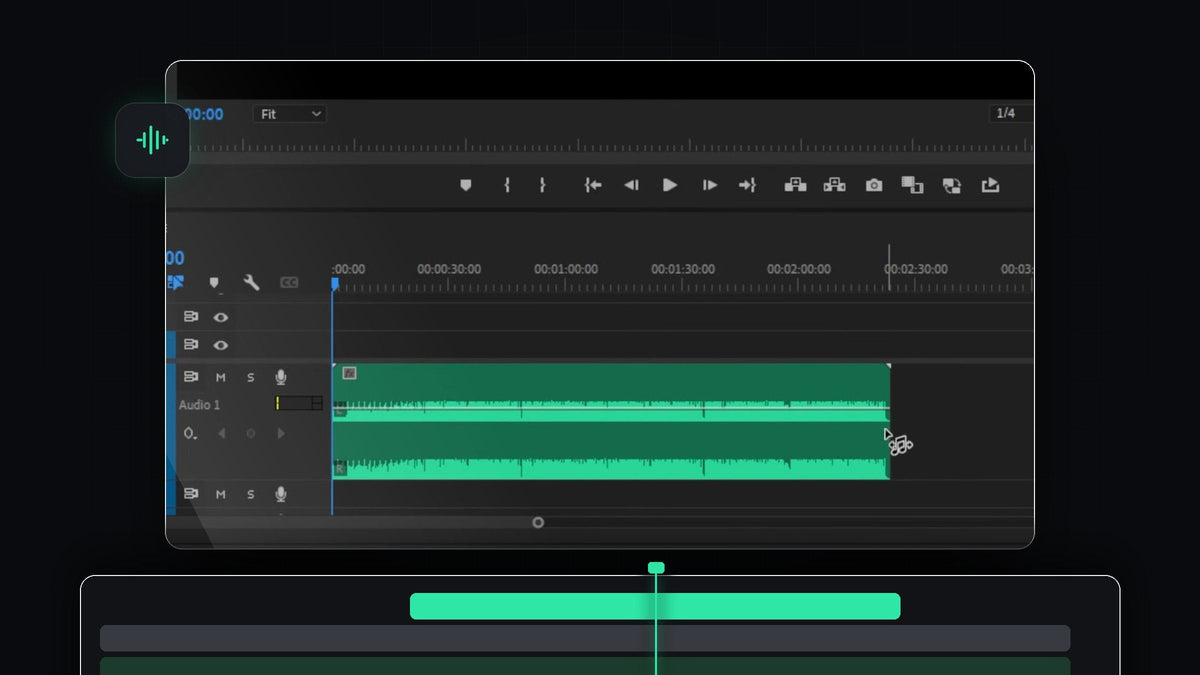
Watch the tutorial
Step 1: Put your song on the timeline
Drag your music file from the Project panel onto an audio track, for example Audio 1, and place it at the start of your sequence. Premiere Pro can rebuild a track by rearranging its own sections, so it works best with music that has a clear structure, like a repeating beat, verses and a chorus.
Step 2: Pick the Remix Tool
Look at your toolbar. The Ripple Edit Tool sits in a group with the Rolling Edit Tool, the Rate Stretch Tool and the Remix Tool. Click and hold the Ripple Edit icon until the list opens, then choose Remix Tool. Your cursor turns into a small music note icon, which tells you the tool is active.

Step 3: Drag the clip to the length you want
Move the cursor to the end of the audio clip and drag it left or right. Instead of simply trimming or looping the track, Premiere Pro analyzes the music and automatically cuts and rejoins sections so the song still sounds natural. The white outline shows the length you are heading for, and the small time label under the clip shows the exact duration.
The zigzag marks that appear on the waveform are the points where Premiere Pro has joined different parts of the song together. Zoom into your timeline and play through those spots to check that the transitions sound smooth.

Step 4: Open the Essential Sound panel
For more control, open Window > Essential Sound. If it already has a checkmark in the menu, the panel is open and you only need to find its tab. Select your song on the timeline.

Step 5: Tag the clip as Music and use Duration
In the Edit tab of the Essential Sound panel, click Music to tell Premiere Pro that this clip is a song. Then turn on the Duration section. Leave the Method on Remix, which rearranges the song, rather than Stretch, which changes the tempo.
Type the length you need into Target Duration. Premiere Pro tells you it can land within about five seconds of that value, and Remix Duration below shows the length it actually achieved.

Step 6: Fine-tune with Segments and Variations
Open Customize to reach two sliders. Segments controls how many pieces the song is split into: fewer segments means longer, more natural sections, while more segments gives Premiere Pro extra places to cut. Variations moves between a more melodic result and a more harmonic one. Drag each slider a little, listen, and stop when the loop points are no longer noticeable.

Tips
- Start from the original file. Remix from the full, untouched song so Premiere Pro has all of its sections to work with.
- Listen to every join. Play across the zigzag marks with headphones on before you lock your edit.
- Add a short fade. A quick fade-out on the very last second gives the ending a clean finish.
FAQ
Can I make a song shorter in Premiere Pro without cutting it off?
Yes. The Remix Tool and the Duration setting both work in either direction. Premiere Pro removes sections of the song and joins the rest so it still builds and ends naturally.
What is the difference between Remix and Stretch?
Remix rearranges parts of the music and keeps the original tempo and pitch. Stretch speeds the whole track up or slows it down, which changes how it sounds.
Why does the target duration not match exactly?
Premiere Pro needs to cut on musical beats, so it can only get within a few seconds of your target. Adjust the Segments slider or trim the last moment of the clip to land on the exact frame you need.
Need sound design to go with your perfectly timed music? Try the Sound Effects Pack Mini.


