 by
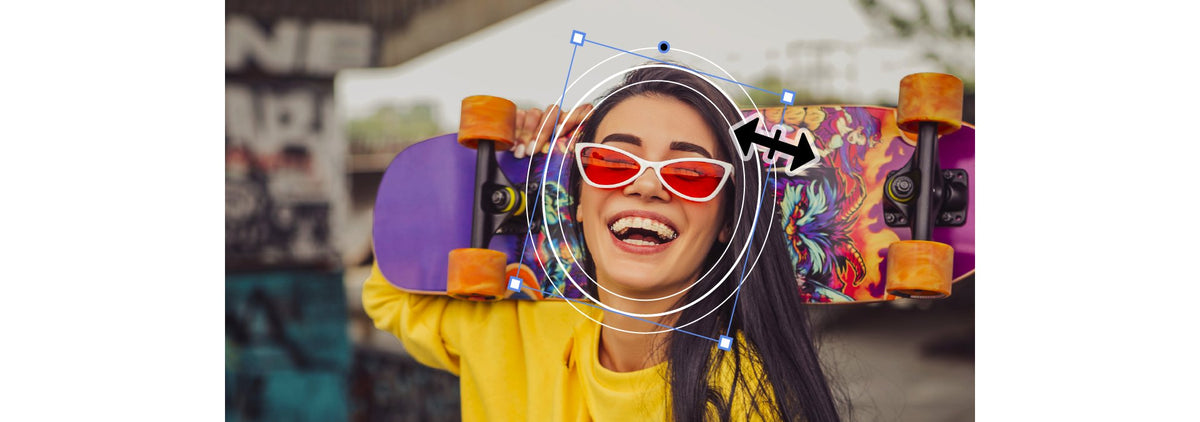
1. Object Mask
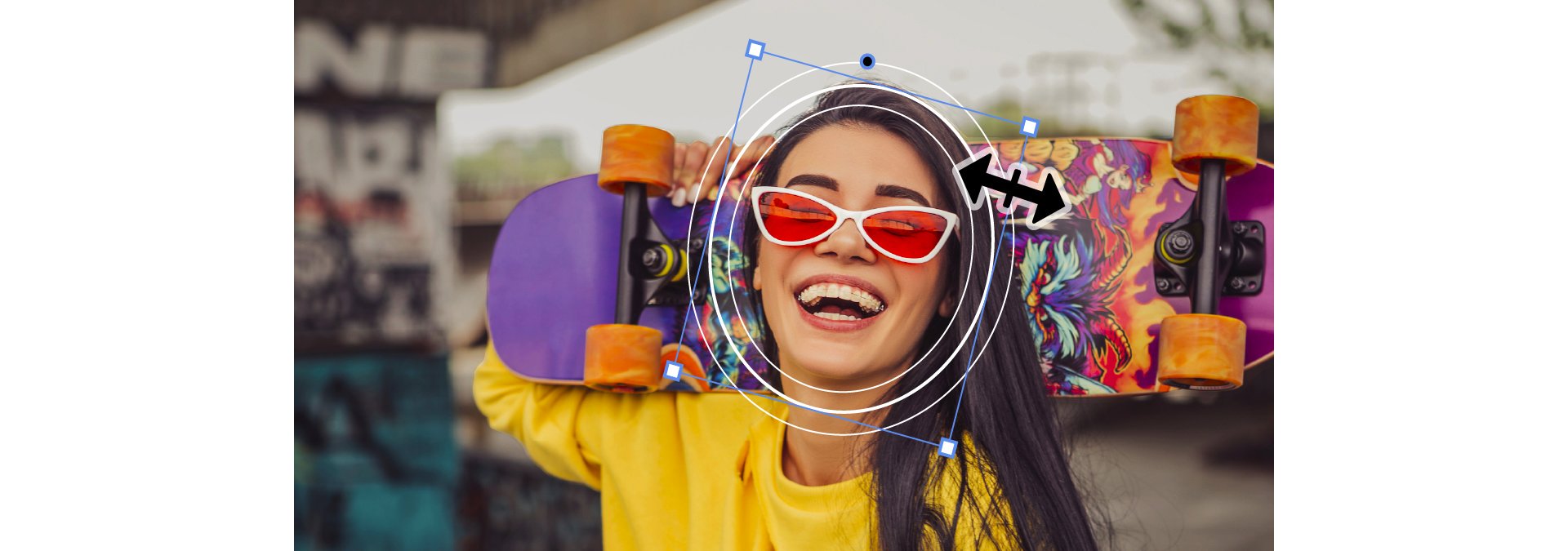
Masking a moving person used to mean drawing and tracking by hand. With Object Mask (26.0) you hover over your frame, a colored overlay snaps onto the person or object, and one click makes the mask. Premiere then tracks it through the shot.
It's good for blurring faces, brightening a subject or grading one part of the frame. Later updates added Sharp and Smooth edge modes (26.2), faster tracking (26.3) and a smoothness control (26.5).

2. Faster shape masks
The Ellipse, Rectangle and Pen masks were rebuilt in 26.0, and Adobe says they track up to 20 times faster. You draw them from the toolbar, shape them in the Program Monitor and combine them with blend modes.
The tracking tools are the real time saver. Track forward and backward from one frame, pin a mask to a screen or wall with 3D perspective tracking, and fix a few frames without redoing the whole track.
3. Generative Media Tool
Missing a shot or a sound? The Generative Media Tool (26.5) makes video clips and sound effects from a text prompt, right where you need them on the timeline. The result is a normal clip you can trim and edit.
You can use frames from your project as a reference, so the new clip fits the shots around it, and pick Adobe Firefly or a partner model. It uses generative credits.

4. Paper Edit
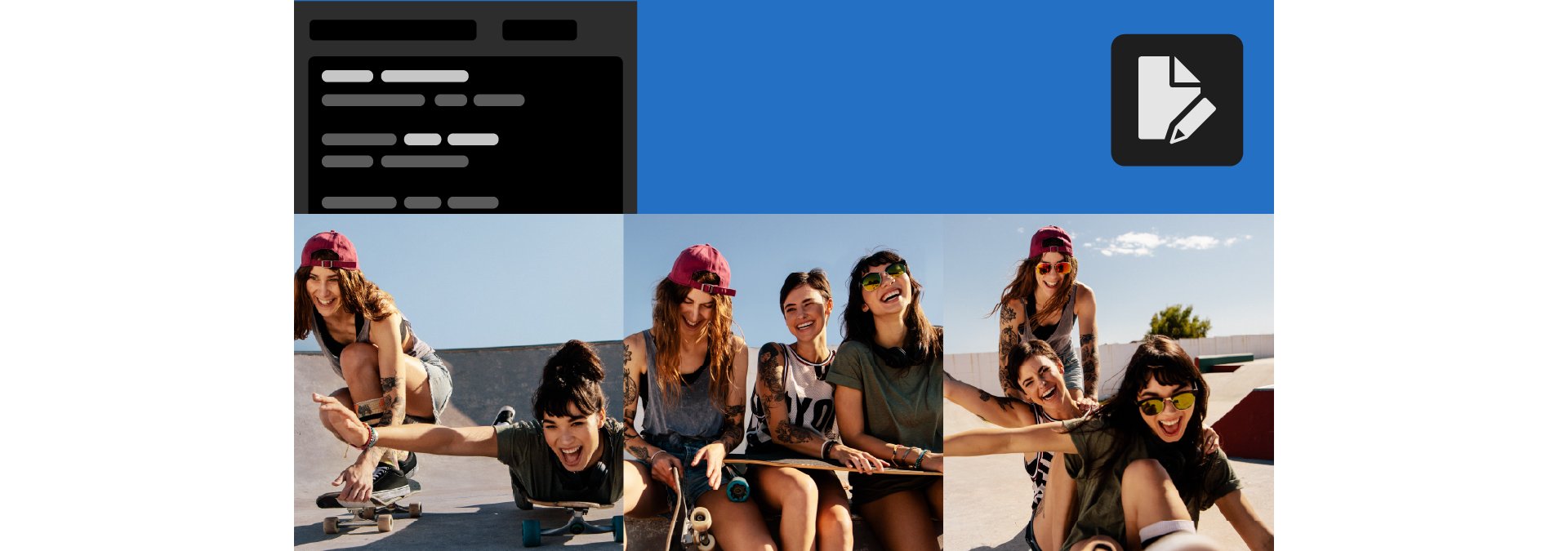
Paper Edit (26.5) turns your transcript into a rough cut. Select the lines you want in the Text panel, preview them, and Premiere builds a new sequence from them.
It's best for interviews and podcasts, where you already know what you want people to say. No more scrubbing through an hour of footage to find one sentence.
5. Single-word captions
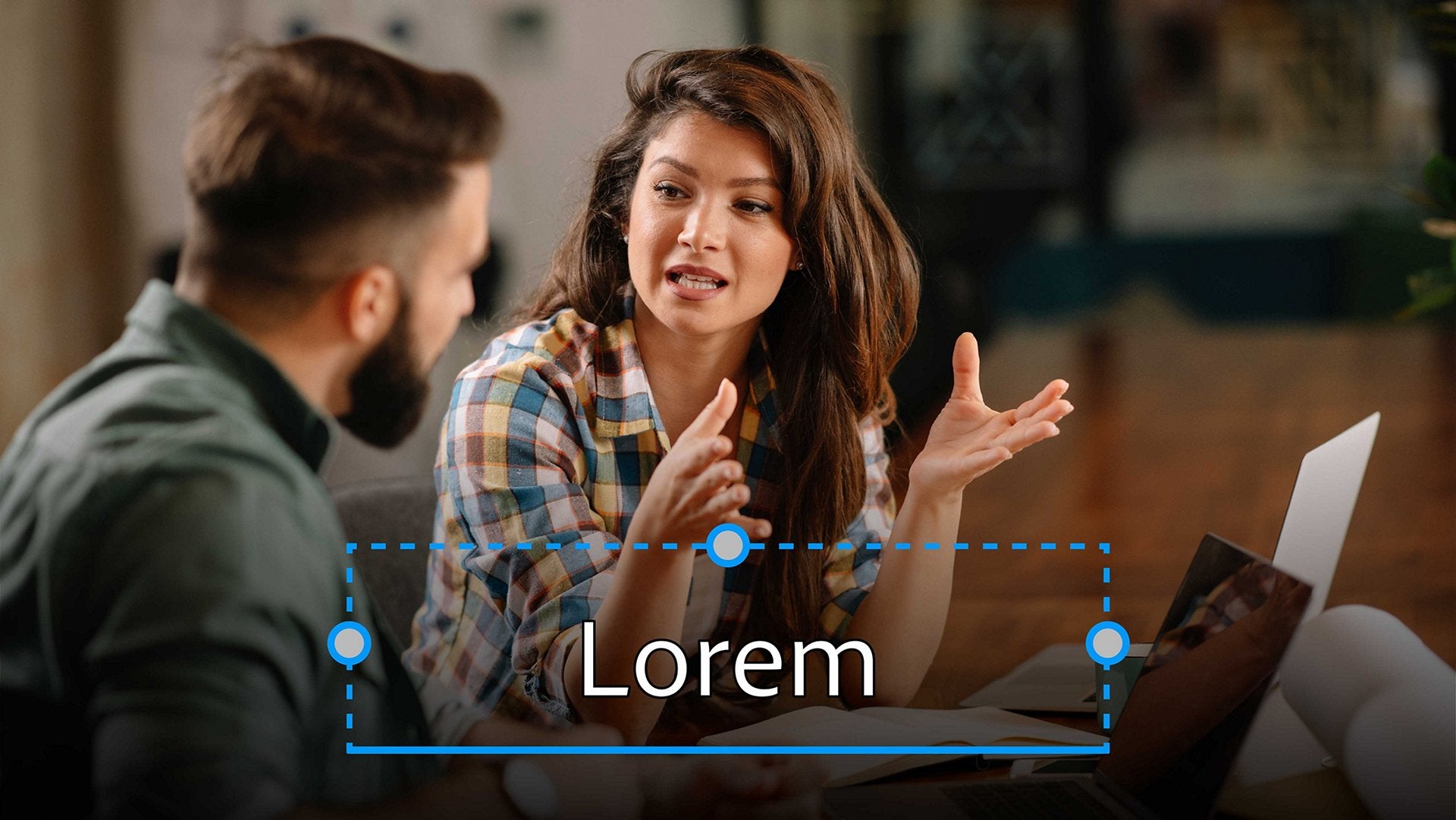
The one word at a time caption style is everywhere on social video. With 26.3 you choose Single Word when you make captions, and Premiere times every word to your audio. No more splitting captions by hand.
6. Sequence Index
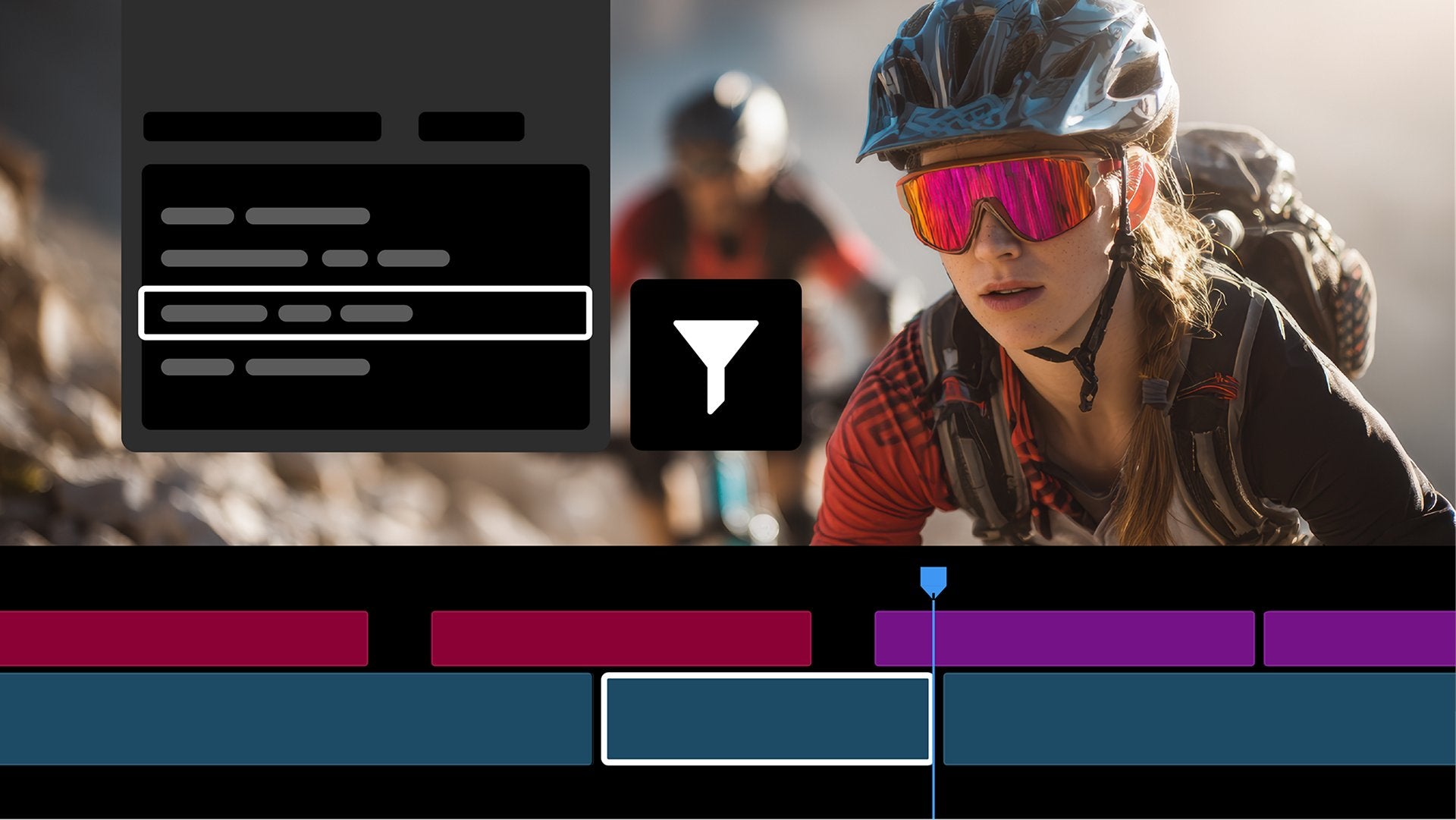
Long timelines are hard to read. The Sequence Index panel (26.2) lists everything in your sequence in a searchable table, so you can find a clip and jump to it in seconds. It pairs well with the new marker search in the Search panel, also from 26.2.
7. Color Mode (beta)
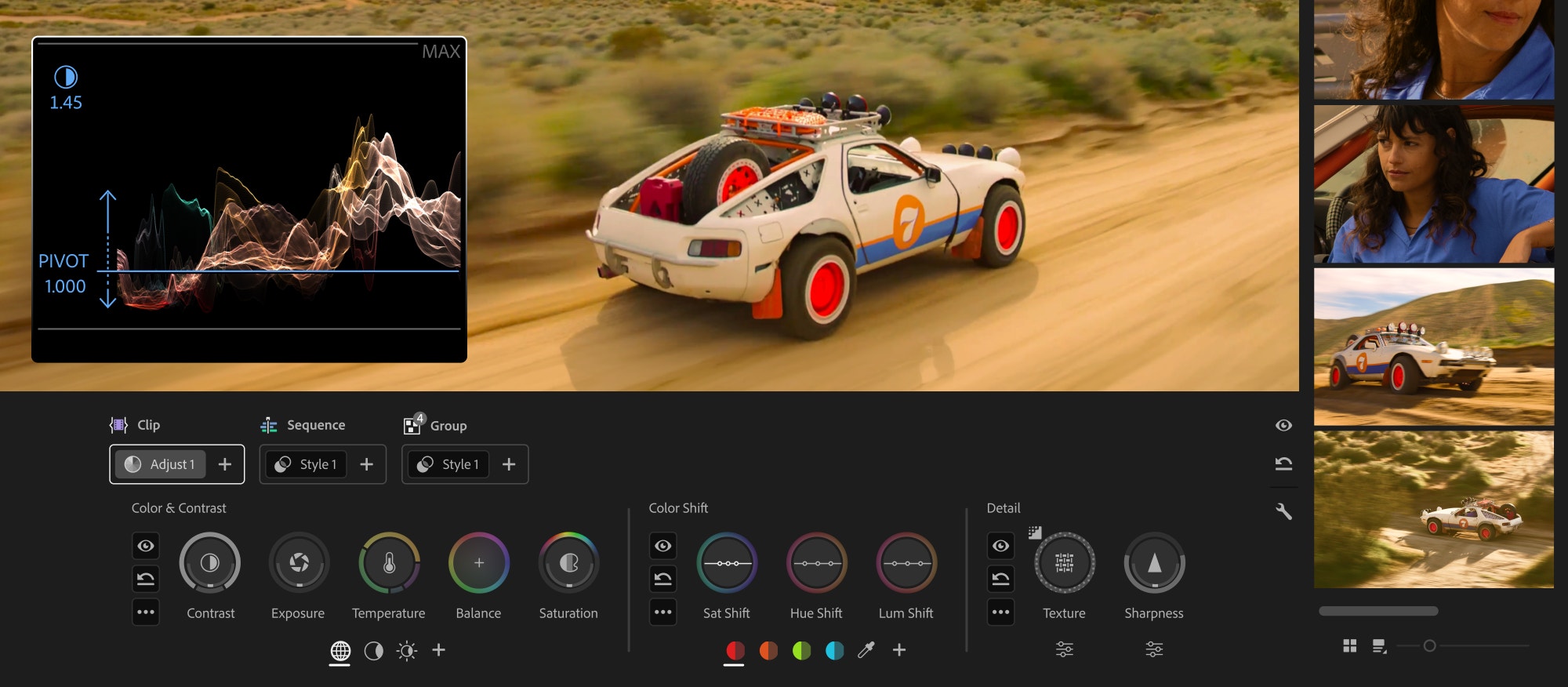
Color Mode arrived as a public beta in 26.2. It's a grading workspace made for editors, with a Clip Grid, new Color Controls and grades by clip, group or sequence. If you grade in Premiere, it's worth trying in 26, but it stays a beta in this version. The finished Color Mode came with Premiere Pro 2027.
Also new in Premiere Pro 2026
- Transition handles (26.0). Change a transition by dragging it right on the clip.
- Windows on ARM (26.0). Runs natively on Snapdragon X PCs.
- Global Audio Mute (26.2). Mute all sequence audio in one click.
- Waveforms in the Source Monitor (26.2). See the audio under the picture.
- New effects and transitions (26.2 and 26.3). Channel Blur, Gradient, Noise, 3D Spinback, Slide, Shape Dissolve and Magnify.
- More Generative Extend (26.5). Works with footage from 360p to 4K UHD and any aspect ratio.
Thinking about which version to use? Our guide on whether to update to Premiere Pro 2026 covers it, including what to do on an Intel Mac. The full list of new features covers the rest.
FAQ
What is the best new feature in Premiere Pro 2026?
For most editors it's Object Mask. One click masks and tracks a person or object, which used to take a lot of manual work.
Which Premiere 26 version has all these features?
Premiere 26.5 from September 2026, or any later 26.5 fix release. Update to the latest 26.x version to get everything on this list.
Do BetterFX and EaseFlow work in Premiere Pro 2026?
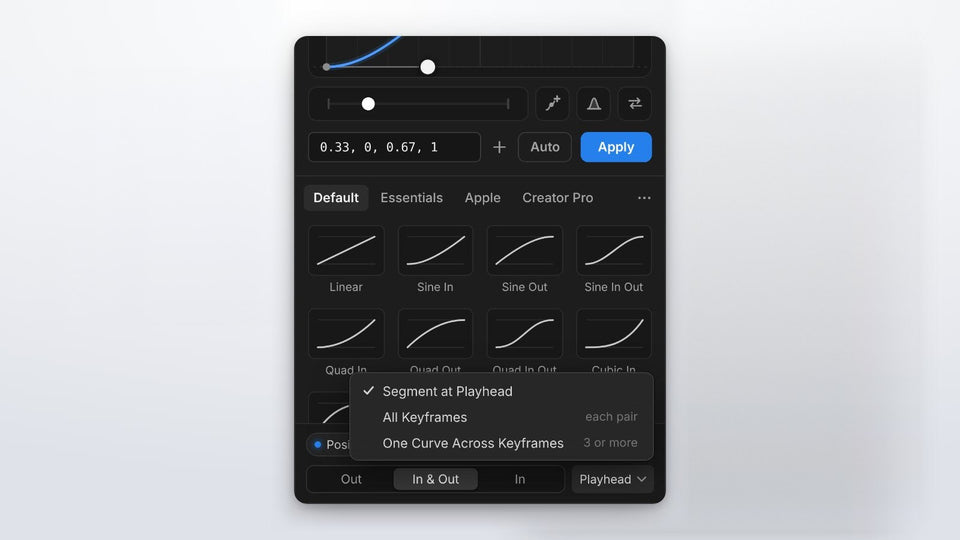
Yes. All our plugins work in Premiere Pro 2021 to 2027.
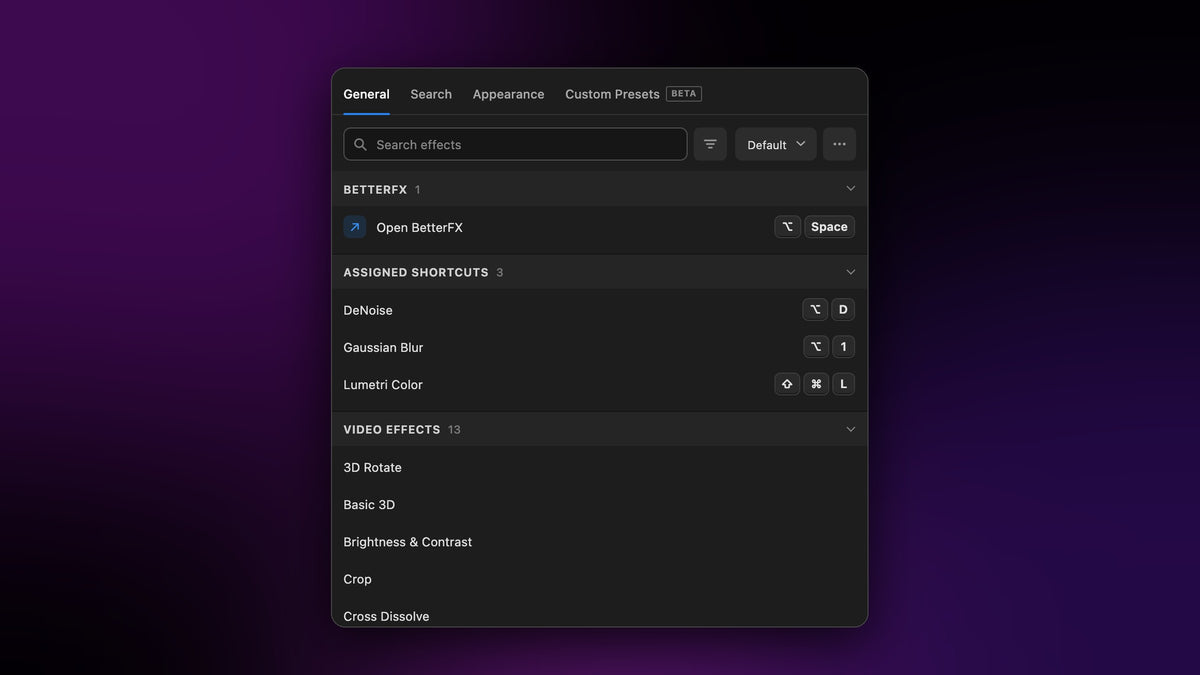
Want any effect in one keystroke in Premiere Pro 2026? Get BetterFX for Premiere Pro.