



 by
Why numbers are hard to animate in Premiere Pro
Premiere Pro's text tools can move, scale and fade a number, but they can't change its value over time. To make the digits themselves change, you need a counter effect. The Number Counter plugin adds one, together with a panel that sets it up for you.
Animate a number in four steps
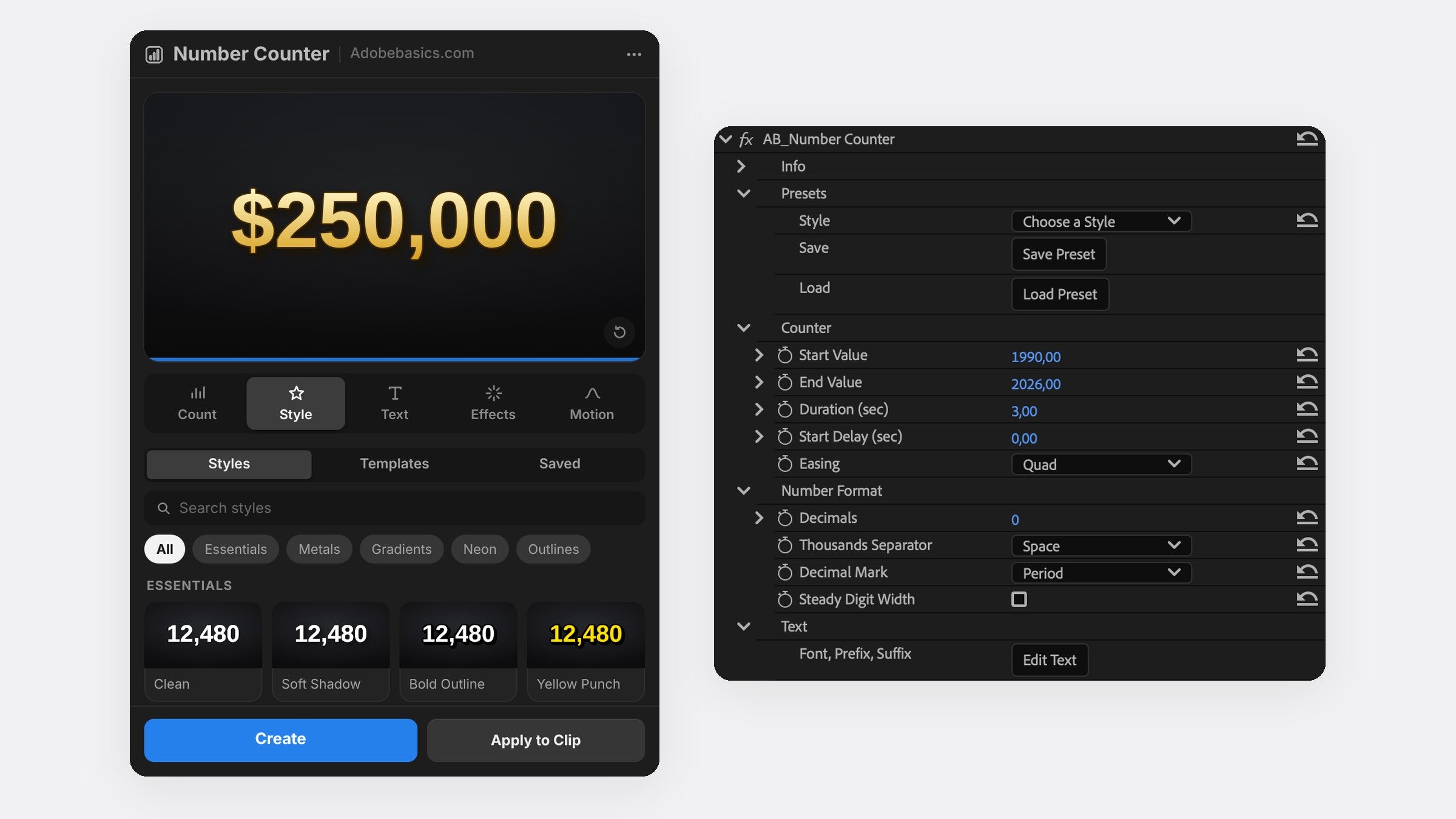
- Open the panel with Window › Extensions › Number Counter.
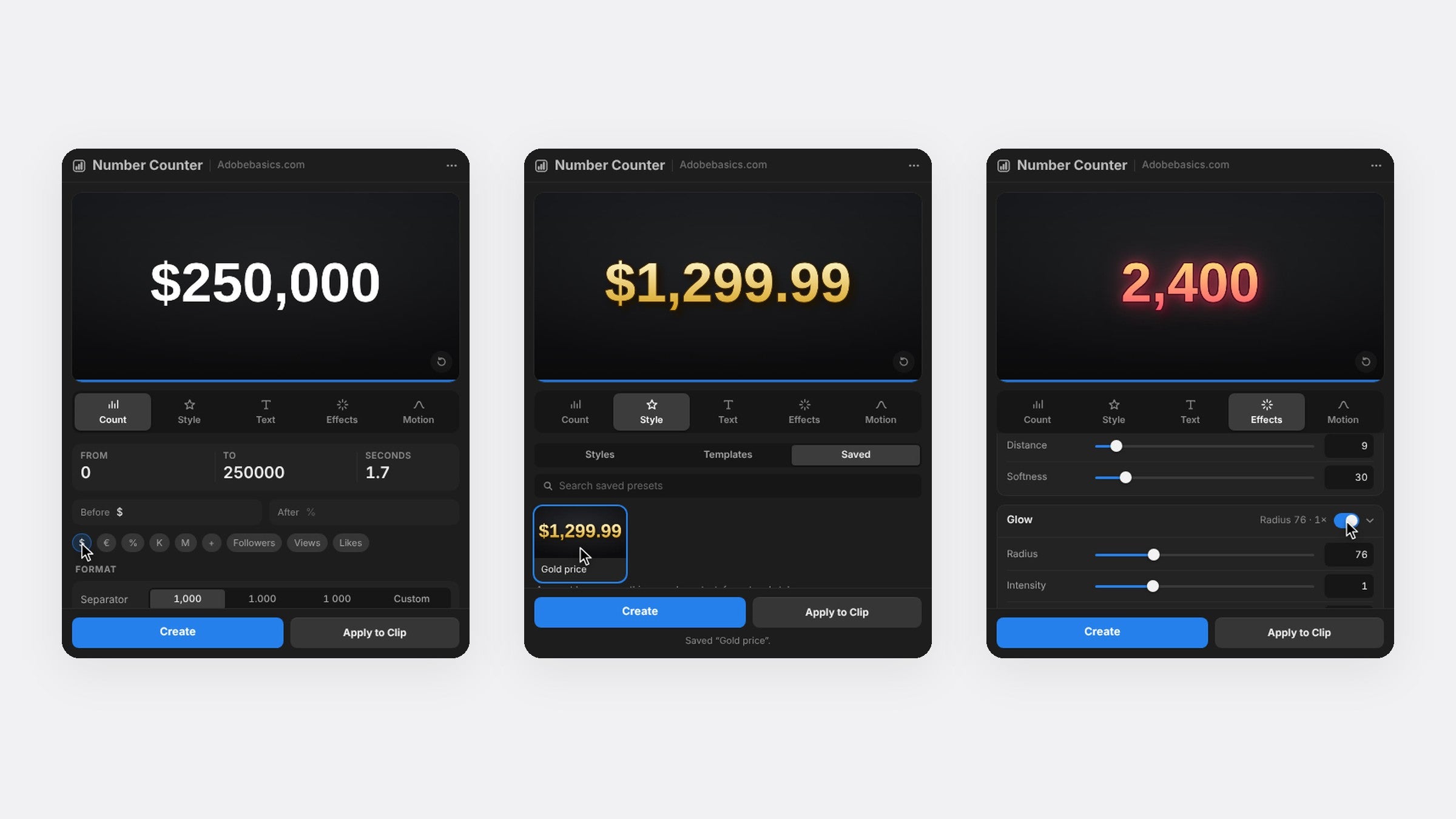
- In the Count tab, type the start and end value, like 0 and 98, and set the seconds.
- Click % to add a percent sign after the number.
- Press Create. The counter lands on a new track at the playhead.
Pick the right easing
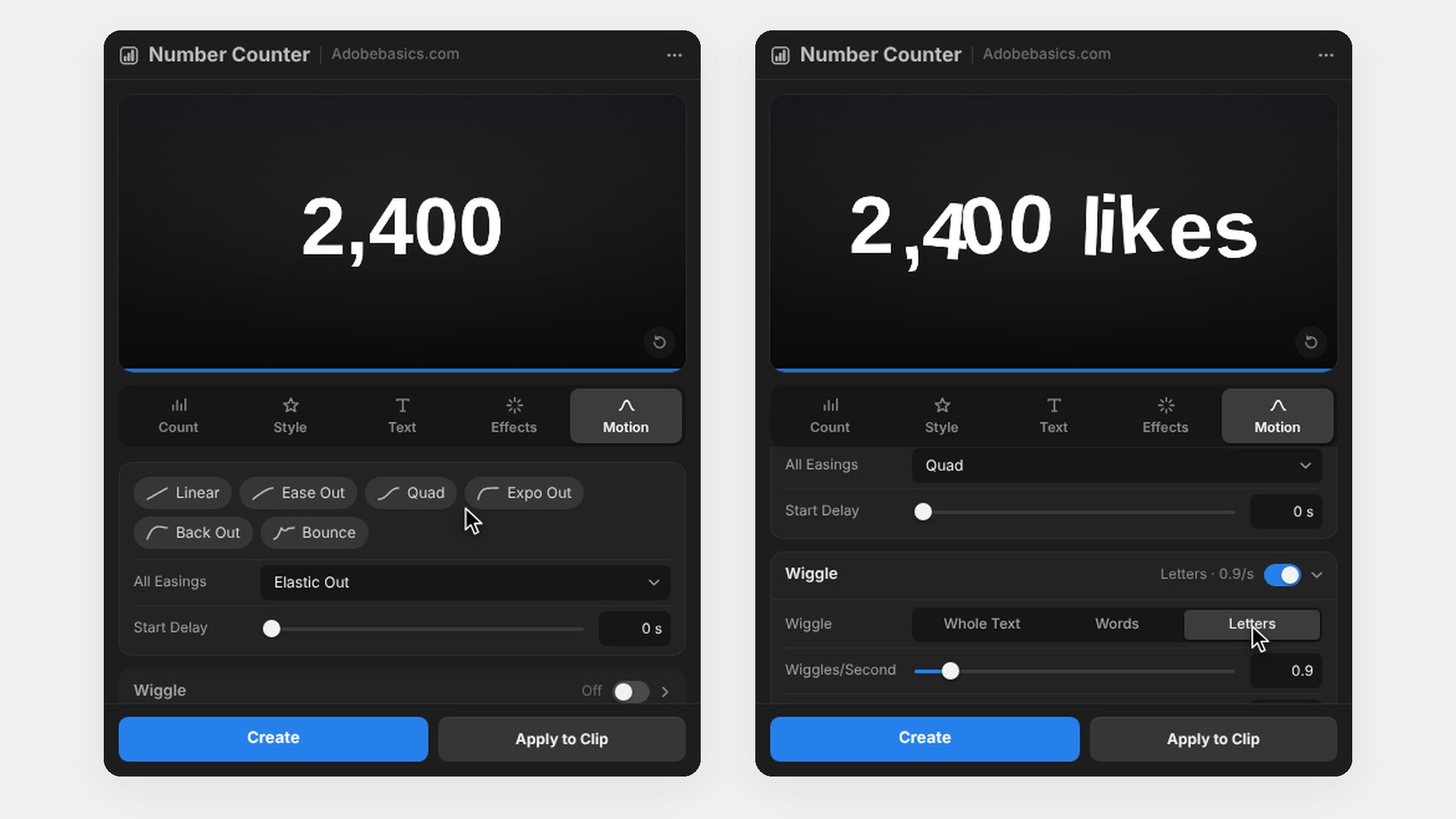
Easing decides how the number moves. Linear counts at a steady speed, which suits timers. Expo Out rushes ahead and slows into the last number, the classic look for stats. Back and Bounce overshoot and settle for a playful hit. Number Counter has 30 curves in the Motion tab.
Style the number
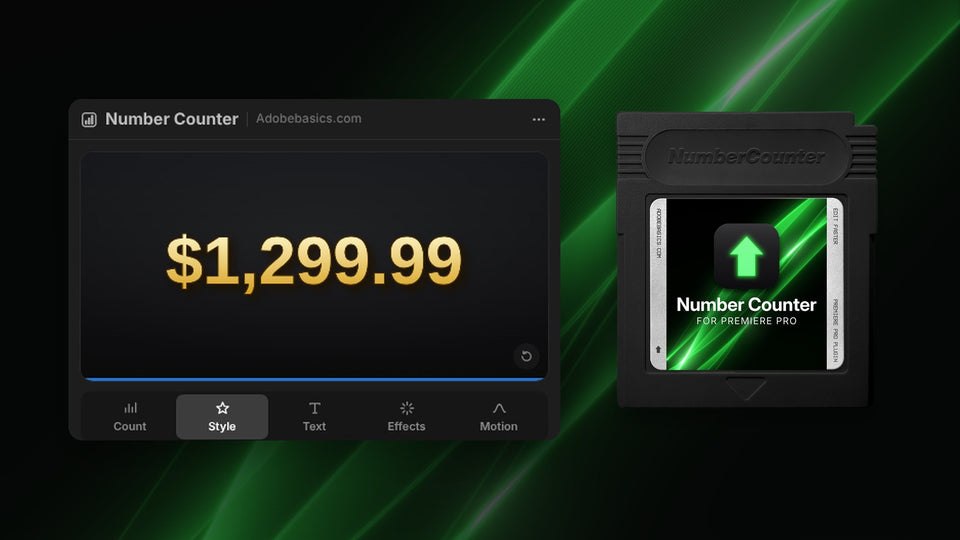
Pick any font on your computer and set the size, tracking and caps in the Text tab. In the Effects tab, switch on a stroke, shadow, glow or gradient. The Pro version adds 58 one-click styles, from gold and chrome to neon.
Ideas for animated numbers
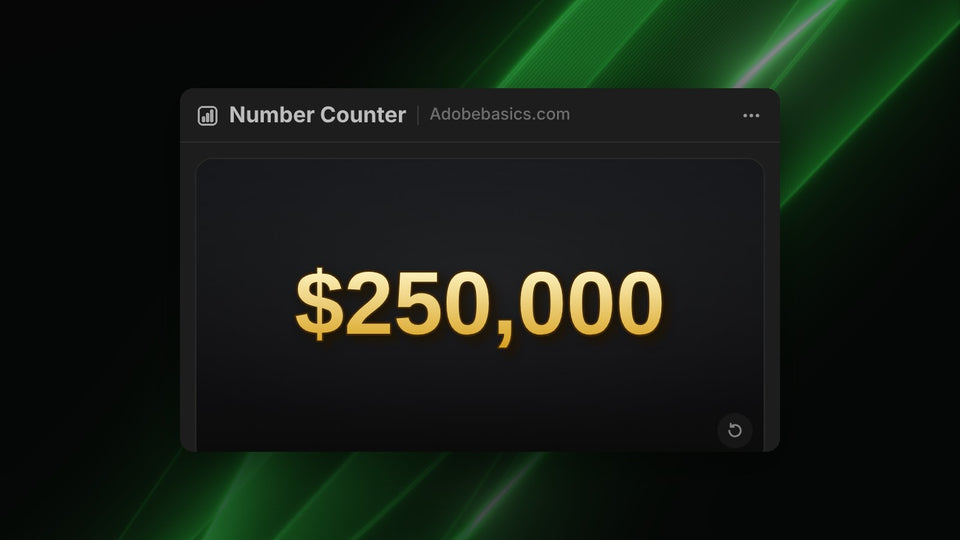
- Revenue and prices. Count to $250,000 with a dollar sign and a comma separator.
- Percentages. Count to 99.9% with one decimal.
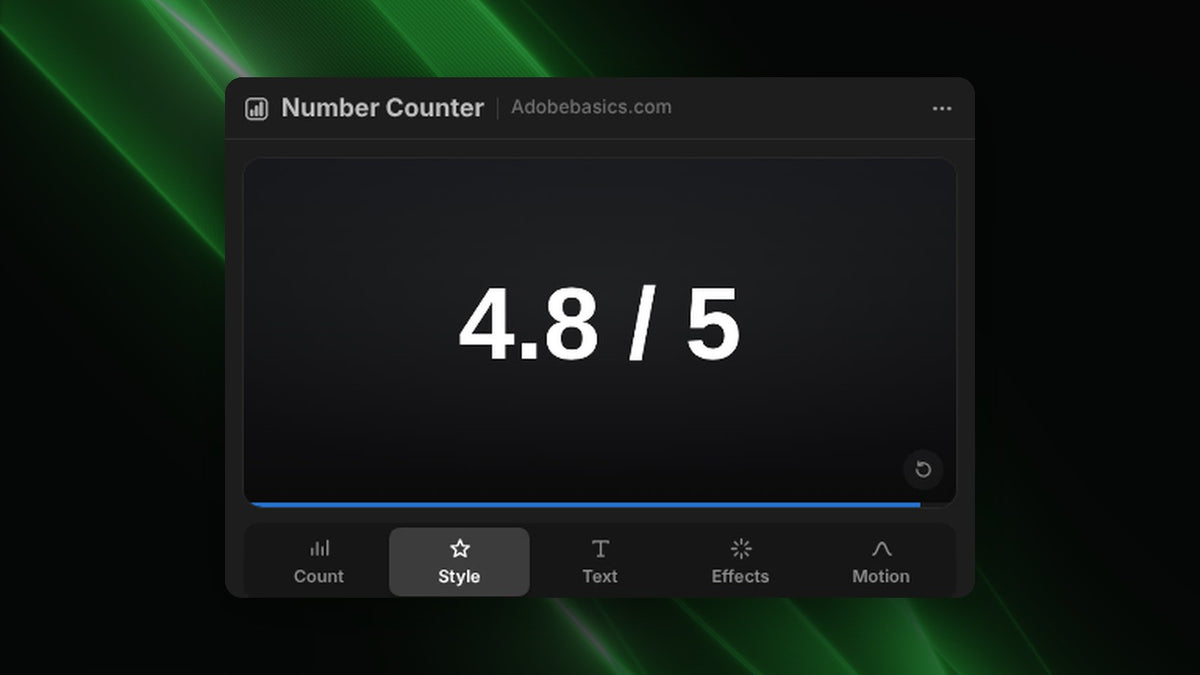
- Ratings and scores. Count to 4.8 and type " / 5" after the number.
- Years. Count from 1990 to 2026 with no separator, for a quick jump in time.
FAQ
Can I animate numbers in Premiere Pro without a plugin?
Only by hand: type each value as its own text clip and cut between them. It works for a few numbers, but a smooth count needs dozens of clips.
Can I change the number later?
Yes. Select the clip and the panel loads its settings, or change the values in Effect Controls.
Ready to animate your numbers? Get Number Counter for Premiere Pro.