



 by
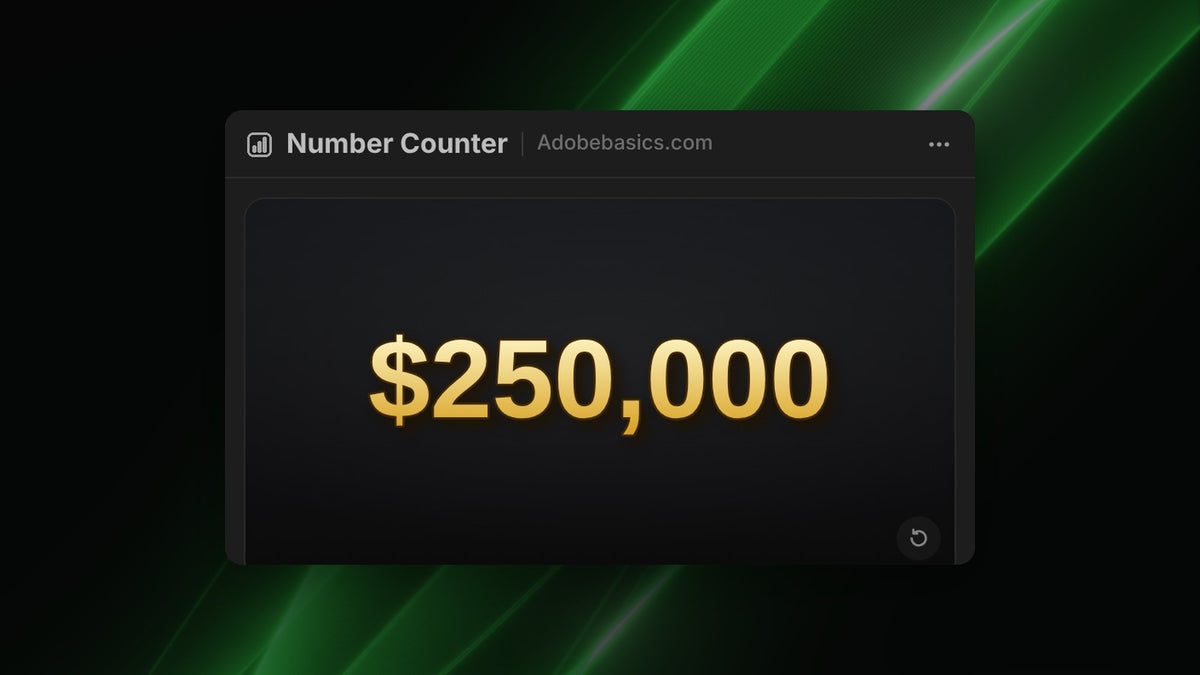
Step 1: Set the amount
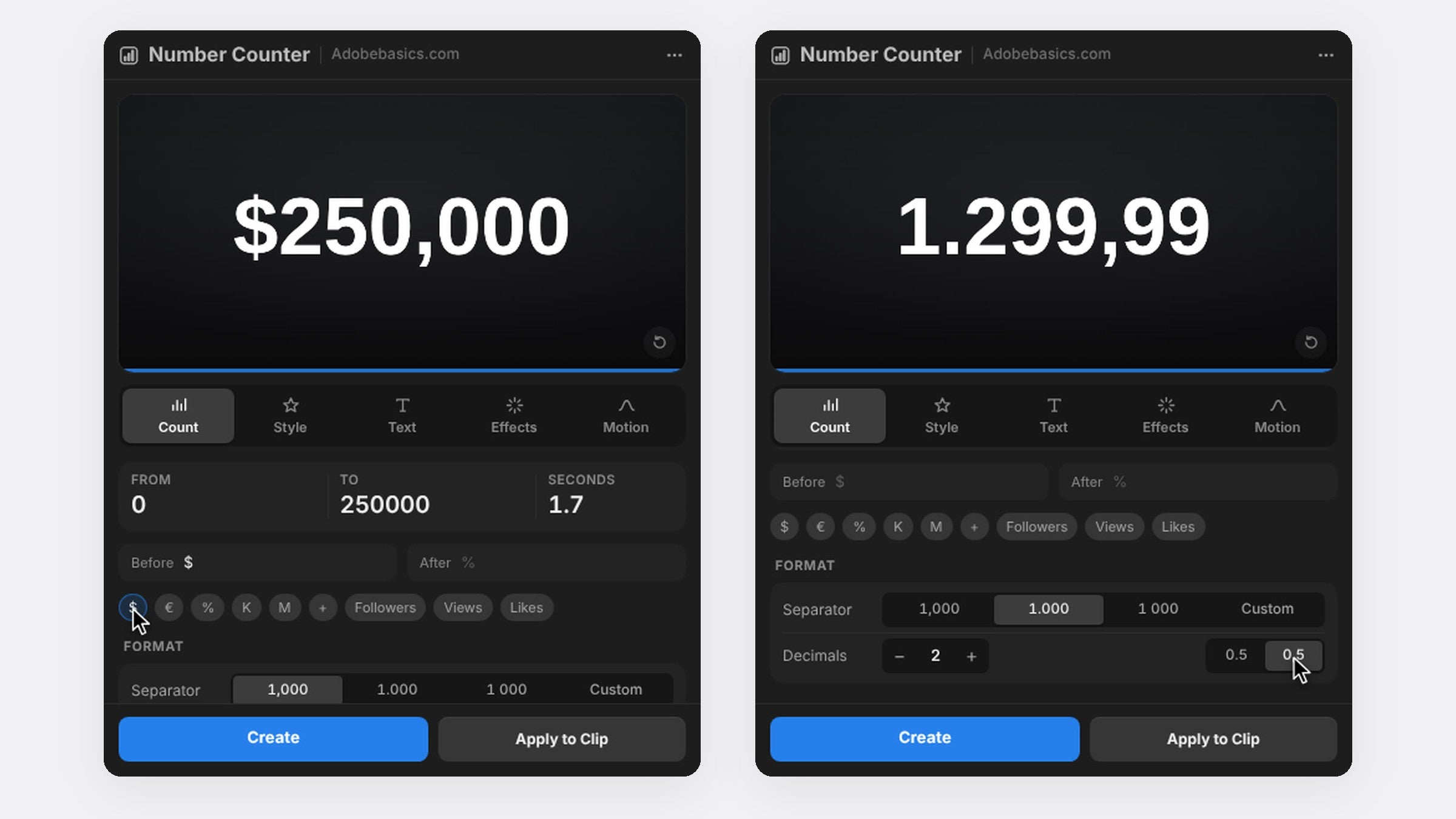
Open the panel with Window › Extensions › Number Counter. In the Count tab, type 0 in From and your total in To, like 250000, and set the count to about two seconds.
Step 2: Add the currency sign
Click $ or € to put the sign before the number. For another currency, type it in the Before or After field, like £ or kr.
Step 3: Format the amount
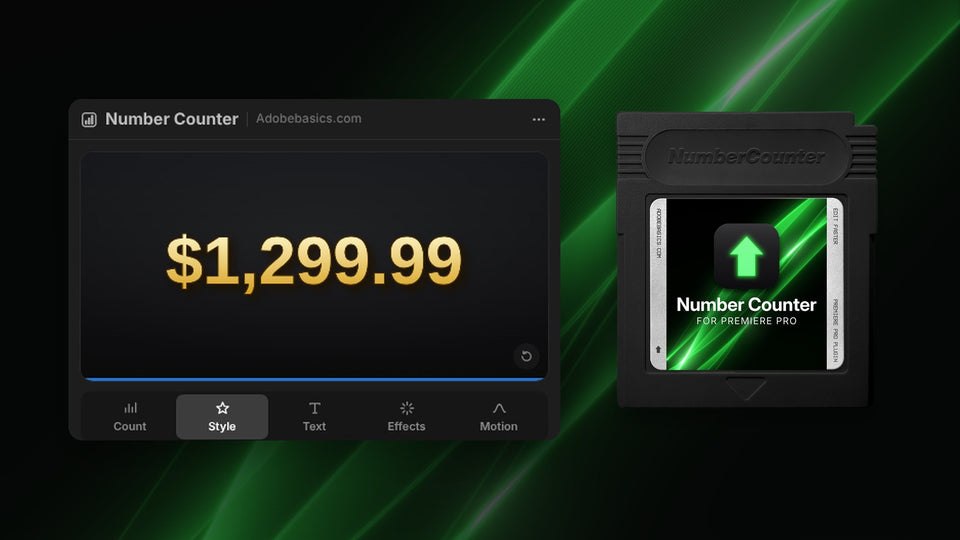
Pick a comma separator for 250,000, a period for 250.000 or a space for 250 000. For prices, add two decimals so the cents count along with the rest, like $1,299.99. Steady Digit Width keeps the amount from shifting as it counts.
Step 4: Give it a money look
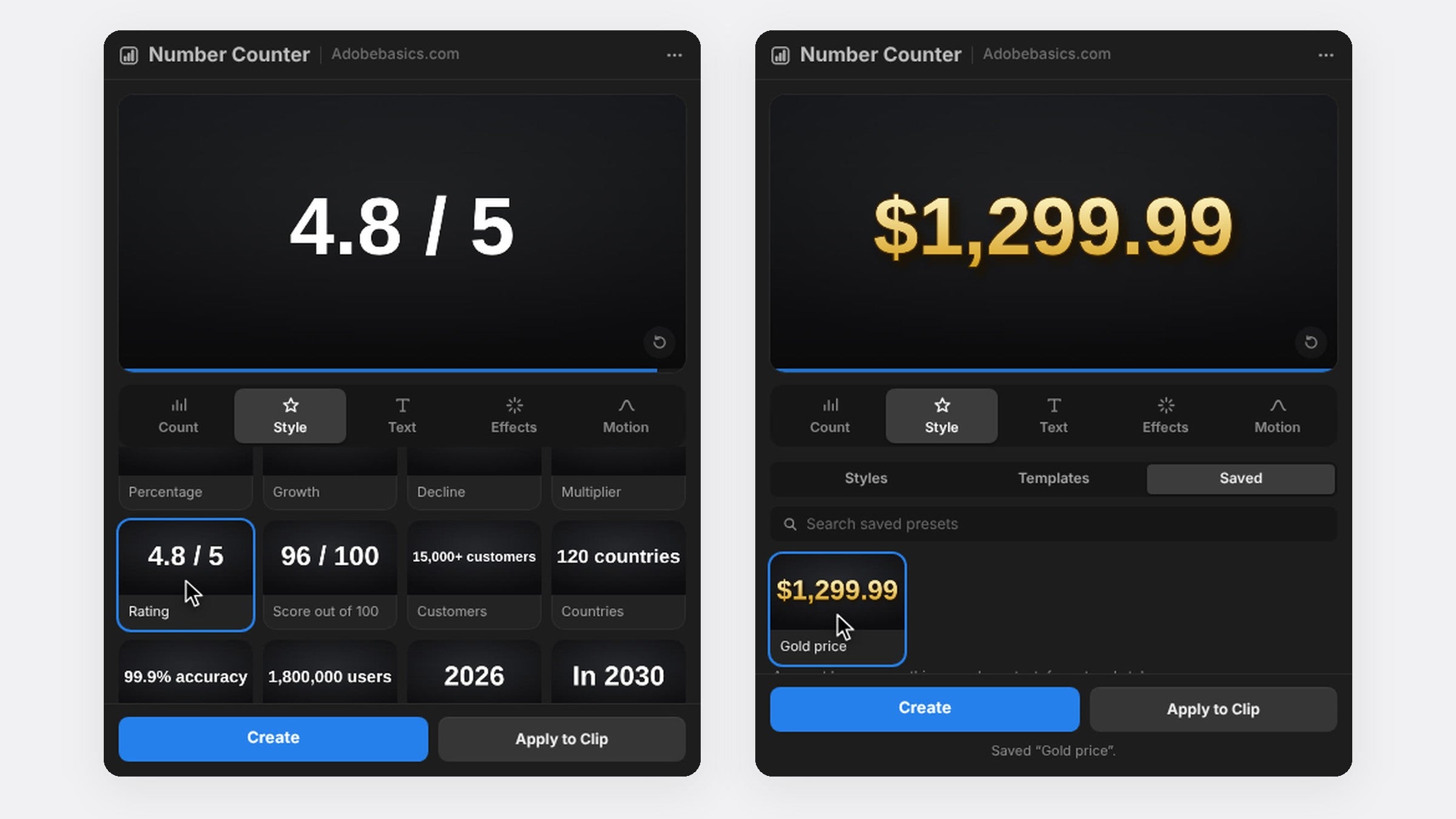
In the Effects tab, add a two-color gradient from light to deep gold, a thin stroke and a soft shadow. With Pro, click a Metals style for gold or chrome in one step, then press Save as Preset to use the same look in every video.
Step 5: Land the final number
In the Motion tab, choose Expo Out so the count slows into the total. Press Create, then put a short cash register or coin sound where the count ends.
FAQ
How do I show cents in a money counter?
Set Decimals to 2. The cents count along with the rest of the number.
Can the money count down?
Yes. Type a bigger number in From than in To, for example a budget that drops from $10,000 to $0.
Want a money counter in one click? Get Number Counter for Premiere Pro.