




 by
The quick answer
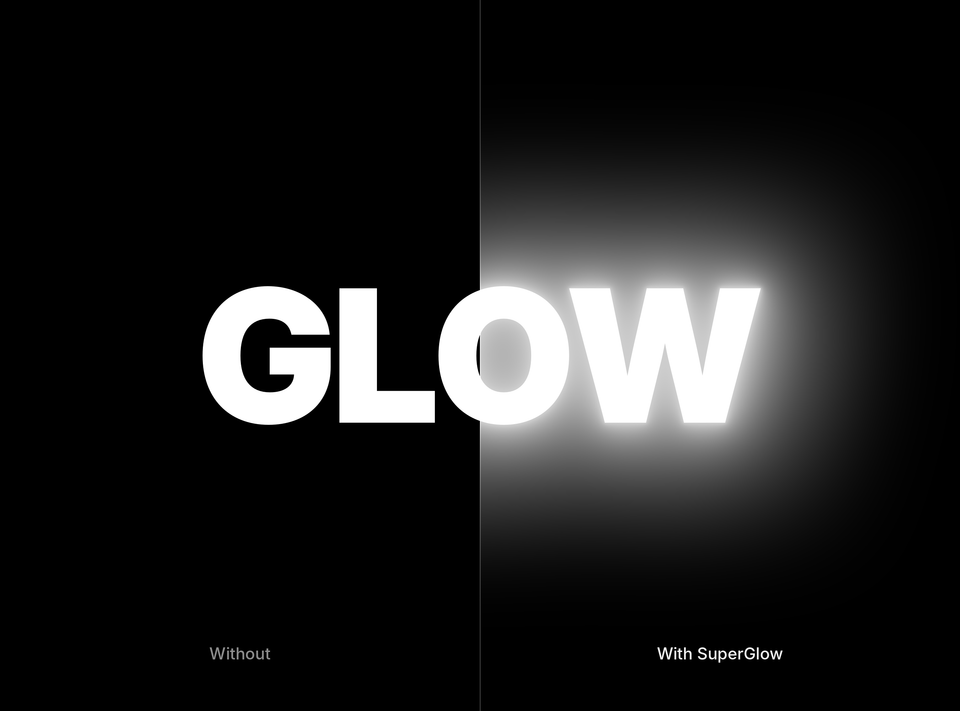
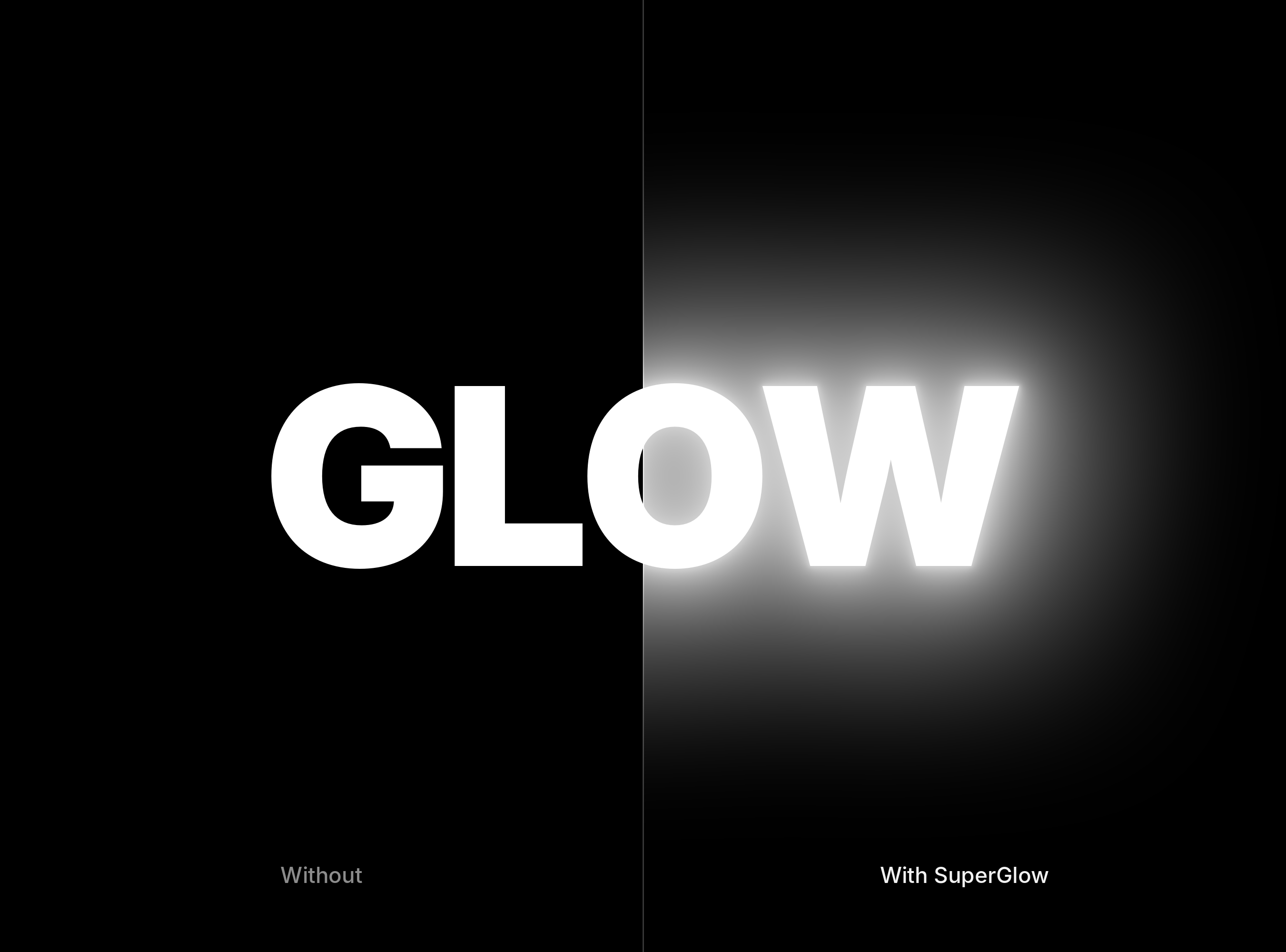
Looking for a Deep Glow alternative for Premiere Pro? SuperGlow is a glow plugin built for Premiere Pro, on Mac and Windows, for $34.99 one-time. You put it on a clip in your timeline and shape it in Effect Controls, with no trip to After Effects.
Why a glow inside Premiere changes your day
Deep Glow 2 is an After Effects plugin. If you edit in Premiere Pro, using it means sending the clip to After Effects with Dynamic Link or rendering the shot and bringing it back. That's fine for one hero shot and slow for a whole edit full of titles, neon and highlights.
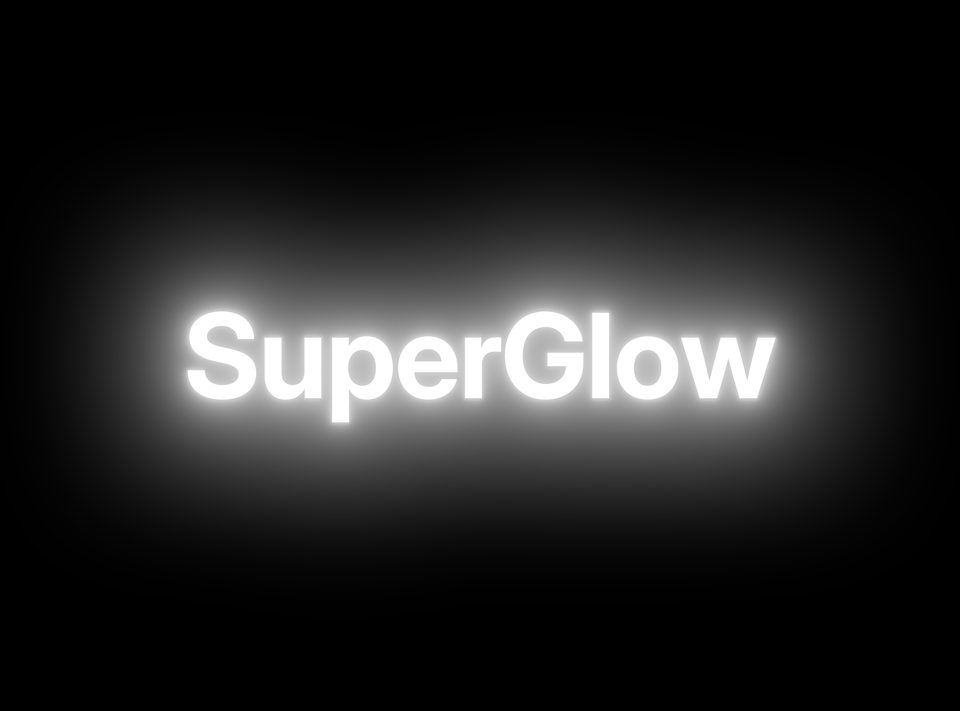
SuperGlow runs in Premiere Pro itself, so the glow sits on the clip, plays back with your cut and moves when you trim.
Step 1: Install SuperGlow
Your download is ready the moment you check out, and the link also arrives by email. Run the installer for your Mac or Windows computer, then open Premiere Pro. SuperGlow works with Premiere Pro 2019 and later.
Step 2: Put it on a clip
Type SuperGlow in the search box of the Effects panel and drag it onto a clip, a title or an adjustment layer. The default settings already give you a soft, deep glow, so a first look takes seconds.
Step 3: Shape the light
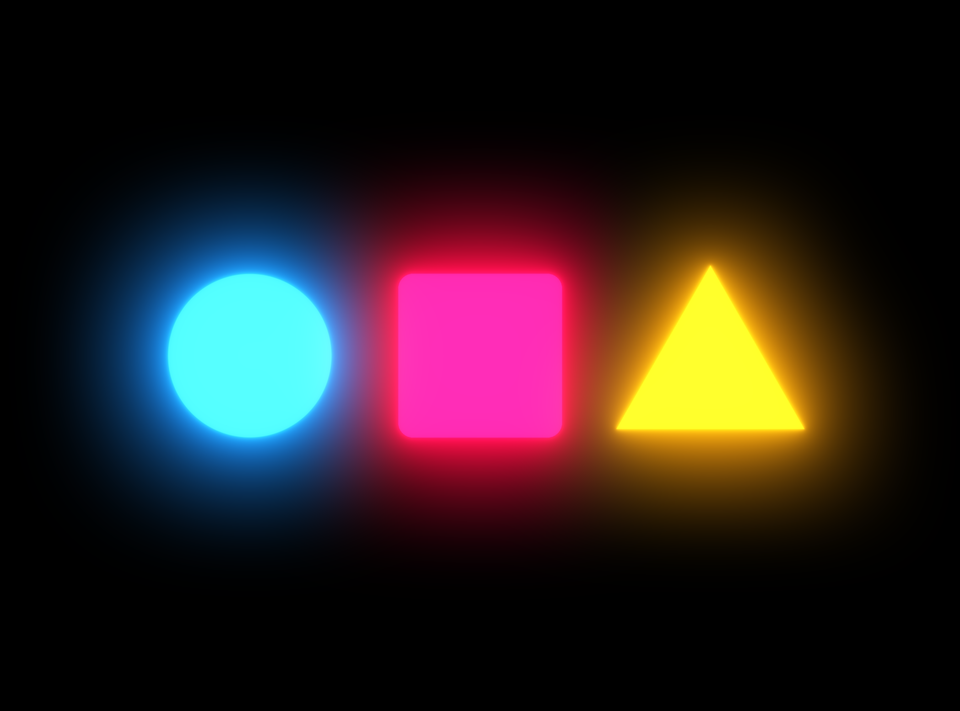
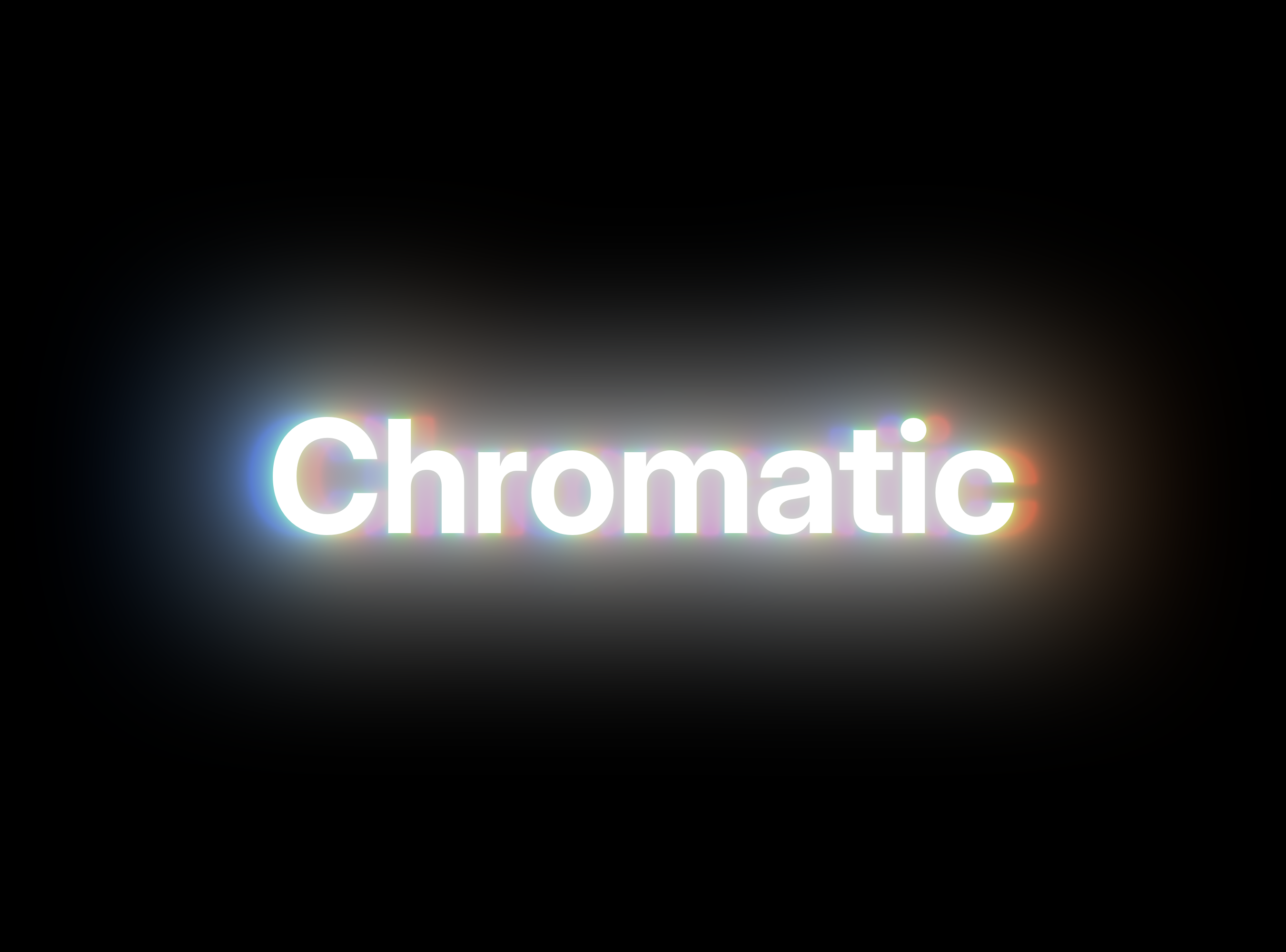
Pick a falloff that suits the shot. Gaussian gives a smooth, even bloom, Inverse Square fades like real light and Iris gives a bokeh-shaped glow. Then set an inner and an outer tint, for example a white core with a warm orange edge, and give red, green and blue their own radius for a subtle color fringe.
Step 4: Glow only what matters
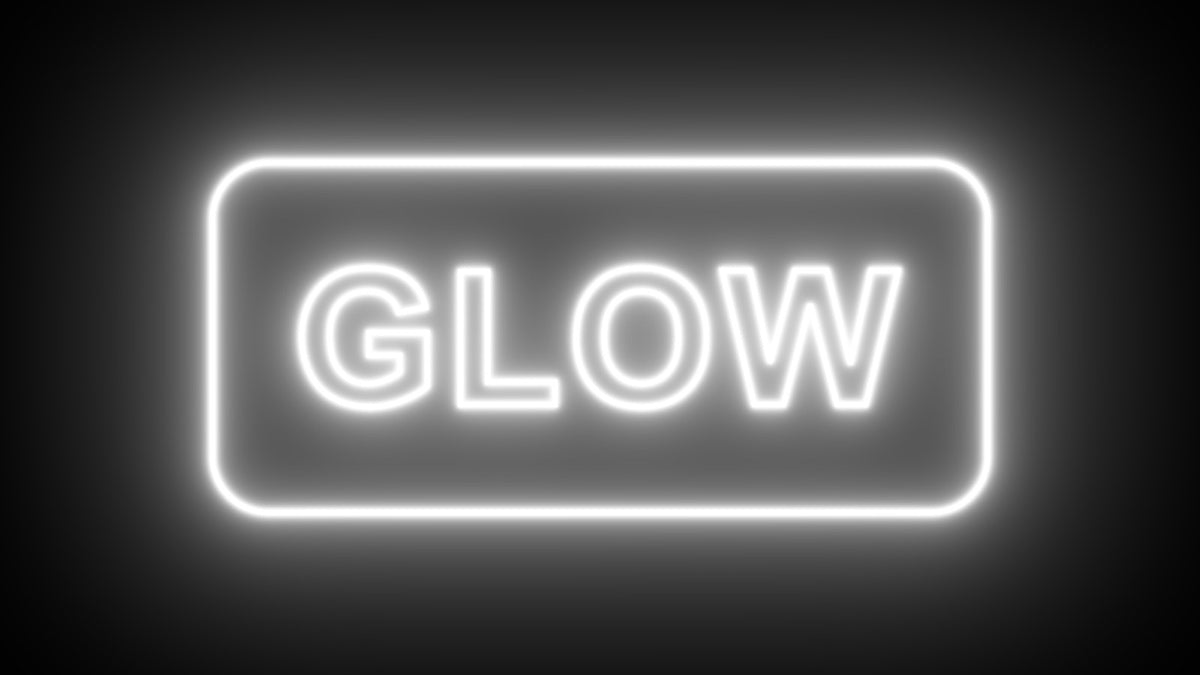
Use Color Range to pick one hue, like the pink of a neon sign, so the rest of the frame stays clean. For more control, use a matte track to limit the glow to any shape.
Step 5: Finish with a lens look
Add anamorphic streaks for a cinema feel, or load your own lens dirt texture so the glow catches on the glass. Pick one of six tone-mapping curves to keep bright highlights from clipping.

Why editors choose SuperGlow
- It lives in Premiere. Apply it in Effect Controls like any other effect, keyframe it and copy it to other clips.
- It's built for real projects. GPU rendering on Mac and multi-core rendering on Mac and Windows.
- It does more than bloom. Five falloffs, tints, chromatic aberration, streaks and lens dirt in one effect.
- You own it. $34.99 one-time.
FAQ
What is the best Deep Glow alternative for Premiere Pro?
SuperGlow. It runs inside Premiere Pro, so you get a soft, deep glow on your clips without leaving your timeline.
Is SuperGlow made by the makers of Deep Glow?
No. SuperGlow is our own plugin, made by Adobe Basics, with no link to the makers of Deep Glow.
Does SuperGlow work in After Effects?
No. SuperGlow is made for Premiere Pro only.
Which Premiere Pro versions and computers does it support?
Premiere Pro 2019 and later, on macOS 11 or newer and on Windows 10 and 11.
Deep Glow is a trademark of its owner. Adobe Basics is not affiliated with, sponsored by or endorsed by the makers of Deep Glow.
Want that glow without leaving Premiere? Get SuperGlow for Premiere Pro.