



 by

What you need
Premiere Pro 2019 or later and SuperGlow, a glow plugin for Premiere Pro on Mac and Windows, for $34.99 one-time.
Step 1: Draw thin, bright shapes
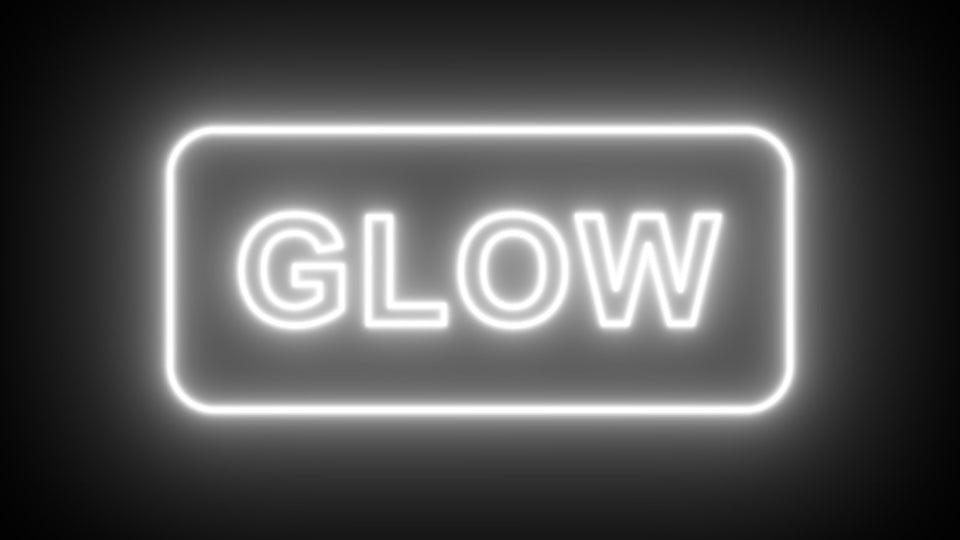
Neon tubes are thin lines of strong color. Use the Pen Tool or Ellipse Tool in the Program Monitor, turn off the fill and give the shape a stroke of a few pixels in a saturated color, like hot pink, cyan or red.
Step 2: Add SuperGlow
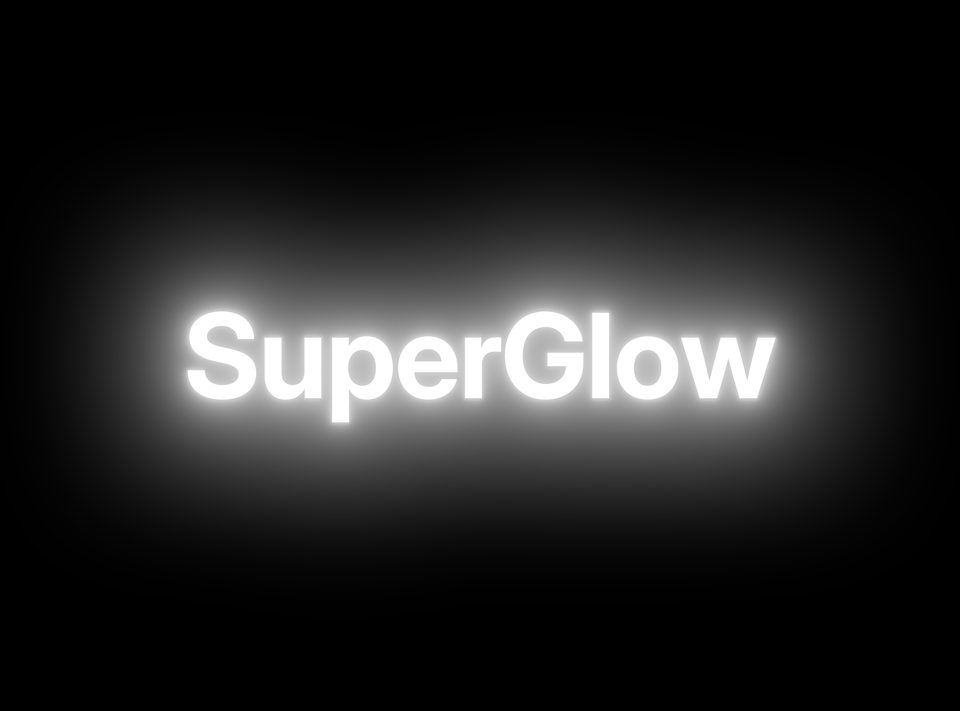
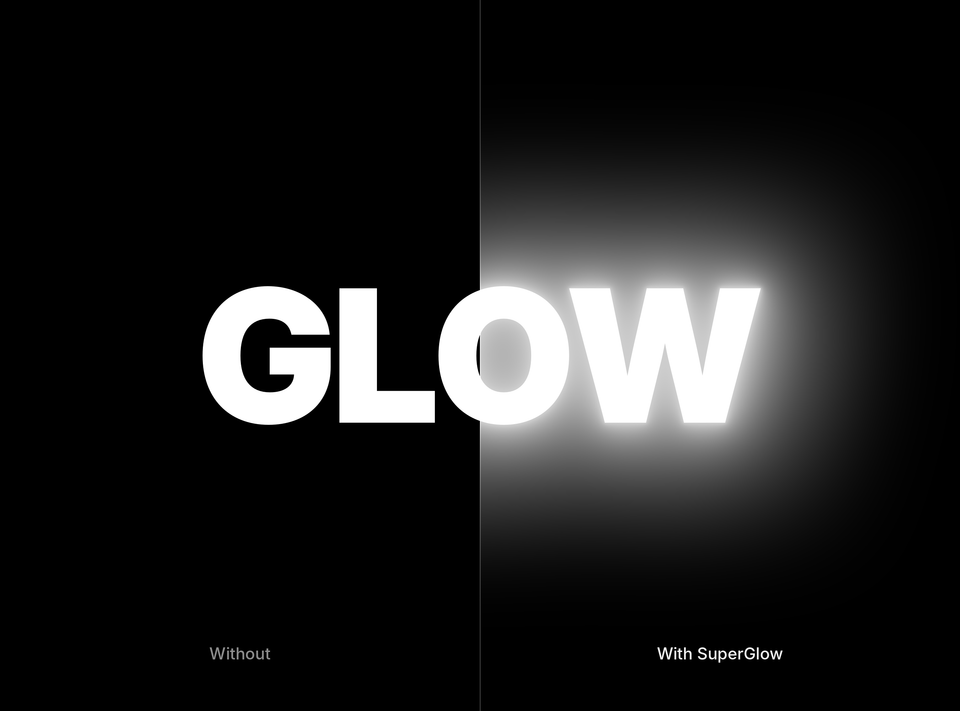
Drag SuperGlow from the Effects panel onto the graphic clip. Each shape now glows in its own color, so a pink sign gives pink light and a blue one gives blue light.
Step 3: Make the core white-hot
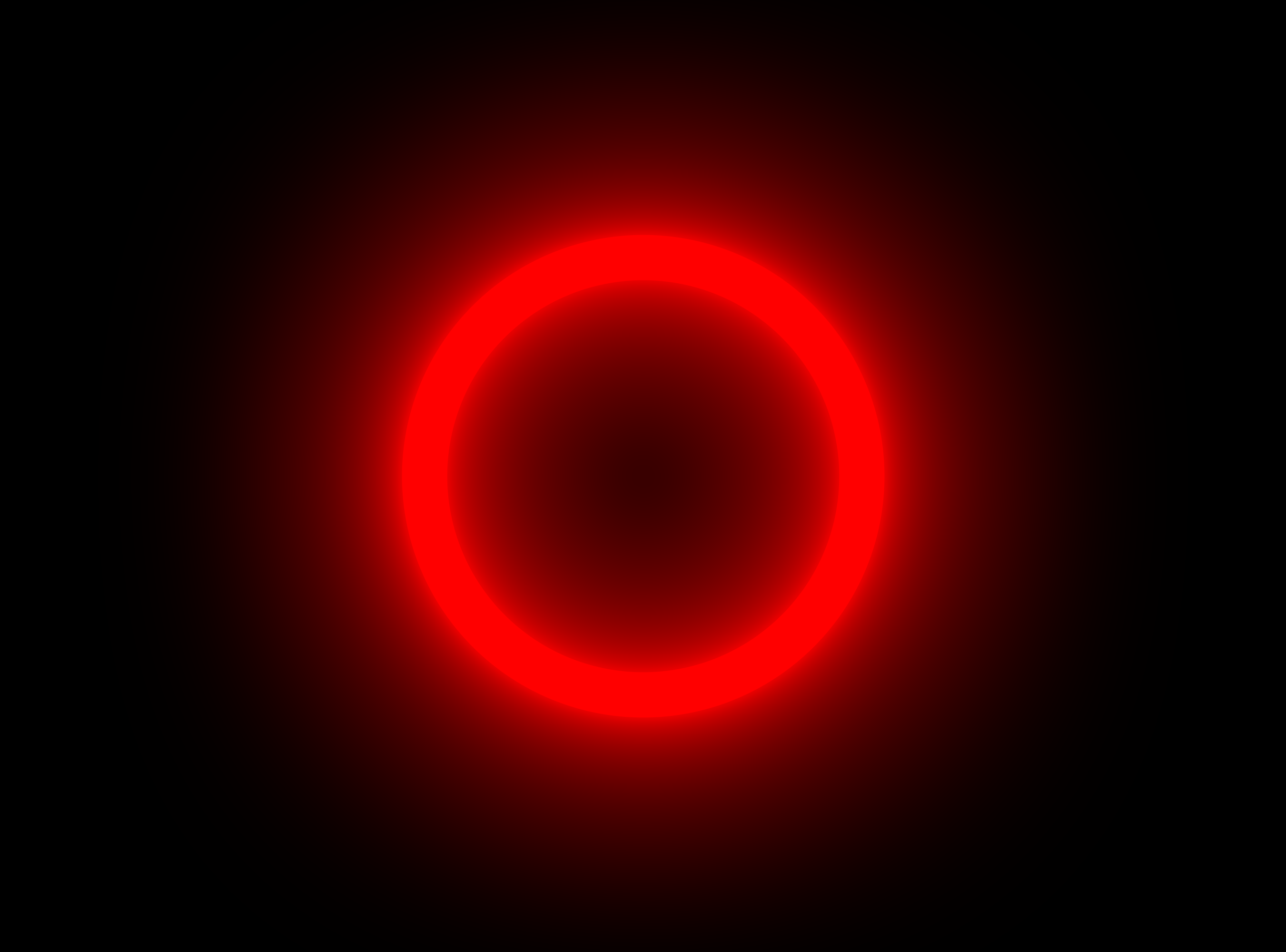
Real neon is almost white in the middle of the tube. Set the inner tint close to white and the outer tint to your neon color. The tube now looks bright and the light around it carries the color.
Step 4: Glow a real neon sign in footage
Filmed a street with neon signs? Put SuperGlow on the clip and use Color Range to pick only the sign's color. The sign blooms while faces and the rest of the street stay clean.
Step 5: Add a flicker
Keyframe the glow intensity with a few quick dips over half a second. It looks like the tube is warming up. Keep it short, one flicker reads better than a constant buzz.

FAQ
What colors work best for neon?
Saturated colors with a light core: pink, cyan, red, purple and yellow. Avoid dark colors, they give off very little light.
Does the neon glow slow down playback?
SuperGlow renders on the GPU on Mac and uses multi-core rendering on Mac and Windows, so it stays smooth in most edits.
Light up your next edit. Get SuperGlow for Premiere Pro.