by
by 
One curve everywhere, your values untouched
Want the EaseCopy feel inside Premiere Pro? EaseFlow lets you pick a curve once and reuse it on every move in your edit, without ever changing the values you keyframed.
It works in Premiere Pro 2021 to 2026 on Mac and Windows. Standard is $24.99 and Pro is $34.99, one-time, with lifetime updates.
Watch the intro
Your values stay exactly where you set them
A position of 960, a scale of 125, an opacity of 100 percent: those numbers are yours. EaseFlow treats your keyframes as anchors and never moves or changes them. It shapes the timing between them and nothing else, on every clip you ease.
It does that by adding its own keyframes between yours, only as many as the curve needs. A keyframe on every frame of a two-second move would be 59. EaseFlow needs about 20.

Before every change, EaseFlow checks your keyframes and stops if they moved. Nothing gets overwritten.
The same care covers every property: Position, Scale, Rotation, Anchor Point, Opacity, effect parameters and audio levels. Curved motion paths stay curved, too.
Pick the curve once, reuse it all day
Consistent motion means the same curve on every title, slide and zoom. EaseFlow gives you three ways to repeat it:
- Auto Mode. Every new pair of keyframes gets your current curve as soon as the second one lands.
- Apply on every selected clip. Select a whole row of clips and ease them all in one click.
- Preset shortcuts. Give your house curve a key, such as F5, and press it wherever the playhead is.

Step 1: Install EaseFlow
Your license key and download links arrive by email right after checkout. The guided installer sets up the EaseFlow app and the Premiere Pro plugin on Mac or Windows.
Step 2: Save your house curve
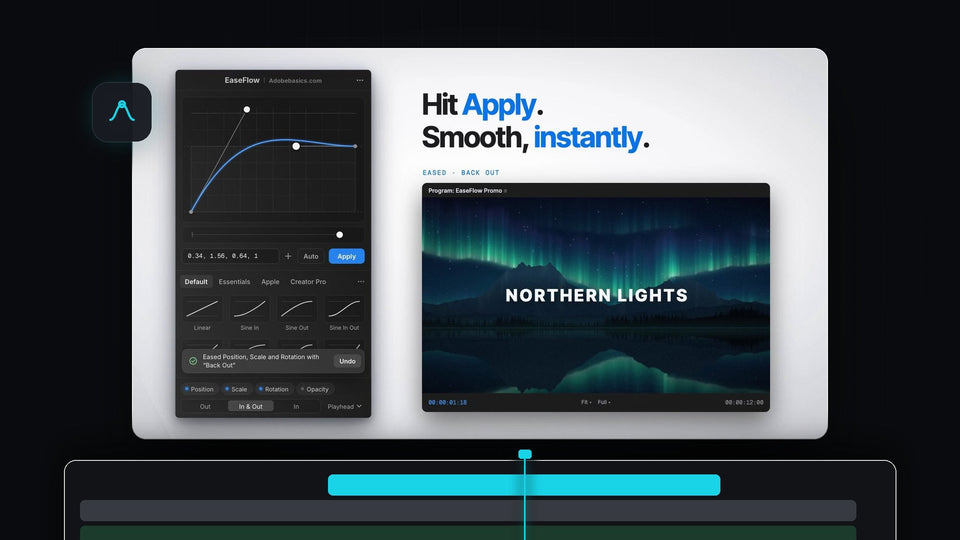
Choose a preset or shape your own in the graph editor. You can also paste a curve you already use: four numbers, a cubic-bezier() or a cubic-bezier.com link. Press + to save it, then star it so it sits at the top.
Step 3: Turn on Auto and animate
Select your house curve and click Auto beside Apply. Now keyframe as usual in Effect Controls. Every pair you add is eased with the same curve, with no extra clicks, so captions like our smooth captions all move alike.

Auto Mode never touches keyframes that were there before. Add a keyframe between two eased ones and both sides are eased again.
Step 4: Change your mind in one place
Want a softer feel on one shot? Put the playhead on its keyframes, pick another curve and press Apply. EaseFlow swaps only its own keyframes, so your values stay put. One press of Cmd+Z (Ctrl+Z on Windows) takes the easing off, and Shift+Cmd+Z puts it back. Try it on a move like our slide-in video.
Share the look with your team
A shared look is easiest when everyone starts from the same curves. Export your library as a .json file and import it on another computer, Mac or Windows. Everyone eases with the same curves, and every edit moves the same way. The EaseFlow guide has every detail.
FAQ
What is the best EaseCopy alternative for Premiere Pro?
EaseFlow. Save a curve once and reuse it with Auto Mode, shortcuts or one click on every selected clip, while your keyframe values stay exactly as you set them.
Will EaseFlow change my keyframe values?
No. Your keyframes are the anchors. EaseFlow never moves or changes them and only adds its own keyframes between them.
Can I reuse the same easing on many clips?
Yes. Select the clips and press Apply, or turn on Auto Mode so every new pair of keyframes gets the same curve.
How do I share curves between computers?
Export your library as a .json file and import it in EaseFlow on the other computer.
Does EaseFlow work on Mac and Windows?
Yes. It runs in Premiere Pro 2021 to 2026 on both, and the one-time license includes lifetime updates.
One house curve, every move, values untouched. Get EaseFlow for Premiere Pro.