by
by 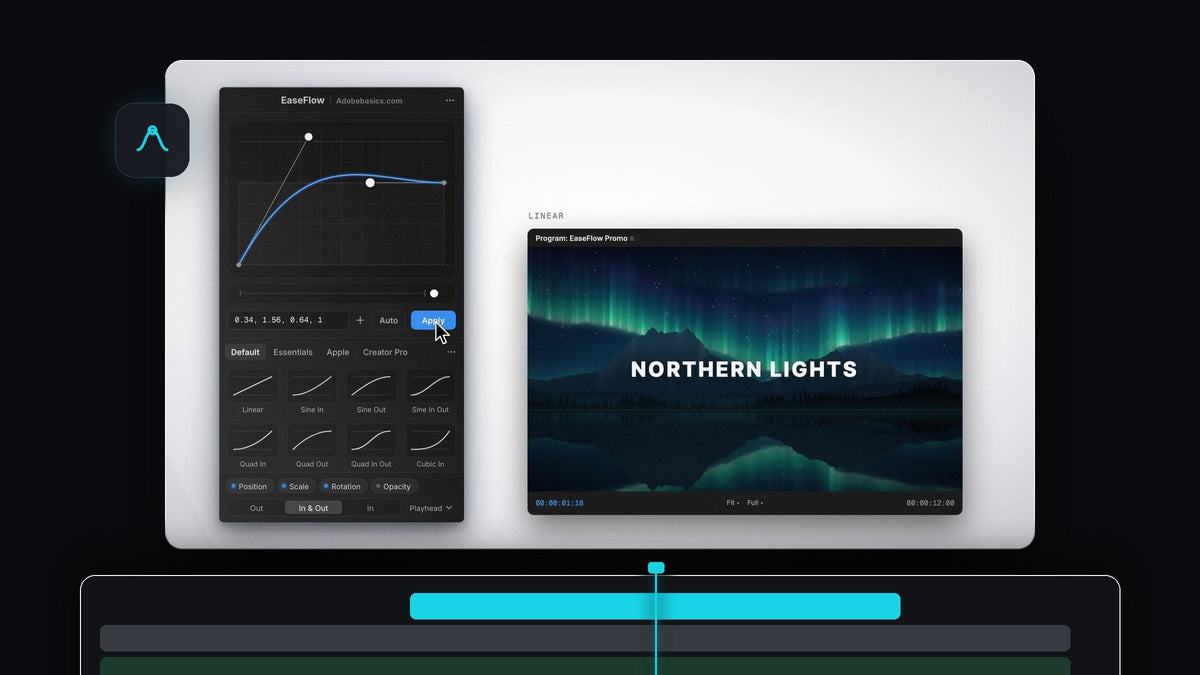
Smooth keyframes in one click, or one key
Looking for a Smoothify alternative for Premiere Pro? EaseFlow eases your keyframes with one click on Apply, or with a single key you choose, on Mac and Windows.
It finds the keyframes under your playhead, eases them with a real curve and gets out of the way. EaseFlow is a one-time purchase, $24.99 for Standard or $34.99 for Pro, with free updates for life.
Watch the intro
Built for speed
Easing should take less time than setting the keyframes did. Everything in EaseFlow is designed around that idea.
- Apply at the playhead. No need to select keyframes first. EaseFlow eases the ones at or nearest the playhead.
- Every selected clip at once. Select a stack of titles or a row of shots and one click eases them all.
- A key for every favorite. Give any preset its own shortcut, and give Apply one too.
- Auto Mode. Turn it on and new keyframes are eased the moment you create the second one.
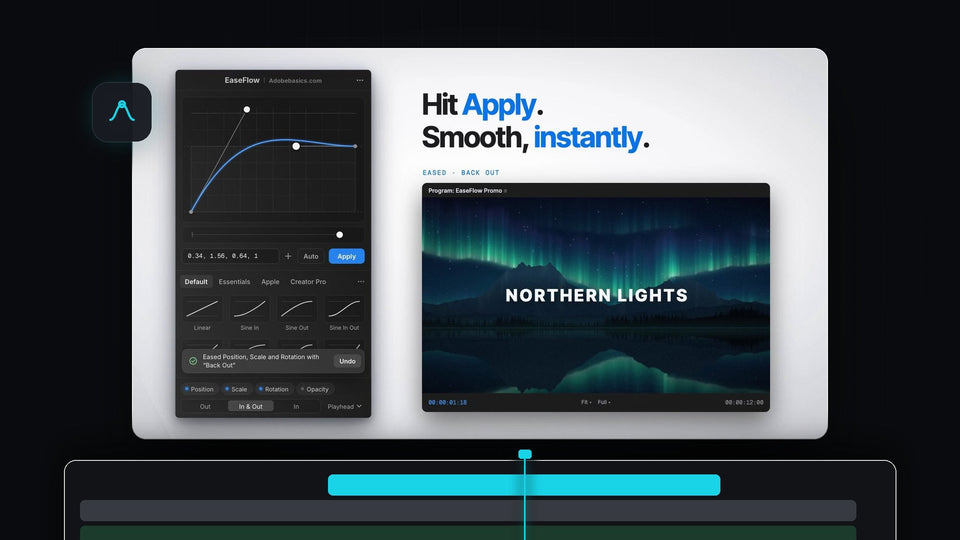
- Instant feedback. A small message confirms which properties were eased and with which curve, with Undo right beside it.

Step 1: Install EaseFlow
Buy on the EaseFlow page and your license key and download links arrive by email right after checkout. The guided installer sets up the EaseFlow app and the Premiere Pro plugin on Mac or Windows.
A small menu bar app keeps EaseFlow up to date and powers the shortcuts. EaseFlow works with Premiere Pro 2021 to 2026.
Step 2: Put the playhead on your keyframes
Animate the way you always do, for example a title that slides in with two Position keyframes, as in our slide-in text tutorial. Then park the playhead on the move.
That's all the selecting you need. Use the property chips at the bottom of the panel if you want to leave Scale, Rotation or Opacity out.
Step 3: Click a preset and press Apply
Pick a curve from the presets, such as Cubic In Out for a calm move or Back Out for a tiny overshoot, and press Apply. The move is eased right away.

Not the feel you wanted? Pick another curve and press Apply again. EaseFlow swaps only its own keyframes and leaves yours exactly where they were.
Step 4: Give your top curves a key
Right-click a preset in the panel and choose Set Shortcut. Press Ctrl, Alt/Option or Cmd with a key, or an F key on its own, such as F5. EaseFlow won't let you pick a shortcut Premiere Pro already uses.

Now press the key in Premiere and the keyframes at the playhead are eased, just like clicking the preset. Shortcuts work whenever Premiere Pro is in front, with the EaseFlow panel open somewhere, even as a tab behind another panel.
Speed without the mess
Fast only matters if it stays clean. EaseFlow adds only the keyframes a curve needs, about 20 for a two-second Easy Ease, and never moves your own. One press of Cmd+Z (Ctrl+Z on Windows) takes the easing back off.
It eases any property that moves: Position, Scale, Rotation, Opacity, Anchor Point and effect parameters, on video and audio clips. Zooms are a great place to start; try it on the move from our zoom in tutorial. For every option in the panel, see the full EaseFlow guide.
FAQ
What is the best Smoothify alternative for Premiere Pro?
EaseFlow. It eases the keyframes at your playhead in one click or one key, works on every selected clip at once and is a one-time purchase for Mac and Windows.
Can I ease keyframes with a keyboard shortcut in Premiere Pro?
Yes. With EaseFlow you can give any preset its own shortcut, and give Apply Current Curve one too. Press it and the keyframes at the playhead are eased.
Can I ease several clips at once?
Yes. Select the clips and press Apply. EaseFlow eases the keyframes at or nearest the playhead on every selected clip.
Do I need to select keyframes first?
No. EaseFlow finds the keyframes under your playhead for you. You can also ease a whole clip at once.
One click, one key, smooth motion. Get EaseFlow for Premiere Pro.