by
by 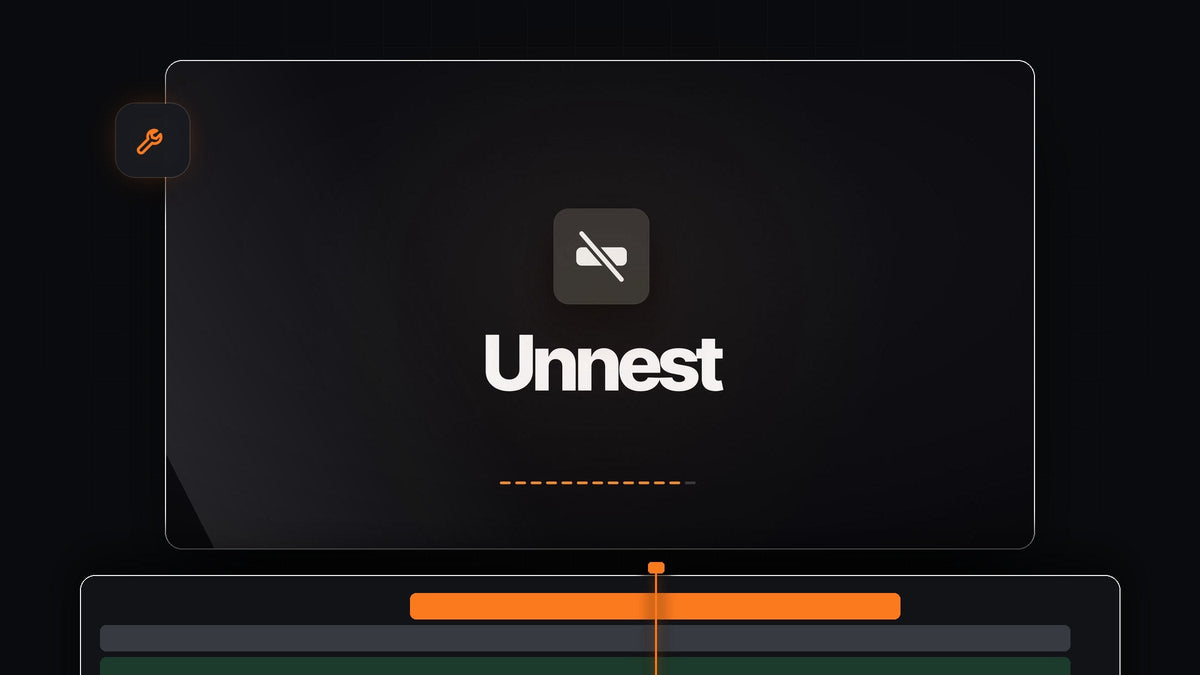
The short answer
Looking for a Grave Robber alternative for Premiere Pro? Mako opens a nested sequence back onto your timeline with one click, keeping effects, keyframes and speed, and it's free on Mac and Windows.
There is no account, no license key and no trial. Mako is a small panel with 13 one-click tools, and Unnest is one of them.
Why Unnest saves you so much time
Nesting is one of the best habits in Premiere Pro. You tidy a busy section into one clip, move it around, grade it once and keep going. Sooner or later you want a single shot inside that nest back on the main timeline, to retime it, swap it or give it a look of its own.
In Premiere, getting clips back out of a nest takes four manual steps. With Mako it takes one click, and the clips land right where they were.
- In place. Every clip goes back on its own track, at its own time.
- Nothing to redo. Effects, keyframes, speed, clip names and on/off state come back with the clips.
- Audio stays together. Linked audio stays linked.
- Safe by design. If a clip can't be rebuilt, such as a title, a multicam clip or a time-remapped clip, Mako leaves the nest exactly as it is. Each step can be undone.
Step 1: Install Mako for free
Add Mako to your cart and check out for $0, with no card needed. The download appears on the order confirmation page, and we also email you the link.
On a Mac, open Mako.pkg. On Windows, run MakoSetup.exe from the zip, with no administrator rights needed. Restart Premiere Pro, open Window > Extensions > Mako and dock the panel next to your Tools panel. Mako works with Premiere Pro 2021 and later.
Step 2: Select the nest you want to open
Click the nested sequence in your timeline so it's the only thing selected. It can sit on any video track, and it doesn't matter how many clips, effects or speed changes are inside it.
Want to see the panel button first? Hover over it and Mako shows its name. The Unnest button is the crossed-out clip icon near the bottom of the panel.

Step 3: Click Unnest
Click Unnest. The nest opens up and its clips drop back onto the timeline in place. A clip that sat on a higher track inside the nest goes back on a higher track. A clip with effects keeps them, and a clip with keyframes keeps every one.

Now you can trim, swap or regrade any shot on its own. If you change your mind, press Cmd + Z (Ctrl + Z on Windows) and the nest is back.
Step 4: Clear out the empty tracks
Unnesting and rearranging often leaves a few tracks with nothing on them. Click Delete Empty Tracks and every empty video and audio track is removed at once, with no dialog to fill in.

Your sequence is lean again and easy to read at a glance.
Step 5: Put Unnest on a key
If you unnest often, give it a shortcut. Right-click the Unnest button and choose Keyboard Shortcut, or open Settings (the gear) and use the Shortcuts tab. Press a modifier and a key, like Option + 1, or an F key on its own.
The shortcut works whenever Premiere is in front and the Mako panel is open, even docked behind another tab. Do the same for Nest, and grouping clips and opening them back up are each one keystroke.
More one-click jobs in the same panel
Unnest is the reason many editors install Mako, but the panel covers the rest of a nest-heavy workflow too.
- Nest. Wrap the selected clips in a sequence of their own, with no dialog. Nests are perfect for a picture-in-picture layout in Premiere Pro.
- Staircase and Unstaircase. Step each selected clip a track higher, then bring them back down to one track.
- QC Check. Close empty gaps and mark offline media, switched-off clips and tiny clips before export.
- Adjustment Layer, Color Matte and Freeze Frame. Placed over your selection on the first free track, so Mako never overwrites a clip.
See every button in our complete Mako guide.
FAQ
What is the best Grave Robber alternative for Premiere Pro?
Mako. Select a nested sequence, click Unnest and its clips go back on their tracks in place, with effects, keyframes and speed. It's free on Mac and Windows.
What comes back when Mako unnests a nest?
The clips return to their tracks at their original times, with their effects, keyframes, speed, names and on/off state. Linked audio stays linked.
What happens if a clip in the nest can't be rebuilt?
Mako leaves the nest exactly as it is, so nothing is lost. That covers clips like titles, multicam clips and time-remapped clips.
Can I undo an unnest?
Yes. Each step can be undone with Cmd + Z on a Mac or Ctrl + Z on Windows.
Is Mako really free?
Yes. There is no license key, no account and no trial. Check out for $0, download it and it's yours, with updates that install themselves.
Open any nest in one click, for free. Get Mako for Premiere Pro.