by
by 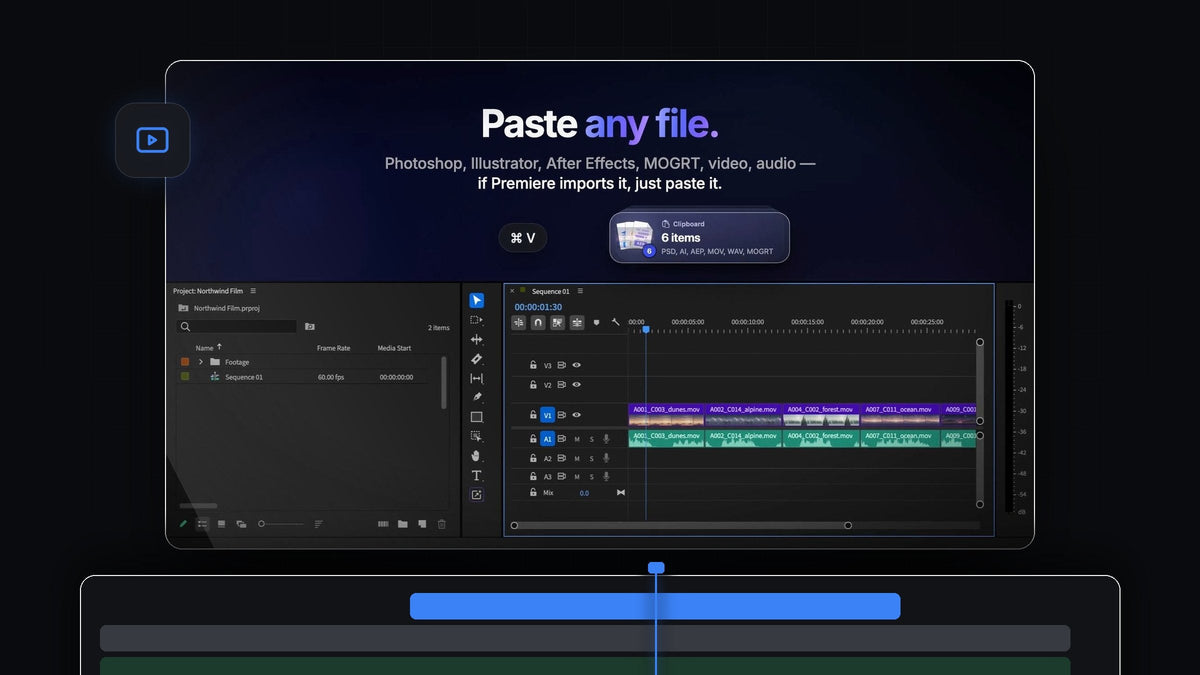
The short answer
Looking for a PasteX alternative for Premiere Pro? QuickPaste brings images, Photoshop, Illustrator, After Effects and MOGRT files into your edit with the normal Cmd + V (Ctrl + V on Windows), on Mac and Windows.
No new shortcut to learn, no extra button to click. And if you'd rather use a different key combination, you can record your own.
Watch the intro
Built for keyboard-first editors
If you edit with one hand on the keyboard, every trip to a menu or a panel breaks your rhythm. QuickPaste is designed around two shortcuts and nothing else.
- Cmd + V pastes whatever is on your clipboard into Premiere Pro, from anywhere in the app.
- Cmd + Shift + C copies the frame under your playhead as a full-resolution PNG.
Everything else is a one-time choice in the QuickPaste panel. After that you just copy, paste and keep cutting.
Step 1: Install QuickPaste
You get the download right after checkout, plus a copy of the link by email. Run the guided installer and it sets up both the QuickPaste app and the Premiere Pro plugin. It works with Premiere Pro 2021 to 2026, and updates install automatically.
Step 2: Make the shortcuts yours
Open the QuickPaste panel. Paste Shortcut is set to Cmd + V on a Mac and Ctrl + V on Windows. Click the field to record a different combination, and use the reset arrow to go back to the default in one click.

Below it you'll find Paste To for choosing the bin, plus switches for Convert Images to PNG, Paste Text as Title and Paste at Playhead. Turn on Paste at Playhead and every paste goes straight onto your timeline.
Step 3: Paste your design files
Copy a project asset in Finder or File Explorer: a Photoshop brand kit, an Illustrator logo, an After Effects title, a MOGRT lower third, a video clip or a music bed. Switch to Premiere Pro and press Cmd + V.

Adobe files come in as the real file, not a flattened copy. Video and audio paste the same way, because anything Premiere Pro imports, QuickPaste pastes.
Step 4: Build the edit right on the timeline
With Paste at Playhead on, your assets land on the timeline where you're working, and in your bin at the same time. A lower third, a logo and a title card can be in place before you'd normally have found the Import dialog.

New to motion graphics templates? Our guide on installing MOGRT files in Premiere Pro explains how they work once they're in your project.
Step 5: Copy frames out just as fast
Need a still for a thumbnail, a client or a storyboard? Park the playhead and press Cmd + Shift + C. The frame is on your clipboard as a full-resolution PNG, ready to paste into any app. Turn on Add Frame to Project Bin to keep a copy in your project as well.
What else pastes with one key
- Images. PNG, JPEG, GIF, WebP, HEIC, AVIF, TIFF, BMP and RAW, converted to PNG automatically.
- Vectors. SVG, PDF and EPS.
- Web. Copied images and image links.
- Colors. HEX, RGB, HSL, CMYK, OKLCH and CSS linear and radial gradients.
- Text. Pasted as a title, ready to style.
Why QuickPaste is the best choice
- Zero learning curve. The copy and paste you use every day, working in Premiere Pro the way it works everywhere else.
- Fully yours. Custom paste shortcut, your bin, your switches.
- Mac and Windows. Works the same on both systems.
- Pay once. $24.99 one-time with lifetime access, free updates and a commercial license.
Read the QuickPaste guide for every setting in detail.
FAQ
What is the best PasteX alternative for Premiere Pro?
QuickPaste. It pastes images, Adobe files, video, audio, colors and text with your normal Cmd + V or Ctrl + V, and you can record your own shortcut if you prefer.
Can I change the paste shortcut?
Yes. QuickPaste uses Cmd + V or Ctrl + V by default. Record your own combination in the panel and reset it to the default in one click.
Can I paste Photoshop and MOGRT files into Premiere Pro?
Yes. Photoshop, Illustrator, After Effects and MOGRT files paste in as the real file.
Can pasted files go straight onto the timeline?
Yes. Switch on Paste at Playhead and every paste lands on your timeline at the playhead, as well as in your bin.
One key, every file. Get QuickPaste for Premiere Pro.