by
by 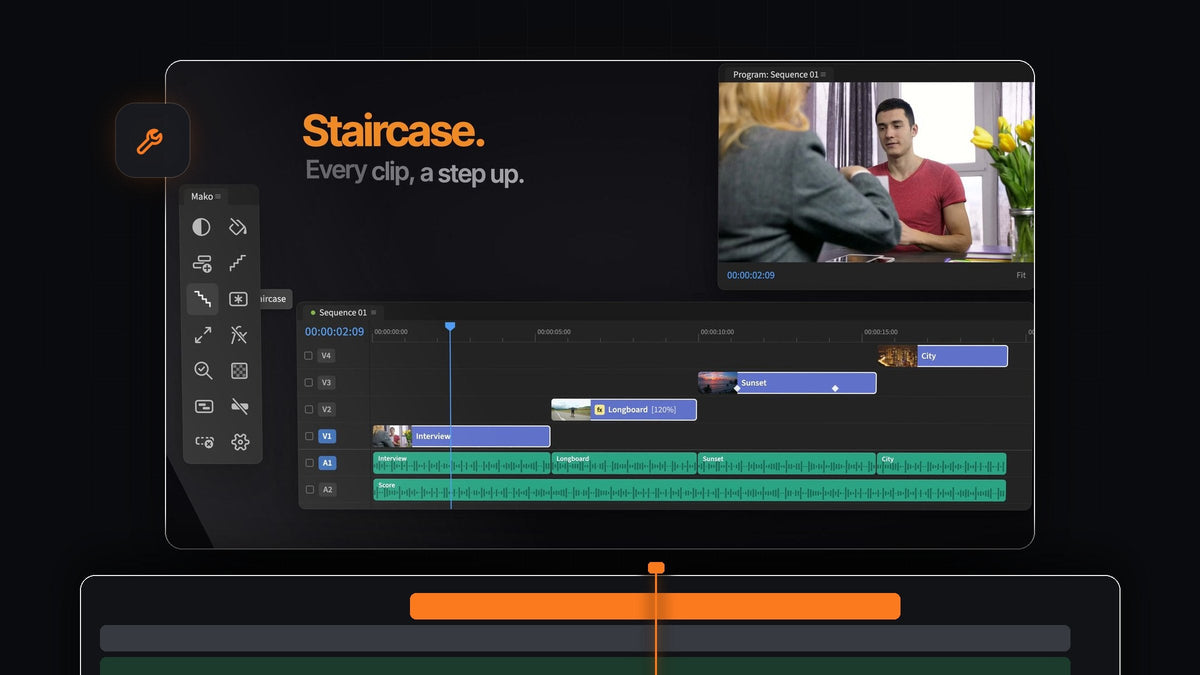
The short answer
Looking for a Shifter alternative for Premiere Pro? Mako staircases your selected clips in one click, and brings them back down in one more. It is free, on Mac and Windows.
Staircase is one of 13 one-click tools in the Mako panel, so the jobs around your stack are covered too: adjustment layers, nesting, fitting clips to the frame and cleaning up empty tracks.
Why stack clips at all
Layered edits start with clips on separate tracks. Split screens, picture in picture, collages and overlapping B-roll all need each shot on a track of its own before you can resize, offset or crop it.
Doing that by hand means dragging clip after clip up the timeline and hoping nothing snaps into the wrong place. Mako turns it into a single click.
Step 1: Install Mako for free
Add Mako to your cart and check out for $0, with no card, no account and no license key. Your download appears on the order confirmation page.
Run Mako.pkg on a Mac or MakoSetup.exe on Windows, restart Premiere Pro and open Window > Extensions > Mako. It works with Premiere Pro 2021 and later.
Step 2: Staircase your clips
Select a row of clips in the timeline and click Staircase. Each selected clip steps up a track, so your shots climb the timeline like stairs.

Now every shot sits on its own track, ready to scale, position and overlap. For a ready layout, follow our guide to a split screen in Premiere Pro.
Step 3: Give every clip its own look
Stacked shots often need separate treatment. Select the clips and Shift-click Adjustment Layer, and Mako puts one adjustment layer over each clip, cut to its length.

The layers go on the first free, unlocked track above, and Mako never overwrites a clip. If there is no free track, it adds one. A plain click gives one layer over the whole selection instead.
Step 4: Bring them back down with Unstaircase
Finished with the layered section, or want to compare the shots back to back? Select the stepped clips and click Unstaircase. They drop back onto one track.

Staircase and Unstaircase sit side by side in the panel, so you can step up, check the edit and flatten again in seconds.
Step 5: Tidy up the stack
A finished stack is easier to handle as one clip. Select it and click Nest to wrap it in a sequence of its own, with no naming dialog. Need to edit inside it later on the main timeline? Unnest puts the clips back in place with their effects, keyframes and speed.
Shots from different cameras rarely match in size. Fit to Frame scales an oversized clip to fit the frame, and Shift-click fills it instead. To reset a clip, Clear Effects removes its video effects in one click.

Stacking leaves empty tracks behind. Click Delete Empty Tracks and every one of them is gone at once, with no dialog.
Make stacking a one-key move
If you staircase often, put it on the keyboard. Right-click Staircase, choose Keyboard Shortcut and press a modifier and a key, like Option + 2. Do the same for Unstaircase and you can step and flatten without touching the mouse.
You can also color the buttons you use most, tinted or solid, hide the ones you don't, and let the panel lay itself out in columns or rows. Every setting is covered in our Mako panel guide.
Why Mako is the easy choice
- One click. Select, click, done. No settings to fill in first.
- Both directions. Staircase and Unstaircase work as a pair.
- A whole panel around it. Thirteen tools for the jobs before and after the stack.
- Mac and Windows. One free download for each, and Mako updates itself in the background.
FAQ
What is the best Shifter alternative for Premiere Pro?
Mako. Its Staircase button steps every selected clip up a track in one click, Unstaircase brings them back, and the panel is free on Mac and Windows.
How do I staircase clips in Premiere Pro?
Install the free Mako panel, select the clips in your timeline and click Staircase. Each clip moves up one track. Click Unstaircase to put them back on one track.
Can I put Staircase on a keyboard shortcut?
Yes. Right-click the button and choose Keyboard Shortcut, or set it on the Shortcuts tab in Settings. It works whenever Premiere is in front and the panel is open.
Which Premiere Pro versions does Mako support?
Mako works with Premiere Pro 2021 and later on macOS and Windows.
Stack, flatten and tidy your timeline for free. Get Mako for Premiere Pro.