by
by 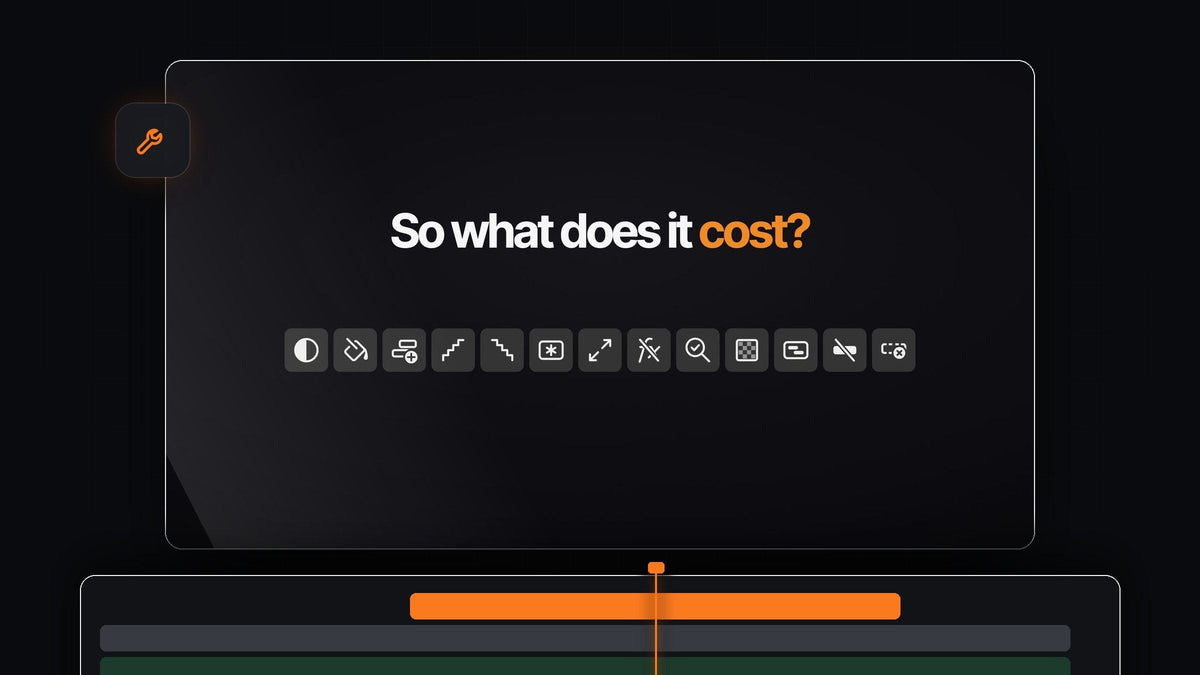
The short answer
Want a Spotlight FX Toolbox-style panel of one-click tools inside Premiere Pro? Mako puts 13 everyday timeline jobs into one small, free panel for Mac and Windows.
No menus, no dialogs and no dragging things in and trimming them to fit. Click, and the job is done exactly where you need it.
Thirteen tools, one small panel
Every button in Mako replaces a trip through a menu or a few minutes of manual work. Here is the whole toolbox, grouped by what you're doing:
- Add. Adjustment Layer, Color Matte and Freeze Frame, placed over your selection on the first free track.
- Arrange. Staircase, Unstaircase, Nest and Unnest, for stepping, grouping and ungrouping clips.
- Fix. Fit to Frame and Clear Effects for the selected clips.
- Set up. New Sequence with the settings you're already in.
- Check. QC Check, Transparency Grid and Delete Empty Tracks before you hand the edit off.
Step 1: Get Mako for free
Add Mako to your cart and check out for $0, with no card needed. The download is on the order confirmation page, and the link arrives by email too.
On a Mac, open Mako.pkg. On Windows, run MakoSetup.exe from the zip, no administrator rights needed. One installer puts Mako in Premiere Pro and keeps it up to date. It works with Premiere Pro 2021 and later.
Step 2: Dock it where your hands already are
Restart Premiere Pro and open Window > Extensions > Mako. Drag the panel next to your Tools panel. Mako wraps just like the Tools panel does: in columns when the panel is tall and in rows when it's wide.

Hover over any button to see its name. The gear at the bottom opens Settings.
Step 3: Make the panel yours
Open Settings and arrange the toolbox the way you work. Hide the buttons you never use and drag the rest into your own order. Hidden buttons keep their shortcuts, so nothing is lost.
Give each button a color, tinted or solid, and pick the button spacing: compact, standard or roomy. Choose 1 to 4 columns, or let the buttons fill the panel. Turn on button confirmation and a button briefly lights up green when its job is done.
Step 4: Learn the extra clicks
Several buttons do more when you hold a key as you click. It's like having extra tools in the same small space.
- Adjustment Layer. Click for one layer over the selection. Shift-click for one per clip. Cmd-click (Ctrl-click on Windows) for a short 0.4-second layer on every cut, ready for a flash transition in Premiere Pro.
- Freeze Frame. Shift-click makes a 3-second still from the playhead.
- Fit to Frame. Click to fit an oversized clip inside the frame. Shift-click fills the frame instead.
- QC Check. Shift-click clears the markers the last check added.

Fit to Frame is a favorite when footage arrives in mixed sizes. For the manual options, see how to fit video to the frame in Premiere Pro.
Step 5: Put your favorites on keys
Right-click any button and choose Keyboard Shortcut, or set them all on the Shortcuts tab in Settings. Use a modifier and a key, like Option + 1, or an F key on its own.
Every extra click can have a key of its own too. Shortcuts work whenever Premiere is in front and Mako is open, even docked behind another tab.
Free, and it keeps itself current
Mako costs nothing. There is no account, no license key and no trial, and every update is included.

It starts at login with a small menu bar or tray icon, checks for new versions and installs them quietly in the background. A tidy project comes with it: adjustment layers and freeze frames land in a Mako bin. For a full walkthrough of every button, read our complete Mako guide.
FAQ
What is the best Spotlight FX Toolbox alternative for Premiere Pro?
Mako. It's a free panel with 13 one-click tools, from adjustment layers and freeze frames to nest, unnest and a QC check, on Mac and Windows.
Can I choose which buttons the panel shows?
Yes. In Settings you can hide any button, drag the rest into your own order, color them and pick 1 to 4 columns.
Does Mako work with Premiere Pro on Windows?
Yes. Mako runs on macOS and Windows with Premiere Pro 2021 and later.
How does Mako update?
By itself. It checks for new versions and installs them in the background, even with Premiere open. An open panel switches to the new version the next time it opens.
Thirteen tools, one free panel. Get Mako for Premiere Pro.