by
by 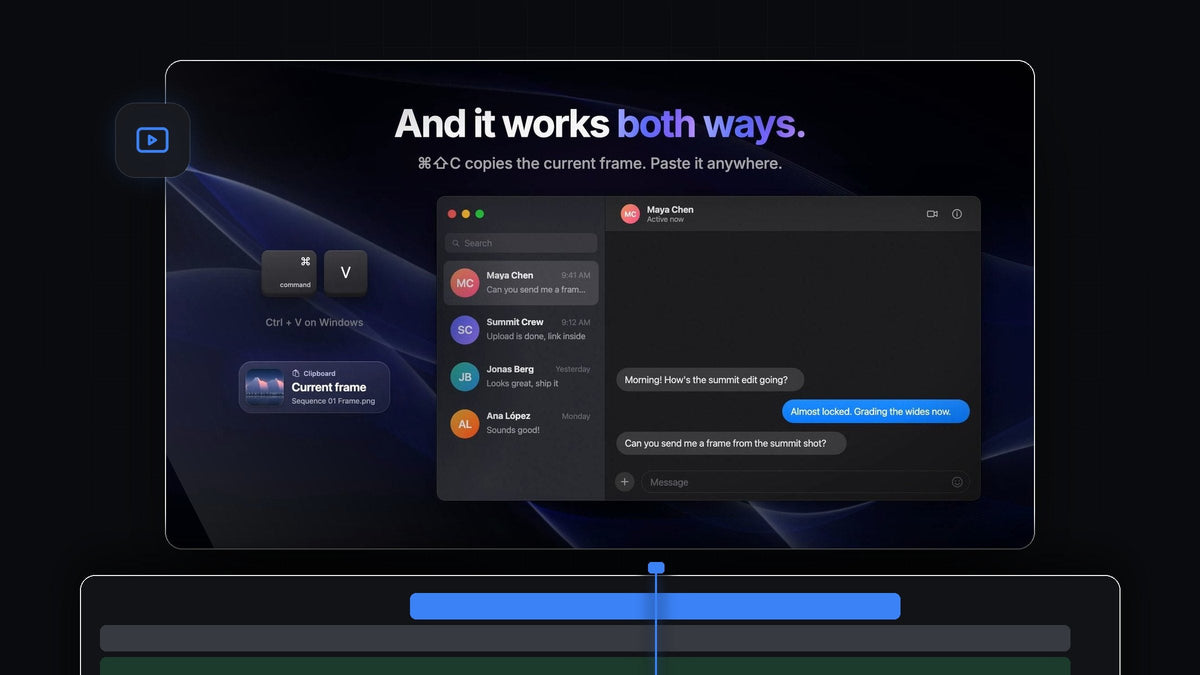
The short answer
Looking for a Dopple alternative for Premiere Pro? QuickPaste pastes images straight into your edit with Cmd + V (Ctrl + V on Windows) and copies the frame under your playhead with one more shortcut, on Mac and Windows.
That makes your clipboard a two-way street. Screenshots, references and logos come in. Stills for clients, thumbnails and chats go out. You never save a file by hand in either direction.
Watch the intro
A clipboard that works both ways
Most of the day you need one of two moves. You found an image somewhere and want it in the edit, or someone asks for a still from the edit and you want it in their inbox. QuickPaste turns both into a single shortcut.
- Paste in. Copy an image, a file, a color or some text, press paste anywhere in Premiere Pro, and it is in your project.
- Copy out. Copy Current Frame puts the frame under the playhead on your clipboard as a full-resolution PNG.
- No panel clicks. You don't have to click into the QuickPaste panel first. Just press the keys.
Step 1: Install QuickPaste
Your download appears right after checkout, and the link arrives by email too. Run the guided installer for Mac or Windows. It sets up the QuickPaste app and the Premiere Pro plugin in one go, and future updates install automatically.
Step 2: Paste a screenshot or image with Cmd + V
Take a screenshot, or right-click an image in your browser and choose Copy Image. Switch to Premiere Pro and press Cmd + V. QuickPaste turns the image into a clean PNG and imports it into your bin.
Switch on Paste at Playhead in the QuickPaste panel and the image also lands on your timeline at the playhead, ready to scale and position. That is all you need for a quick picture-in-picture or a reference overlay.
Step 3: Copy the frame under your playhead
A client asks for a still while you're cutting. Park the playhead on the shot and press Cmd + Shift + C, the default Copy Frame Shortcut. There is no export dialog and no file to find afterwards.

The frame goes to your clipboard as a full-resolution PNG, ready to paste anywhere, and you can keep cutting the moment it's copied.

Step 4: Paste the frame anywhere
Go to your chat app, your email, a review doc or your thumbnail editor and press Cmd + V. The still is there, sharp and full size, and the conversation keeps moving.

It is the fastest way to grab a frame for feedback. If you also need a frame file saved on disk, our guide on how to take a screenshot in Premiere Pro covers that route.
Step 5: Keep a copy in your project
Turn on Add Frame to Project Bin in the QuickPaste panel and every frame you copy is also added to your project. That gives you a tidy record of the stills you sent, ready to reuse as a thumbnail, a poster frame or a reference.
In the same panel, choose where pasted files go under Paste To: their own bin, a bin you pick, or the project root. You can record your own Paste Shortcut too, and reset it to the default in one click.
Everything else you can paste
Images are only the start. If you can copy it, QuickPaste can paste it.
- Every image format. PNG, JPEG, GIF, WebP, HEIC, AVIF, TIFF, BMP and RAW, all converted to PNG as you paste.
- Vectors and Adobe files. SVG, PDF and EPS, plus Photoshop, Illustrator, After Effects and MOGRT files as the real file.
- Video and audio. If Premiere Pro imports it, QuickPaste pastes it.
- Colors and text. HEX, RGB, HSL, CMYK, OKLCH and CSS gradients, and any text as a title.
Why editors pick QuickPaste
- The keys you already know. Copy and paste work the way they do in every other app.
- Two directions, one tool. Paste in and copy frames out without changing your workflow.
- Mac and Windows. It works the same on both, with Premiere Pro 2021 to 2026.
- Buy once. $24.99 one-time, with lifetime access, free updates and a commercial license.
For a tour of every setting, read our QuickPaste guide.
FAQ
What is the best Dopple alternative for Premiere Pro?
QuickPaste. It pastes images, files, colors and text with your normal Cmd + V or Ctrl + V, and copies the current frame as a full-resolution PNG with Cmd + Shift + C.
How do I copy a frame from Premiere Pro to the clipboard?
With QuickPaste installed, place the playhead on the frame and press Cmd + Shift + C. The frame is on your clipboard, ready to paste into any app.
Is the copied frame full resolution?
Yes. Copy Current Frame copies the frame under the playhead as a full-resolution PNG.
Can I keep the frames I copy in my project?
Yes. Switch on Add Frame to Project Bin and each copied frame is also added to your project.
Does QuickPaste work on Windows?
Yes. It works the same on macOS and Windows with Premiere Pro 2021 to 2026, and Ctrl + V is the default paste shortcut on Windows.
Paste in, copy out, keep cutting. Get QuickPaste for Premiere Pro.