by
by 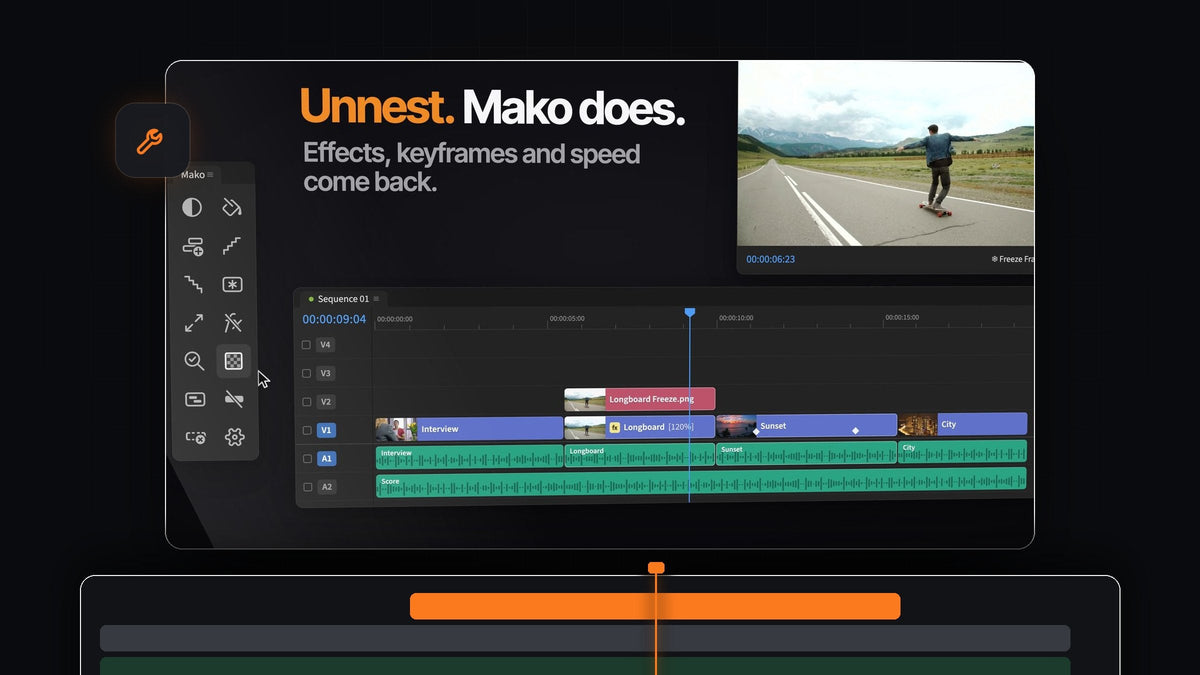
The short answer
Looking for a Filmit Shortcut alternative for Premiere Pro? Mako is a free panel with 13 one-click tools for the jobs you repeat all day, on Mac and Windows.
There is no account to create, no license key and no trial. Download it, dock it next to your Tools panel and click.

Your whole timeline toolkit in one place
Most editing sessions are the same small jobs over and over. Mako groups them into one compact panel, and every button does its job right where you need it: over the clips you've selected, at the playhead, on the first free track.
- Layers. Adjustment Layer and Color Matte, placed over your selection and cut to fit.
- Clips. Freeze Frame, Fit to Frame and Clear Effects for the shot under the playhead.
- Structure. Staircase, Unstaircase, Nest, Unnest and New Sequence with the settings you are already using.
- Checks and cleanup. QC Check, Transparency Grid and Delete Empty Tracks.
Step 1: Get Mako, no account needed
Add Mako to your cart and check out for $0. No card is needed, and your download appears on the order confirmation page. We also email you the link.
On a Mac, open Mako.pkg. On Windows, run MakoSetup.exe from the zip, with no administrator rights needed. Restart Premiere Pro and open Window > Extensions > Mako. Mako works with Premiere Pro 2021 and later.
Step 2: Drop adjustment layers three ways
Select your clips and click Adjustment Layer. One layer covers the whole selection, trimmed to fit, on the first free track above. With nothing selected, it covers five seconds from the playhead.
Hold a modifier for more. Shift-click gives every selected clip a layer of its own. Cmd-click (Ctrl-click on Windows) puts a short 0.4-second layer on every cut, all on one track, ready for a flash. Here is how to build one: flash transition in Premiere Pro.
Need a frame held for a beat? Park the playhead and click Freeze Frame. A still lands on the track above the clip, and Shift-click makes it a 3-second still from the playhead instead.
Step 3: Unnest a nested sequence in place
Select clips and click Nest to wrap them in a sequence of their own, with no dialog. When you need them back, select the nest and click Unnest.

The clips go back on their tracks, in place. Their effects, keyframes, speed, names and on/off state come with them, and linked audio stays linked. If a clip can't be rebuilt, such as a title or a multicam clip, Mako leaves the nest as it is. Each step can be undone.
Step 4: Run QC Check before you export
Click QC Check and Mako closes gaps where nothing is on any track. Then it marks what is left with colored markers: black gaps in red, offline media in orange, switched-off clips in yellow and one- or two-frame clips in purple.

The playhead jumps to the first problem, so you fix it and move on. Shift-click clears the markers. Prefer to only mark things? Turn off Fix problems automatically in Settings. For the manual way, see how to close gaps in Premiere Pro.
Step 5: Put every button on a key
Right-click any button and choose Keyboard Shortcut, or set them all on the Shortcuts tab in Settings. Press a modifier and a key, like Option + 1, or an F key on its own.

Shift-clicks and Cmd-clicks get keys of their own too. They work whenever Premiere is in front and the Mako panel is open, even docked behind another tab.
Why editors keep Mako docked
- One click, done. No menus, no dialogs, no dragging layers in and trimming them to fit.
- Never overwrites a clip. New layers go on the first free, unlocked track above. If there is none, Mako adds one.
- Feels like part of Premiere. It wraps like the Tools panel, in columns when tall and rows when wide, and adjustment layers and freeze frames go in a Mako bin to keep your project neat.
- Your panel, your way. Hide buttons you don't use, drag them into your own order, color them tinted or solid and choose 1 to 4 columns.
- Updates itself. Mako starts at login with a small menu bar or tray icon and installs new versions quietly in the background.
- Free for good. Mac and Windows, no license key, updates included.
Want the full tour of every button? Read our complete Mako guide.
FAQ
What is the best Filmit Shortcut alternative for Premiere Pro?
Mako. It is a free panel with 13 one-click tools, including adjustment layers, freeze frames, staircase, nest and unnest and a QC check, on Mac and Windows.
Do I need an account to use Mako?
No. There is no account, no license key and no trial. Check out for $0, download it and it is yours, with updates included.
Can Mako unnest a nested sequence?
Yes. Select the nest and click Unnest. The clips go back on their tracks in place, with their effects, keyframes, speed and linked audio.
Can every Mako button have its own keyboard shortcut?
Yes. Every button gets one, and so do its Shift-click and Cmd-click versions. Right-click a button or use the Shortcuts tab in Settings.
Does Mako work on Windows?
Yes. Mako runs on macOS and Windows with Premiere Pro 2021 and later, and it keeps itself up to date on both.
Thirteen everyday jobs, one click each, for free. Get Mako for Premiere Pro.