by
by 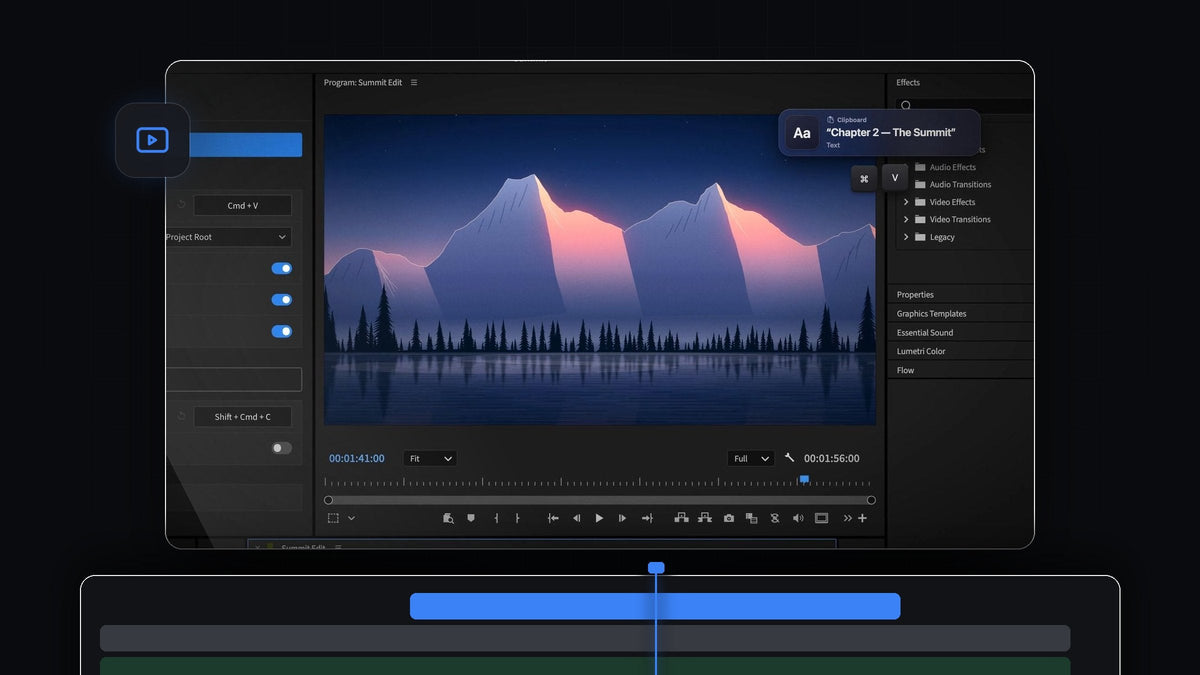
The best paste plugin for wedding films in Premiere Pro 2025
The best paste plugin for Premiere Pro 2025 is QuickPaste. Copy the couple's names, a line from the vows or a guest's phone photo, press Cmd + V (Ctrl + V on Windows), and it is in your edit. It runs in Premiere Pro 2025 (version 25) on Mac and Windows, for $24.99 one-time.
A wedding film is full of words that already exist somewhere else. The names and date are in the planner's email, the venue is on the invitation and the reading is in the ceremony program. With QuickPaste you stop retyping them and spend the time on the story.
Watch the intro
What it brings to a wedding edit
QuickPaste works through the normal paste shortcut, from anywhere in Premiere Pro. These are the parts wedding and event editors use most.
- Text becomes a title. Copy any text and it lands as a title, ready to style. Names, dates, chapter cards and vow quotes are one paste away.
- Choose your bin. Pasted files land in their own bin, a bin you pick, or the project root, so titles and guest photos never get lost among hours of footage.
- Insert at the playhead. With Paste at Playhead on, each paste goes straight onto your timeline at the moment you are cutting.
- Guest photos just work. HEIC, AVIF, RAW and other images become a clean PNG before they reach Premiere Pro, so phone pictures from the reception paste right in.
- Music and sound. Copy an audio or video file and paste it. If Premiere Pro imports it, QuickPaste pastes it.
- Copy a frame for the couple. Copy Current Frame grabs the frame under the playhead as a full-resolution PNG, perfect for a sneak-peek still.
Want the full feature list? Our QuickPaste overview covers every format.
Step 1: Point QuickPaste at a titles bin
Create a bin for your titles and stills, then open the QuickPaste panel and choose it under Paste To. Make sure Paste Text as Title is switched on.
If you build every wedding from the same project template, add that bin once and every new couple starts with it. Our guide to making a project template in Premiere Pro shows the setup.
Step 2: Copy the names and paste a title
Open the email, notes or program where the text already lives. Select the line, for example the couple's names or a chapter card like "The Ceremony", and copy it.

Switch to Premiere Pro, place the playhead where the title should appear and press Cmd + V or Ctrl + V. The text arrives as a title over your footage, spelled exactly the way the couple wrote it.

The title clip sits on the timeline at the playhead and its item waits in the bin you picked, next to everything else you pasted.

Step 3: Style it in the Properties panel
Select the title clip. In Premiere Pro 2025, the Properties panel brings the Text, Appearance and Alignment controls together, so you can set the font, size and color right there. Style one title the way you like, save it as a style, and every pasted name and chapter card can match it.
New to titles? Our guide on adding text in Premiere Pro walks through the basics. Delivering to a team on a tight deadline instead? See the 2026 edition.
FAQ
Does QuickPaste work with Premiere Pro 2025?
Yes. QuickPaste works with Premiere Pro 2025 (version 25) on Mac and Windows. It supports every version from Premiere Pro 2021 to 2026.
Can I paste text as a title in Premiere Pro?
Yes. With QuickPaste, copy any text and press your paste shortcut in Premiere Pro. It lands as a title, ready to style.
Where do pasted files go?
Into their own bin, a bin you choose, or the project root. Turn on Paste at Playhead and every paste also goes straight onto your timeline.
Can I paste iPhone photos from guests?
Yes. HEIC, AVIF, WebP, RAW and other image formats become a clean PNG automatically, so guest photos paste straight into your project.
Are future updates included?
Yes. QuickPaste is $24.99 one-time and includes lifetime access and every future update.
Names, vows and guest photos, pasted in seconds. Get QuickPaste for Premiere Pro 2025.